Your neck hurts by 2 p.m. You keep losing your cursor between two screens. Or maybe your desk is too small for a second monitor, and you are stuck wondering if one big screen would just be easier.
If you work from home, this decision matters more than it seems. You are not buying a gadget. You are building the tool you will stare at for eight hours a day, five days a week.
I have run both setups. Two 27 inch monitors for two years. A 34 inch ultrawide for the two after that. Neither one is “better.” They solve different problems. This guide will help you figure out which problem you actually have.
The Real Question Behind This Debate
Most articles frame this as ultrawide vs dual monitor, full stop. That is the wrong question.
The real question is this: does your work need separation or does it need width?
- Separation means you want clear borders between tasks. One screen for your video call, one for your notes. One for code, one for documentation.
- Width means you want one continuous space. A timeline that does not break at a bezel. A spreadsheet that does not get chopped in half.
Once you know which one you need, the rest of this decision gets a lot easier.
What You Actually Get With Dual Monitors
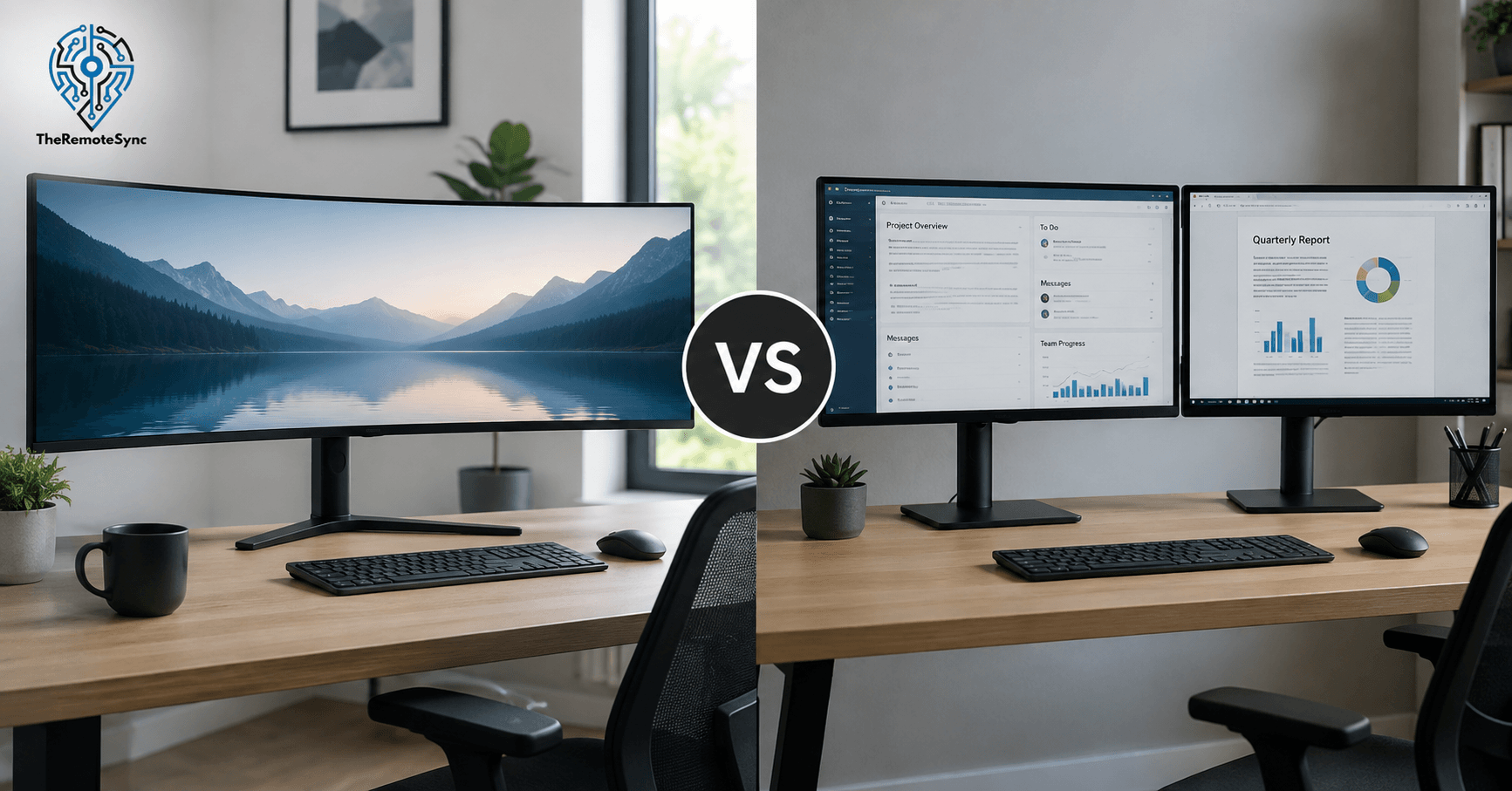
A dual monitor setup, sometimes called a dual computer monitor setup, means two separate physical screens connected to one machine. Most remote workers run two 24 or 27 inch monitors side by side.
The Case For Two Screens
- Real task separation. Each monitor can run a different app in full screen. You are not resizing windows to make room.
- Flexible arrangement. You can angle one monitor toward you and leave the other flat. You can even turn one to portrait mode for reading long documents or scrolling code.
- Easier to upgrade in pieces. If one monitor breaks or you want to swap it later, you replace one screen, not the whole setup.
- Better for video calls. Many remote workers keep the call on one screen and their notes or shared document on the other, without either window shrinking.
Where Dual Monitors Fall Short
- The bezel gap. There is always a small break in the middle where two screens meet. Anything you drag across that gap gets visually cut for a second.
- Mismatched colors. Unless you buy the exact same model twice, the two screens rarely look identical in brightness or color.
- More cables and more clutter. Two power cables, two video cables, sometimes two separate stands. This eats desk space fast, especially in a small WFH setup.
- Neck rotation. Your head has to turn to look from one screen to the other. Over a full day, this adds up.
What You Actually Get With an Ultrawide Monitor
An ultrawide computer monitor is one screen, usually with a 21:9 aspect ratio, which is wider than a standard 16:9 monitor. Common sizes run from 34 to 49 inches.
The Case For One Wide Screen
- No bezel in the middle. Your whole workspace is one continuous surface. Nothing gets visually interrupted.
- Cleaner desk. One power cable, one video cable, one stand. Less clutter, less cable management.
- Consistent color and brightness. Because it is one panel, you never deal with two screens that look slightly different.
- Less side to side head turning. Your eyes move across the screen, but your head stays mostly still, since everything sits within a similar field of view.
Where Ultrawide Falls Short
- Height is limited. You get width, but not extra vertical space. Long documents or tall spreadsheets still scroll the same as on a normal monitor.
- One point of failure. If the panel has an issue, your entire setup goes down at once. With dual monitors, you still have one working screen.
- Takes real desk depth. Wide, curved panels often need more distance from your eyes to avoid visual distortion at the edges.
- Pricier at the high end. A quality 34 inch or larger ultrawide monitor usually costs more than two budget 24 inch monitors combined.
Ultrawide vs Dual Monitor by Work Type
Generic advice does not help much here. What matters is your actual job. Here is how this plays out by role.
Ultrawide vs Dual Monitor for Programming
This is one of the most searched versions of this comparison, and for good reason. Developers have specific needs.
If you work mostly in one large codebase with a single editor window, an ultrawide gives you room to split your editor into two or three vertical panes without ever losing continuity. Code on the left, terminal in the middle, documentation on the right, all in one glance.
But if you regularly reference a second full application (a browser for testing, a second IDE window, a virtual machine), a second monitor lets you keep that app maximized without eating into your editor space.
There is also a growing case for a vertical monitor vs ultrawide for coding debate specifically. A single monitor rotated to portrait mode is excellent for reading long files top to bottom. If you want that, pair a vertical monitor with a wide primary screen instead of choosing purely between ultrawide and dual.
My take: most developers get more daily value from an ultrawide plus one normal monitor than from either option alone. But if budget forces a single choice, ultrawide wins for code-heavy work, and dual wins if you constantly switch between full separate apps.
Ultrawide vs Dual Monitor for Video Editing
For video editors, width usually wins.
A timeline that spans 34 or 38 inches without a bezel break is genuinely easier to work with. You can see more of your clip sequence at once, which means less scrubbing and zooming.
That said, many professional editors still prefer a two-screen setup where one monitor is fully dedicated to a color-accurate preview and the second holds the timeline and panels. If color accuracy is your top priority, a dedicated reference monitor plus a second working screen may beat even a high-end ultrawide.
Ultrawide vs Dual Monitor for Multitasking (Ops, Support, Project Management)
If your day is full of context switching between a CRM, a chat tool, email, and a dashboard, dual monitors usually feel more natural. You can dedicate one screen to communication tools and leave the other clear for deep work.
An ultrawide can replicate this with window snapping, but it takes more manual setup and discipline to keep your zones consistent.
Ultrawide vs Dual Monitor for Writers and Researchers
Writers who work mostly in one document benefit less from either extreme. A single wide monitor with a research browser tab open alongside your draft covers most needs. Dual monitors help more when you are pulling from multiple source documents at once, like transcripts, references, and your draft, all visible without switching tabs.
Desk Space and Ergonomics (The Part Most Guides Skip)
This is where most comparison articles stop short. Screen size means nothing if your body pays the price for it.
How Much Desk Depth Does an Ultrawide Monitor Need
Curved ultrawide monitors need more distance between your eyes and the screen than a flat monitor of the same size. If you sit too close, the edges of the screen distort and become hard to read.
As a rough guide, plan for at least 26 to 30 inches of desk depth if you are running a 34 inch or larger curved ultrawide. A shallow desk, especially anything under 24 inches deep, will force you closer than is comfortable.
If your desk is small, a flat ultrawide (not curved) is usually the safer pick. It tolerates a shorter viewing distance better than a curved panel does.
Ultrawide Monitor Neck Strain vs Dual Monitor
Dual monitors ask your neck to rotate side to side, especially if your setup does not have a clear “main” screen. Over a full workday, that repeated turning is a common source of neck and shoulder tightness for remote workers.
OSHA’s guidance on computer workstations recommends keeping your primary monitor directly in front of you, with a viewing distance of roughly 20 to 40 inches from your eyes to the screen. That guidance is easier to follow with a single centered ultrawide than with two monitors split to either side of your body.
That does not mean dual monitors are unsafe. It means the setup requires more intentional positioning. If you run two monitors, angle them slightly inward toward your body instead of placing them flat, and treat one as your clear primary screen instead of splitting your attention evenly.
An ultrawide monitor, by design, keeps almost everything within a single forward gaze. This is likely why people report less neck strain switching to ultrawide, even though eye movement across the width can still cause its own fatigue if the monitor sits too close.
Does Screen Setup Actually Affect Productivity
It is worth asking if any of this matters beyond comfort. Research suggests it does.
Jon Peddie Research surveyed knowledge workers across multiple years and found that people using multiple displays reported an average productivity increase of 42 percent compared to a single standard monitor. That research focused on multiple monitors specifically, but the underlying reason, more usable screen space with less window switching, applies to a large ultrawide monitor too.
The takeaway is simple. More usable screen space, arranged in a way that fits your actual workflow, tends to reduce the small daily frictions that eat into a workday. The specific format (two screens or one wide one) matters less than whether it matches how you actually work.
Price and Practical Setup Considerations
Cost Comparison
Two budget 24 inch monitors will almost always cost less than a single quality ultrawide. If you are building a best dual monitor setup for home office on a tight budget, two mid-range monitors are usually the more affordable route.
Ultrawide monitors become more competitive in the mid to premium range. A best ultrawide monitor under $500 typically gets you a flat 34 inch panel at 1440p resolution, which covers most remote work needs without pushing into the higher-end curved or OLED territory.
Cables, Power, and Desk Clutter
Dual monitors need two power sources and, depending on your laptop, possibly a dock or hub to run both displays at once. Some laptops struggle to output to two external monitors without additional hardware.
An ultrawide typically needs a single cable running to a laptop with a modern USB-C or Thunderbolt port, which can carry video, data, and power delivery all at once. If a clean, minimal desk matters to you, this is a real point in favor of a single wide screen.
OLED and Curved Displays Worth Knowing About
If you are shopping seriously, you will run into OLED monitor and OLED computer monitor options in both formats.
An OLED monitor offers deeper black levels, better contrast, and often faster response times than a standard LED panel. For video editing or color-sensitive work, this can be a real upgrade.
The tradeoffs are real too. OLED panels cost more, and they carry some risk of burn-in if static elements (like a taskbar or sidebar) stay on screen for very long stretches without change. If you keep the same app layout open for hours every day, this is worth researching before you buy, regardless of whether you choose ultrawide or dual monitor OLED options.
Ultrawide vs Dual Monitor for Hybrid Work and WFH Setups
If you split time between an office and home, portability and setup speed matter more than raw screen size.
A single ultrawide monitor is faster to connect and disconnect since it is one cable instead of two. This makes it a strong pick for a hybrid work routine where you are frequently packing up or switching locations.
Dual monitors, on the other hand, are often easier to justify at a permanent home office desk where the setup does not need to move. If your WFH setup is fixed and does not change day to day, the extra cabling is a one-time task, not a daily hassle.
For remote workers building a setup meant to last, either option works. The deciding factor is really how often your physical location changes, not just how you work once you are seated.
My Recommendation, A Simple Decision Framework
Ask yourself these four questions.
- Do you switch between full separate apps constantly, or work inside one large window most of the day? Frequent app switching points to dual monitors. Long stretches in one app points to ultrawide.
- Is your desk deep enough for a curved panel, or is it shallow? Shallow desks favor a flat ultrawide or a standard dual monitor setup over a large curved screen.
- Do you want a minimal, low-clutter desk, or do you not mind extra cables? Minimal setups favor ultrawide. If clutter does not bother you, dual monitors give you more flexibility.
- Is your job about width (timelines, code, spreadsheets) or about separation (calls, chats, references)? Width tasks favor ultrawide. Separation tasks favor dual monitors.
If you answered mostly toward the first option in each question, get an ultrawide. If you answered mostly toward the second, stick with dual monitors. If it is a mix, a wide monitor paired with one smaller secondary screen often covers both needs without going to extremes.
Frequently Asked Questions
Is an ultrawide monitor better than dual monitors for productivity?
Neither is universally better. An ultrawide tends to help more with tasks that need continuous width, like timelines or wide spreadsheets. Dual monitors tend to help more with tasks that need clear separation, like keeping a call and your notes fully visible at once. The better setup depends on your specific workflow, not the format itself.
Can an ultrawide monitor replace two monitors?
For most remote workers, yes, especially with window snapping tools that split the screen into two or three zones. The main thing you lose is the ability to run one app in true full screen while keeping another fully visible at the same time, since everything shares one panel.
Is a 34 inch ultrawide equivalent to two 24 inch monitors?
Not exactly. A 34 inch ultrawide is wider than two 24 inch monitors combined in some cases, but it does not match their combined height. You gain horizontal space, not vertical space, which matters if your work involves long scrolling documents or tall spreadsheets.
Which is better for multitasking, ultrawide or dual monitor?
Dual monitors generally handle multitasking better when your tasks involve separate full applications, since each screen can run one app at full size without any manual window arranging. An ultrawide can multitask well too, but it usually requires snapping windows into zones rather than using full-screen apps side by side.
Do programmers prefer ultrawide or dual monitors?
It splits based on the type of work. Programmers working inside one large codebase often prefer an ultrawide for the extra horizontal room to view code, terminal, and documentation together. Programmers who regularly test in a separate browser window or run a second full application often prefer a second monitor instead.
Does an ultrawide monitor cause more eye strain than dual monitors?
Not inherently. Eye strain usually comes from poor viewing distance, poor lighting, or long uninterrupted screen time, not from the screen format itself. A properly positioned ultrawide, sat at the right distance, is not harder on the eyes than two properly positioned monitors. Sitting too close to a large curved ultrawide is more likely to cause strain than the wide format on its own.
What To Do Next
Do not buy based on this article alone. Sit at your actual desk. Measure the depth. Look at how you split your screen time right now, whether that is between apps, tabs, or physical windows.
If you are unsure, start smaller. Try window snapping on your current single monitor for a week before spending money on either setup. It will tell you fast whether you crave width or separation, and that answer should decide your purchase, not the other way around.
Discover more from TheRemoteSync
Subscribe to get the latest posts sent to your email.