Most remote workers build their home office backwards. They buy what looks good in a desk tour video, skip the items that actually matter, and end up spending a year managing back pain, neck strain, and eye fatigue that a few deliberate choices would have prevented.
This guide is built around what actually makes a difference after working from home full-time. Not aesthetics. Not what’s trending. What your body and your output will thank you for six months from now.
Here are the 10 essentials for a WFH setup, in the order they matter, plus a clear list of what you can skip.
1. An Ergonomic Chair
This is the one purchase that changes everything else. You spend more time in this chair than anywhere else in your day. A bad one does not just cause discomfort. It causes injury that becomes chronic.
The problem with most chairs people already own is not that they are cheap. It is that they are not built for 7 to 9 hours of continuous use. The foam compresses, the lumbar support disappears, and your spine starts compensating in ways you do not notice until you are in pain.
What separates a genuinely useful ergonomic chair from one that just looks the part:
- Adjustable lumbar support that you can position to fit the natural inward curve of your lower back, not a fixed bump that pushes your spine in the wrong direction
- Seat depth adjustment so your back can actually reach the lumbar support without your knees hanging off the edge
- Armrests that adjust both height and width, allowing your shoulders to sit relaxed, not raised
- Seat height range that lets your feet sit flat on the floor with knees at roughly 90 degrees
If you are already dealing with lower back pain, the chair is the first thing to fix. Read our guide on the best sitting posture for lower back pain alongside this one because posture and equipment are not separate problems.
What to skip: Gaming chairs. Most have a fixed, exaggerated lumbar curve designed for aesthetics, not ergonomics. Also, avoid anything under $100 with no seat depth adjustment. It will compress and fail within a year.
2. A Monitor at Eye Level
Working from a laptop on a desk without elevation is one of the most common setup mistakes. The screen sits below your eye line, which means your head tilts forward and down for hours at a stretch.
Tech neck develops from exactly this pattern. Each inch of forward head tilt adds roughly 10 pounds of effective load on your cervical spine. Do that for a few hours a day, and the cumulative stress is significant.
A 2025 study found that 82.7% of office workers exhibit forward head posture, with remote workers showing a higher rate than their in-office counterparts. That gap is largely a setup problem, not a behavior problem.
Your monitor should sit so that the top of the screen aligns with or is slightly below your natural eye level when you are sitting upright. Distance-wise, roughly arm’s length is the right starting point.
A few things that often get missed on monitor placement:
- Do not place the monitor directly in front of a window. The backlight glare will make you unconsciously lean forward.
- If you use a dual-monitor setup, angle both screens toward you slightly rather than leaving them flat. It reduces how much you have to turn your head.
- For screens specifically, a monitor built for eye strain will serve you better long-term than chasing refresh rates or panel aesthetics you will not notice day to day.
3. A Laptop Stand or Monitor Arm
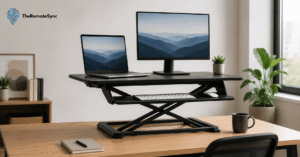
If your primary machine is a laptop, a stand is the fastest and cheapest way to fix your posture. It lifts the screen to eye level and forces you to use an external keyboard and mouse, which is the correct setup regardless.
The combination of a laptop stand plus external peripherals costs between $50 and $100 total. The ergonomic return on that investment is higher than most gear purchases at five times the price.
Monitor arms are more useful than they first appear. Beyond looking clean, they let you adjust your screen position precisely throughout the day as your posture shifts, and they free up significant desk space. In a WFH setup for small apartments or compact desks, that freed space has real value.
One practical note: if you are mounting a monitor arm, check the desk’s thickness first. Many budget desk arms are not compatible with thick desktops without an adapter.
4. An Ergonomic Keyboard and Mouse
Standard keyboards and flat mice are fine for occasional use. They are not built for six to eight hours of continuous daily use, and the injuries they cause take time to show up, which is why people underestimate the risk.
Carpal tunnel syndrome and tendinitis are common among long-term remote workers who never switched their peripherals. By the time the symptoms appear, the strain has been accumulating for months.
For keyboards, the primary ergonomic improvement is reducing wrist extension and ulnar deviation. A keyboard designed for wrist pain typically achieves this through a split layout, a slight tilt, or a low-profile design that reduces the angle your wrists need to hold.
For mice, the key variable is forearm rotation. Standard mice keep your forearm fully pronated (palm down), which loads the tendons in your forearm over time. A vertical mouse keeps your forearm in a more neutral handshake position. If you are already experiencing wrist discomfort, a mouse built for wrist pain is worth prioritizing before it progresses.
One thing most people get wrong with wrist rests: do not rest your wrists on the pad while actively typing. Use it during pauses. Continuous contact during keystrokes increases pressure on the median nerve and raises carpal tunnel risk, not lowers it.
5. Proper Lighting
Lighting affects your setup in two ways that most guides treat separately but are actually connected: physical eye strain and posture.
When your lighting is wrong, your eyes work harder to read the screen. That extra effort causes fatigue, headaches, and a subtle tendency to lean forward. Fix the lighting, and your posture improves passively.
The rules that matter in practice:
- Natural light from the side is ideal. Front-facing natural light creates glare on your screen. Light from behind creates a reflective wash across it.
- Bias lighting (a low-level LED strip behind your monitor) reduces the contrast between your bright screen and a dark room. This is a genuinely useful addition for evening work, not just aesthetics.
- Color temperature matters more than brightness for long sessions. Warm white around 3000K is easier on the eyes during sustained work. Cooler temperatures above 5000K support alertness but increase fatigue over long periods.
- Adjust throughout the day. Natural light shifts. A setup that works at 9 AM can create harsh glare or shadows by early afternoon. Closing a blind or adjusting your lamp takes ten seconds and makes a real difference.
For eye strain that persists despite good lighting, check out how to reduce eye strain from computer for a more thorough breakdown of the contributing factors.
What to skip: Ring lights aimed directly at your face for standard video calls. They create flat, harsh lighting and are unnecessary unless you are producing video content. Soft, indirect light from a desk lamp slightly off to the side does the job for calls.
6. Noise-Canceling Headphones
Home environments are noisier than most remote workers account for before they start working from home. Neighbors, traffic, construction, and household activity. All of it creates a cognitive cost that compounds over a full day of deep work.
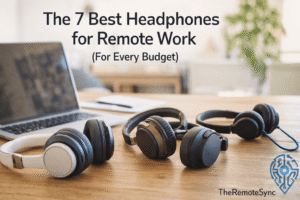
The value of the best headphones for remote work is not just audio quality. It is the mental energy you stop wasting on filtering background noise.
What to actually prioritize when choosing:
- ANC that works at moderate volume, not just at full blast. Some headphones only cancel noise effectively when the volume is already loud, which defeats the purpose.
- Microphone quality over driver quality for most remote workers. Your voice needs to come through clearly on calls. Audiophile-grade drivers are a bonus that most video conferencing software will compress anyway.
- Battery life relative to your call schedule. If you have four hours of video calls per day, you need headphones with at least six to eight hours of consistent performance, not marketed peak performance.
Over-ear designs provide better isolation than on-ear or in-ear for desk use. In-ear fatigue is real during extended call days, and earbuds increase pressure in the ear canal in ways that become uncomfortable over three-plus hours.
7. A Reliable Webcam
The built-in camera on most laptops is positioned below eye level and below chin level. The angle it produces is unflattering and subtly unprofessional in a way that is noticeable even if no one on the call comments on it.
An external webcam mounted at monitor height puts you at eye level with the people you are talking to. It is a small change that makes a consistent positive impression over the course of hundreds of calls.
What to look for in a webcam for remote work:
- Good low-light performance matters more than resolution for most home offices. 1080p at 60fps handles every standard video conferencing platform. The difference between 1080p and 4K is not visible in a compressed Teams or Zoom stream.
- A physical privacy shutter is practical, not paranoid. It eliminates the need to tape over the lens.
- Autofocus that locks quickly rather than continuously hunting. Some cheaper webcams have autofocus that wobbles and refocuses every few seconds, which is distracting for people on the other end.
What to skip: Spending $200 or more on a camera for standard calls. The compression from video conferencing software limits what high-end hardware can actually deliver. A solid mid-range webcam at $80 to $120 covers every real need.
8. A Stable Internet Connection and Backup Plan
A slow or unstable internet connection is one of the most disruptive problems in a remote work setup and one of the most underengineered.
Most remote workers optimize everything except the connection and then wonder why calls drop or uploads take forever.
A few things that actually move the needle:
- Wired Ethernet over WiFi for your desk. A USB-C to Ethernet adapter costs under $20. The stability difference versus a 2.4GHz or even 5GHz WiFi connection is significant, especially during simultaneous uploads, downloads, and calls.
- Router placement matters. If your router is two rooms away and you are relying on a weak signal through walls, your issue is physical, not ISP-related.
- Have a mobile hotspot backup. Know how to tether from your phone before you need it, not while you are five minutes into a call that is dropping. This is basic contingency planning that most people skip until they are in the situation.
If you are sharing bandwidth with others in your household, a router with Quality of Service (QoS) settings lets you prioritize your work traffic during business hours.
9. A Dedicated Workspace
This is not a product. It is a principle that has a larger impact on your day than most purchases.
Working from a couch or kitchen table blurs the boundary between where you work and where you rest. That boundary matters for both focus during work hours and genuine mental recovery after them.
A dedicated workspace does not need to be a full room or a permanently installed setup. It needs to be consistent. Even a specific corner, a particular chair, or a fold-out desk that is only used for work creates the physical association your brain needs to shift modes.
For small apartments, practical options include:
- A wall-mounted fold-out desk that collapses flat when you are done
- A corner desk that uses otherwise dead space efficiently
- A room divider or bookshelf that creates a visual boundary without requiring a separate room
The point is that ending the workday should involve physically leaving the workspace. That separation does more for your work-life balance than any app or productivity system.
10. Lumbar Support and Sleep Posture
The way you sleep directly affects how your body feels when you sit down to work the next morning. This is a connection that almost no home office guide covers, and it is more relevant than most of the accessories people spend money on.
If you regularly wake up with stiffness in your neck or upper back, you are starting every workday already behind. A cervical pillow that keeps your spine aligned during sleep reduces the tension that builds up throughout a long sitting day.
For people dealing with ongoing tech neck or upper back discomfort, the best pillow for neck pain is part of the solution, not a separate wellness purchase.
For your chair, if it lacks built-in lumbar support, a lumbar cushion placed at the small of your back is a low-cost fix that makes a measurable difference during long sessions. Position it so it supports the inward curve of your lower back without pushing your upper back away from the seat.
What to Skip in Your WFH Setup
A standing desk as a starting purchase. The research supporting alternating between sitting and standing is solid. But a standing desk costs several hundred dollars at minimum, and it will not fix a bad chair, a wrong monitor height, or a poor keyboard setup. Get the foundation right first.
Dual monitors before the basics are right. A second screen adds real value for certain workflows. It adds zero value if your primary monitor is at the wrong height and your chair is causing back pain. Fix the fundamentals first.
Ultra-premium audio equipment for standard calls. A quality headset with a good built-in mic handles everything a remote worker needs for video calls. Studio microphones and audio interfaces are for content creation, not Zoom.
Expensive desk accessories before the ergonomic layer is covered. Cable management, premium desk mats, and monitor light bars are genuinely useful eventually. They are not the foundation.
The Habits That Equipment Alone Cannot Fix
The best setup still fails if you stay in the same position for four hours straight.
Movement breaks every 45 to 60 minutes. Even two to three minutes of standing, walking, or stretching interrupts the muscular load that builds up from static sitting. Set a timer. It works because the reminder removes the decision.
Posture checks throughout the day. Forward head posture develops gradually. By the time it is painful, it has already been building for weeks. A periodic reset, where you consciously pull your head back over your shoulders, sit tall, and relax your shoulders down, prevents the drift from becoming structural. These tech neck exercises are worth building into your daily routine.
The 20-20-20 rule for eye fatigue. Every 20 minutes, look at something at least 20 feet away for 20 seconds. It reduces the ciliary muscle tension that causes headaches after long screen sessions. Simple, takes no equipment, and is consistently underused.
WFH Setup for Small Spaces
Space constraints require deliberate choices rather than compromises.
- A vertical laptop stand instead of a horizontal one saves several inches of desk depth
- Monitor arms over fixed stands free up the entire desk surface under the screen
- Fold-out or wall-mounted desks create a full working surface that disappears when you are done
- Cable management is not just about aesthetics in a small space. Visual clutter in a confined area actively increases cognitive load during the workday.
The goal in a small space is a workspace that feels complete when you are in it and invisible when you are not.
WFH Setup for Engineers and Developers
Technical work has specific demands that differ from general remote work.
- Screen real estate matters more. A 27-inch or larger monitor at a sufficient resolution makes a genuine difference in code readability. Vertical screen orientation for a secondary monitor is worth trying if you read long documents or write long functions.
- Keyboard feel is a real productivity variable. Mechanical keyboards with the right switch for your typing style reduce fatigue on long coding sessions. The right switch is personal, but most developers working on low-profile keys for aesthetics end up switching back to boards with proper travel.
- Noise cancellation is more critical. Deep focus work is interrupted more severely by background noise than meeting-heavy roles. Headphones that work well at low volume are more useful than those that only cancel noise at high volume.
- Internet redundancy matters more. A dropped connection during a critical deploy or code review has a higher cost than a dropped casual call. Wired Ethernet and a mobile tethering backup are not optional at this level.
Frequently Asked Questions
What is a WFH setup?
A WFH setup is the physical equipment and environment that supports working from home effectively: an ergonomic chair, a monitor at eye level, proper lighting, reliable internet, and a dedicated workspace, built in an order that prioritizes posture and physical health first, then focus and professional output, then efficiency upgrades.
What is the ultimate WFH setup?
It starts with the foundation: an ergonomic chair with adjustable lumbar support and seat depth, a monitor at eye level using a stand or arm, and an ergonomic keyboard and mouse that reduce wrist strain. From there, add proper lighting, noise-canceling headphones, and a reliable webcam for call quality, then a stable wired internet connection with a mobile hotspot backup. Standing desks, dual monitors, and premium audio gear come last, as upgrades to a foundation that already works, not substitutes for it.
What does WFH mean?
WFH stands for “work from home.” It refers to a work arrangement where your home is your primary workplace, distinct from the broader category of remote work, which can also include co-working spaces, coffee shops, or working while traveling.
How much does a work from home setup cost?
The core essentials, an ergonomic chair, monitor stand, keyboard, and mouse, are the highest-priority spend since they prevent injury. A laptop stand paired with external peripherals runs $50 to $100 total and delivers a strong return relative to its cost. A solid mid-range webcam runs $80 to $120, since spending more doesn’t show up in compressed video call quality. Skip a standing desk, dual monitors, and premium audio gear until the ergonomic foundation is covered, since none of those fix a bad chair or the wrong monitor height.
Build the Foundation First
The order of purchases matters more than the speed of building your setup.
Start with posture and physical health: chair, monitor height, keyboard, and mouse. These prevent the cumulative injuries that remote work causes when the setup is wrong.
Then address focus and professional output: lighting, headphones, webcam. These improve the quality of your work and your presence on calls.
Then invest in efficiency: a standing desk, dual monitors, and desk organization. These are genuine upgrades, but upgrades to a foundation that already works.
The most common mistake is buying the visible, exciting items first and discovering the fundamentals are still broken underneath them.
Discover more from TheRemoteSync
Subscribe to get the latest posts sent to your email.