Most remote workers add a second screen and immediately feel more productive. Then, three weeks later, their neck starts aching on the right side. Or they’re squinting at text that looks slightly blurry. Or they’re constantly switching inputs because their laptop won’t hold both connections.
The problem isn’t the idea of the best dual monitor setup. It’s that most people just plug in a second screen without thinking through monitor size, resolution matching, height alignment, or how the whole thing connects to their laptop. This guide covers all of it, including six monitors worth actually buying in 2026.
Best Dual Monitor Setup Picks at a Glance
| Monitor | Best For | Resolution | Stand Adjustability | Price |
|---|---|---|---|---|
| Dell UltraSharp U2725QE | Power users, one-cable setup | 27-inch 4K IPS Black, 120Hz | Full (height, tilt, swivel, pivot) | ~$700 |
| BenQ PD2725U | Designers, color accuracy | 27-inch 4K IPS, 60Hz | Full (height, tilt, swivel, pivot) | ~$800-900 |
| LG 27UL500 | Mid-range 4K on a budget | 27-inch 4K IPS, 60Hz | Tilt-only | ~$250-300 |
| HP E24 G5 | Clean ergonomics, mid-range | 23.8-inch 1080p IPS, 75Hz | Full (height, tilt, swivel, pivot) | ~$150-180 |
| ViewSonic VX3276-MHD | Max screen size on a budget | 32-inch 1080p IPS, 60Hz | Tilt-only | ~$150-200 |
| Acer SB220Q | Budget secondary monitor | 21.5-inch 1080p IPS, 75Hz | Tilt-only, no VESA mount | ~$75-89 |
Should I Get an Ultrawide or Dual Monitor Setup for Remote Work?
This is the first question worth settling before you spend anything.
An ultrawide gives you one continuous screen with no bezel gap in the middle. That matters most if you do video editing, side-by-side document comparison, or any work where a visible seam breaks your focus. The downside: you can’t snap two completely different apps into clean halves the way you can with two physical screens. Window management on ultrawides requires third-party tools or manual resizing.
A dual monitor setup gives you a hard boundary between two screens. Most remote workers actually benefit from this. One screen for focused work, one for reference material, Slack, or a running video call. The boundary is a feature, not a bug.
For the majority of people doing remote work, a dual screen setup is the more practical choice. It’s also more affordable. You can build a solid two-monitor home office for what a quality ultrawide costs.
What Is the Best Monitor Size for Dual Setup?
The answer depends on your desk depth and your primary screen distance.
For most desks, two 24-inch monitors sit comfortably side by side without crowding the desk or forcing you to rotate your neck too far to reach the secondary screen. At 24 inches, 1080p resolution still looks sharp at normal viewing distances.
If you move up to 27 inches, 1440p becomes the right resolution. At 27 inches with 1080p, the pixel density drops enough that text starts to look slightly soft compared to what most people are used to on laptops.
Two 32-inch monitors side by side require a wide desk and push the secondary screen far enough from your sightline that neck rotation becomes a real issue. At 32 inches, 1080p resolution on a single large screen also means lower pixel density, which some people notice and some don’t.
The safest choice for a two monitor setup for work: two 24-inch or two 27-inch monitors, both at the same resolution.
How to Position Dual Monitors Ergonomically
This is where most dual screen setups go wrong. People focus entirely on which monitors to buy and spend zero time thinking about how to position them. Poor positioning causes more neck and shoulder problems than any monitor spec.
Height
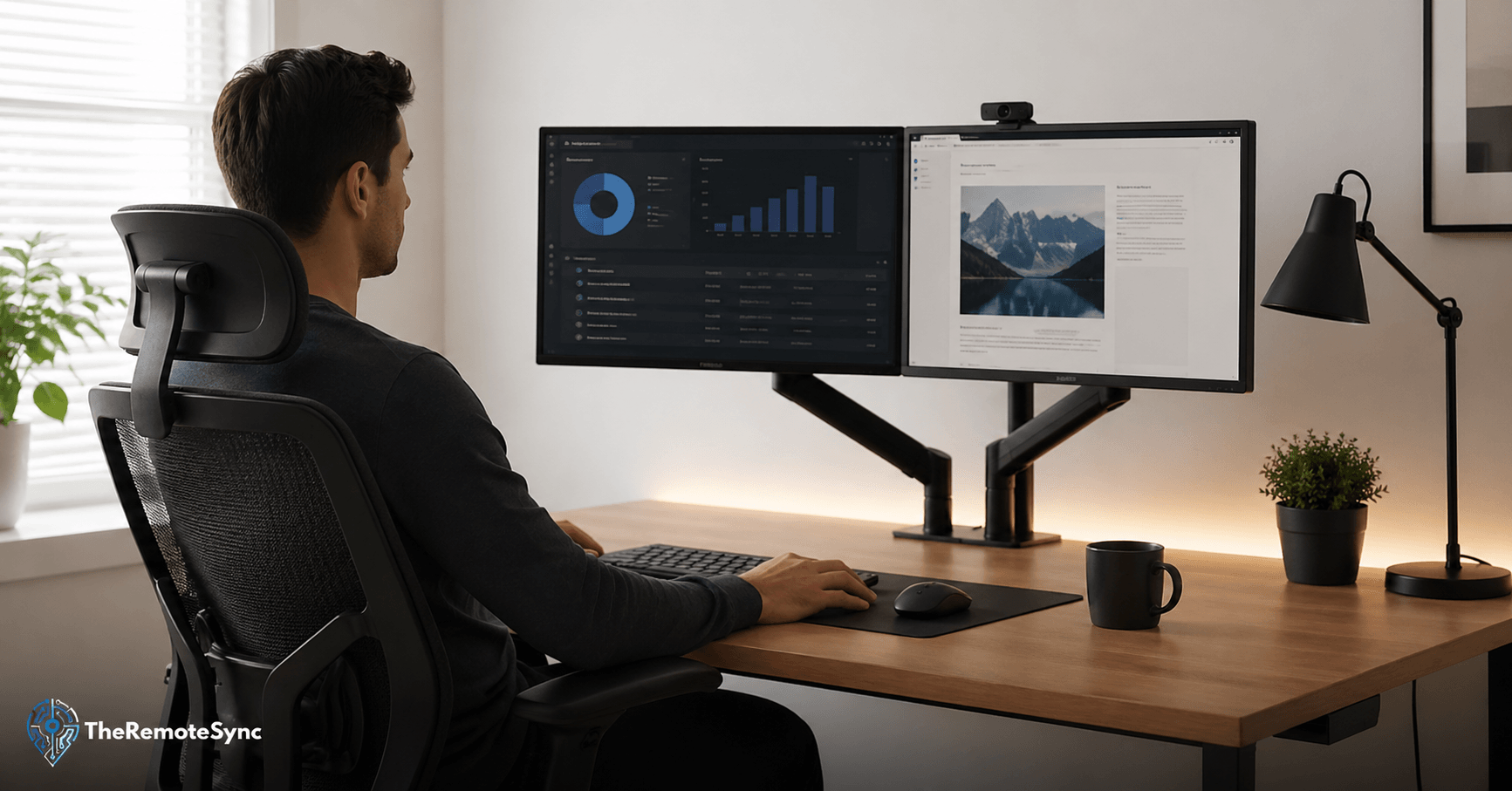
The top of both screens should sit at or slightly below your natural eye level when you’re sitting upright. If you have to tilt your chin up to read text near the top of the screen, the monitors are too high.
Both monitors need to be at the same height. Even a two-inch difference between screens forces your eyes to shift up and down constantly, which becomes noticeable fatigue by mid-afternoon.
Distance
Keep both screens roughly an arm’s length away. That’s typically 20 to 28 inches from your face. If you’re leaning forward to read text, the font size is too small — don’t move the screen closer. Increase the text size instead.
Angle
If you use both screens roughly equally, center them so the point where they meet sits directly in front of your nose. Angle each screen inward at about 15 to 20 degrees, like a gentle V shape.
If one screen is your primary and the other is secondary, put the primary directly in front of you and place the secondary to the side. Research shows that correct screen positioning can reduce pressure on the neck by a significant margin when compared to screens that force sustained rotation.
Dual monitor neck pain almost always comes from one of two things: screens at uneven heights, or a secondary screen placed too far to the side without inward angling.
Mounting
If your monitors come with height-adjustable stands, use them. If they didn’t, a dual monitor arm is worth the investment. It lets you dial in exact heights, angles, and depths for both screens without fighting fixed stand limitations. VESA compatibility (100x100mm is standard) is the thing to check before buying a monitor arm.
What Is the Best Resolution for Dual Monitors?
Match the resolution on both screens. A 1080p monitor next to a 1440p monitor isn’t a disaster, but the difference in sharpness is visible, and your eye will keep noticing the switch. It affects focus more than people expect.
For a two monitor home office setup built for reading, writing, spreadsheets, and video calls: 1080p on 24-inch screens is fine. 1440p on 27-inch screens is better.
For creative work, design, or any work where you’re evaluating image quality: 1440p minimum. 4K at 27 inches is excellent if you have the budget and your laptop or desktop can drive it.
Should both monitors be the same size? Ideally, yes. Same size, same resolution, same panel type. You can mix sizes if one screen is clearly secondary, but for any setup where you split attention equally, matching monitors reduces eye adjustment fatigue.
How to Connect Two Monitors to a Laptop
Most modern laptops support at least one external display through HDMI or USB-C. Running two external displays is where it gets less straightforward.
- USB-C/Thunderbolt: The cleanest option. Many Thunderbolt 4 ports support two 4K displays over a single cable through a dock. If your laptop has Thunderbolt, a good dock is worth the investment.
- HDMI + USB-C adapter: Common workaround. Use your laptop’s HDMI port for one monitor and a USB-C to HDMI adapter for the second. Works on most Windows laptops.
- Daisy chaining: Some monitors support DisplayPort daisy chaining (MST). One cable from the laptop to monitor one, then a second DisplayPort cable from monitor one to monitor two. Fewer cables on the desk.
- Docking station: The cleanest desk solution. One cable to your laptop, multiple display outputs from the dock. Worth it if you run the same setup every day.
One thing to check before buying monitors: whether your laptop’s GPU can actually drive two external displays simultaneously. Some laptops, especially older or entry-level models, are limited to one external display regardless of what ports you have.
The Best Dual Monitor Setup for Remote Work: Our Picks
Two things were checked for every monitor on this list: what the actual specs mean for real daily use, and what people who’ve been using them for months report consistently. No spec-sheet summaries. No guessing.
Prices reflect approximate retail at the time of writing and can shift.
Dell UltraSharp U2725QE: Best for Power Users Who Want One Cable to Do Everything
The Dell UltraSharp U2725QE is built for the remote worker who runs a laptop as their main computer and wants a monitor that also replaces a dock. One Thunderbolt 4 cable connects your laptop, charges it at up to 140W, runs the 4K display, and passes through to a second monitor via DisplayPort daisy chaining. The monitor itself becomes the hub.
The 27-inch IPS Black panel produces a 3,000:1 contrast ratio, which is roughly double what a standard IPS monitor achieves. In practical terms, text has noticeably more depth, and dark areas in UI elements look richer without crossing into the washed-out blacks of a cheap screen. Color accuracy is factory calibrated to Delta E under 0.6, which means what you see is accurate without any manual calibration. The 4K resolution at 27 inches makes text sharp enough that most users can reduce font scaling compared to lower-resolution panels.
The stand allows full height, tilt, swivel, and pivot adjustment. This matters for ergonomics. Most monitors at this price still ship with tilt-only stands. Rotating one screen to portrait mode for reading long documents or code is a legitimate option here.
What customers actually say: Long-term users consistently call out the hub functionality as the single biggest practical benefit, especially those coming from a setup that previously required a separate dock. A recurring complaint is a faint buzzing noise from the power supply unit when brightness is set below 50%. Some units don’t have this issue at all; others produce an audible hum. It’s quiet enough that most people only notice it in a silent room. Dell’s support team has described the noise as “within spec,” which has frustrated some buyers who received louder units.
Pros:
- The Thunderbolt 4 hub with 140W power delivery genuinely replaces a dock, which means one cable from your laptop keeps both monitors running and your laptop charged.
- The IPS Black panel’s 3,000:1 contrast ratio is measurably better than standard IPS displays, and the difference is visible in day-to-day use, not just in test conditions.
- Factory calibration across sRGB, Display P3, and DCI-P3 means the monitor is accurate out of the box for anyone doing color-sensitive work.
- The stand’s full adjustability (height, tilt, swivel, pivot) makes it genuinely easier to set correct ergonomic positioning without buying a separate arm.
- At 120Hz, scrolling and cursor movement feel noticeably smoother than the 60Hz office monitors it replaces.
Cons:
- A portion of units produce a faint buzzing or whining noise from the internal power supply at lower brightness settings. It’s not universal, but it’s common enough to be worth knowing about before buying.
- No built-in speakers or webcam at this price point, which feels like an omission for a monitor marketing itself as a complete workstation hub.
- The price is approximately $700, which is hard to justify unless you’re actually using the Thunderbolt hub features. If you’re running a desktop with dedicated ports, this monitor’s main advantage disappears.
Price context: At around $700, the U2725QE is premium. It’s justifiable for laptop users who would otherwise spend $150 to $200 on a separate dock plus a standard monitor. The cost comparison shifts significantly in its favor when you factor in what you’re replacing.
BenQ PD2725U: Best for Designers and Creators Who Need Accurate Color
The BenQ PD2725U is aimed squarely at people who need to trust what they see on screen. It’s Pantone-certified, factory-calibrated to 100% sRGB and Rec. 709, and covers 95% of DCI-P3. For photographers doing color grading, designers checking print accuracy, or content creators who need their screen to match what their clients will see, this monitor earns its place.
The 27-inch 4K IPS panel at 60Hz is a deliberate trade. BenQ prioritized color fidelity over refresh rate. The result is one of the more accurate displays available under $900, with a hardware calibration option that keeps color from drifting over time. The Hotkey Puck that comes in the box lets you switch between color profiles with a physical dial instead of digging through on-screen menus, which is genuinely useful if you move between sRGB for web work and DCI-P3 for video.
Thunderbolt 3 connectivity handles single-cable workflow for MacBooks and Windows laptops alike, with 65W power delivery. The stand covers height, tilt, swivel, and pivot, so ergonomic positioning isn’t an afterthought.
What customers actually say: Professional users consistently cite the out-of-the-box color accuracy as the standout quality, especially photographers and video editors who note that colors hold up across different lighting conditions without needing to recalibrate frequently. The most consistent criticism is the built-in speakers, which are 2.5W and thin-sounding enough that multiple reviewers describe them as almost unusable for anything beyond basic notification audio. A secondary complaint is that the monitor doesn’t auto-detect input sources, meaning you manually switch inputs when changing between devices.
Pros:
- Factory calibration to Delta E under 2 across multiple color spaces means the display is accurate for professional color work without additional setup.
- The Hotkey Puck is a practical, physical controller that makes switching color profiles fast enough to actually use during a real workflow.
- Thunderbolt 3 with 65W power delivery handles a clean single-cable connection for most laptops, including MacBooks.
- The stand offers full adjustability, including portrait mode rotation, which is useful for reference panels or code review windows.
Cons:
- The built-in speakers are weak enough to be a consistent complaint across dozens of real user reviews. External speakers or headphones are essentially required if you want any usable audio.
- At 60Hz, scrolling feels noticeably less smooth than 120Hz monitors at this price level. This matters more for general work than for creative tasks, but it’s something you notice after switching.
- Buyers using this with a Mac should be aware that 163ppi at 27 inches is below the Retina threshold, so text won’t look as crisp as it does on Apple’s own displays.
Price context: Around $800 to $900, the PD2725U is premium and narrow in its justification. If color accuracy for professional work is your primary need, this price is defensible. If you’re a general remote worker who occasionally edits photos, there are more balanced options at a lower price.
LG 27UL500: Best Mid-Range 4K Monitor for the Home Office
The LG 27UL500 is the most accessible 4K option on this list. It’s a 27-inch IPS panel with 3840×2160 resolution, 98% sRGB coverage, and factory color calibration, at a price that sits well below most 4K competitors.
The 4K resolution on a 27-inch screen means pixel density is high enough that text looks sharp without scaling set above 125%. At normal office viewing distances, this monitor produces clean, readable text that’s noticeably better than a 1080p panel at the same size.
What the LG 27UL500 gives up to keep the price down: a tilt-only stand with no height or swivel adjustment, no USB ports, and no built-in speakers. The stand is a meaningful limitation. If you’re positioning two of these for a dual monitor setup, you’ll want to pair them with a monitor arm or risers to get both screens to matching heights.
AMD FreeSync is included, and while the 60Hz refresh rate limits how much that helps, it’s a useful addition for anyone occasionally using the monitor for light gaming or video playback.
What customers actually say: Users consistently praise the image quality for the price, especially for text clarity and color reproduction. The most repeated complaint is the stand: it doesn’t adjust height, which means a significant number of buyers report needing to add a riser or switch to a VESA arm shortly after setting it up. A secondary complaint is the slight wobble in the stand under normal use, which doesn’t affect display quality but is noticeable.
Pros:
- 4K resolution on a 27-inch IPS panel produces sharp, clear text that holds up well for 8-hour workdays without noticeable eye strain from pixel softness.
- Factory color calibration and 98% sRGB mean the colors are accurate out of the box for general professional use.
- The slim bezels make it a clean pairing for a two-monitor home office setup without a distracting gap between screens.
- AMD FreeSync support extends the usefulness of this monitor beyond pure productivity.
Cons:
- The tilt-only stand is a real ergonomic limitation. To position this monitor correctly for eye level, most users will need to add a monitor riser or a VESA-compatible arm, which adds cost and complicates the budget calculation.
- No USB hub means no additional connectivity through the monitor itself, which matters if you’re working from a laptop with limited ports.
- No built-in speakers.
Price context: Around $250 to $300, the LG 27UL500 is competitive for a 4K IPS panel. The stand limitation is the honest trade-off. Budget an extra $30 to $50 for a riser or $60 to $100 for a VESA arm if you want the ergonomics sorted.
HP E24 G5: Best for Clean Ergonomics on a Mid-Range Budget
The HP E24 G5 is the monitor on this list that most clearly prioritizes ergonomics over everything else. At 23.8 inches with 1080p resolution, it’s not the biggest or sharpest option, but the stand does something that most monitors at this price don’t: it adjusts in four directions. Height, tilt, swivel, and pivot. This makes a real difference for remote workers who need to dial in their screen height precisely, particularly if they’re sharing a desk at different heights or transitioning between sitting and standing.
The IPS panel covers 99% sRGB, which is accurate enough for standard professional tasks. At 75Hz with a 5ms response time, it handles everyday work without issue. HP’s built-in Eye Ease technology is an always-on low-blue-light filter that reduces eye fatigue during long sessions without adding a yellow tint the way some blue light modes do.
The 4-port USB-A hub built into the monitor adds practical desk utility. Connecting a mouse, keyboard, and USB drive through the monitor instead of through a laptop keeps the cables organized.
What customers actually say: Users consistently highlight the ergonomic stand as the standout feature, particularly people who have used tilt-only monitors before and notice the difference in neck comfort after a few weeks. The most common criticism is the 250-nit brightness ceiling, which is adequate in typical home office conditions but becomes limiting in rooms with strong direct light or large windows facing the monitor.
Pros:
- The 4-way adjustable stand (height, tilt, swivel, pivot) allows correct ergonomic positioning without any additional accessories, which is uncommon at this price.
- 99% sRGB coverage produces accurate colors for professional work without needing any manual calibration.
- The built-in 4-port USB hub keeps cable management cleaner, which matters when you’re connecting through a laptop.
- HP’s always-on low-blue-light filter reduces long-session eye strain without the yellow tint that most software-based blue light modes produce.
Cons:
- The 250-nit brightness is on the lower side. In well-lit rooms or near windows, the screen can look washed out.
- At 23.8 inches and 1080p, this is the smallest and lowest-resolution option on the list. For anyone who values screen real estate or sharp text at scale, the step up to 27 inches and 1440p makes a noticeable difference.
- No built-in speakers.
Price context: Around $150 to $180, the HP E24 G5 is one of the better value propositions for a home office monitor that takes ergonomics seriously. If you’re building a best dual monitor setup for work on a controlled budget, two of these give you fully adjustable screens and a clean desk setup without needing additional accessories.
ViewSonic VX3276-MHD: Best Large-Screen Option for Desk Real Estate on a Budget
The ViewSonic VX3276-MHD is for the remote worker who wants as much screen space as possible without paying a premium for it. At 32 inches with a 1080p IPS panel, it’s the biggest screen on this list at the lowest price. The frameless design with ultra-thin bezels keeps the gap between two monitors minimal, which matters at 32 inches, where a thick bezel would be visually disruptive.
The trade at this screen size and this price is pixel density. At 70 PPI, the VX3276-MHD is noticeably lower in density than a 24-inch 1080p monitor (92 PPI) or any 1440p panel. For people who sit farther back from their screens or who prefer larger text and UI elements, this isn’t a problem. For anyone who needs to work closely with fine detail, it becomes noticeable.
The stand is solid and stable but tilt-only, with no height adjustment. The monitor is VESA-compatible, so swapping to an arm is straightforward. The blue light filter and flicker-free technology are both enabled by default, which is useful for long work sessions.
What customers actually say: Long-term users consistently describe this monitor as outlasting expectations, with some reporting five or more years of daily use without any panel degradation. The color accuracy and IPS viewing angles receive consistent praise. The most persistent complaint is the lack of height adjustment on the stand, with several users noting that in a dual-monitor configuration, matching heights requires a workaround.
Pros:
- 32 inches of screen space at an affordable price gives genuine productivity benefits, particularly for people who work across multiple documents or applications simultaneously.
- The ultra-thin bezels make two of these look clean side by side, with a minimal visual gap between screens.
- IPS panel technology ensures consistent color and clarity even when viewed at angles, which matters in shared spaces or when a colleague looks at your screen.
- Flicker-free backlight and built-in blue light filter both reduce long-session eye strain without additional setup.
Cons:
- 1080p at 32 inches results in a pixel density low enough that text looks visibly less sharp compared to higher-density panels. This is a real trade-off, not a nitpick, and matters most for anyone who reads or writes at length.
- The tilt-only stand has no height adjustment, which makes ergonomic positioning for a dual-monitor setup harder without an additional arm or riser.
- The stand has been noted to wobble slightly under light bumps or adjustments, which some users find distracting.
Price context: Around $150 to $200, depending on the sale, the VX3276-MHD punches significantly above its price in screen size. It’s a strong choice if sheer desk real estate is the priority and you’re comfortable pairing it with a monitor arm to solve the height limitation.
Acer SB220Q: Best Under $100 for a Secondary Screen on a Tight Budget
The Acer SB220Q is the most affordable option on this list and consistently one of the best-selling monitors on Amazon. At 21.5 inches with a 1080p IPS panel and ultra-thin bezels, it’s built for exactly one use case: a secondary monitor alongside your primary screen when budget is the main constraint.
The IPS panel at this price is a genuine quality choice. It produces accurate colors, wide viewing angles, and solid contrast. At 75Hz with AMD FreeSync, it handles smooth scrolling and light multitasking without issue.
The significant limitation for anyone building the best dual monitor setup position is the lack of VESA mount compatibility. This monitor cannot be attached to a monitor arm. You’re working with the fixed stand, which only tilts. This limits your ability to match heights between two monitors precisely, which matters for correct ergonomic alignment.
There’s also only one HDMI port and one VGA port. No DisplayPort. That limits cable options for anyone running a more complex desk setup.
What customers actually say: Buyers at this price point consistently describe the image quality as better than expected, particularly the color accuracy and the thin bezels for side-by-side multi-monitor positioning. The no-VESA limitation is the single most discussed drawback in long-form reviews. Users who knew about it before buying are generally satisfied. Users who discovered it after buying and wanted to add an arm were frustrated.
Pros:
- The IPS panel at sub-$100 pricing delivers genuinely good color accuracy and wide viewing angles that you’d normally associate with monitors priced 50% higher.
- Ultra-thin bezels make it pair cleanly with a primary monitor without a visually disruptive gap between screens.
- 75Hz with a 4ms response time makes scrolling and general movement smooth without the choppiness of a 60Hz budget panel.
- At under $100, two of these can form a functional dual screen setup for a student, part-time remote worker, or anyone building a first home office on a strict budget.
Cons:
- No VESA mount compatibility is a hard limitation. You cannot attach this monitor to an arm, which means matching heights between two monitors in a dual setup requires physical risers or creative solutions.
- The 21.5-inch screen is noticeably smaller than a 24-inch or 27-inch monitor. As a primary screen, it can feel limiting. As a secondary reference screen, the size is more workable.
- Tilt-only adjustment on the stand, which is expected at this price, but worth naming for anyone thinking about ergonomic positioning.
Price context: Under $100, often around $75 to $89 on sale. This is a budget pick where the budget framing is accurate. It covers the basics well, and two of them give you a functioning two-monitor setup for under $200 total. Don’t expect a premium experience; do expect solid performance for what you’re paying.
Buying Guide: What to Think About Before You Choose
Most people get the headline spec right (size, resolution) and miss the things that actually affect how they feel at hour seven of a workday.
Stand adjustability matters more than most people realize. A monitor with a tilt-only stand will often end up slightly wrong in height, which forces a subtle but constant forward head position. Over weeks, that becomes neck discomfort. If a monitor you want has a limited stand, budget for a VESA-compatible monitor arm. Most arms run $60 to $150 and solve the problem entirely.
Match resolution between both screens. The jump between 1080p and 1440p is visible when your eyes move between screens. If you’re buying two monitors, buy two of the same resolution. If you’re adding a second monitor to one you already own, try to match it.
Check whether your laptop can drive two external displays before buying anything. Some laptops, particularly older Intel models and entry-level configurations, only support one external display regardless of what ports they have. Check your laptop’s specification sheet under “maximum external displays supported” before assuming two screens will work.
Think about the panel type. IPS panels are the right choice for most remote workers. They offer accurate color, wide viewing angles, and consistent brightness. VA panels have better contrast but narrower viewing angles. TN panels are cheap but compromise color quality and viewing angle significantly. For any dual screen setup for work, IPS is the baseline recommendation.
Frequently Asked Questions
What is the best layout for dual monitors?
Keep both screens at the same height, with the tops at or slightly below eye level, and both roughly arm’s length away (20 to 28 inches). If you use both screens equally, center them so the point where they meet sits directly in front of your nose, angled inward about 15 to 20 degrees in a gentle V. If one screen is primary, put it directly in front of you and place the secondary to the side rather than splitting your attention evenly.
What are the best dual monitors for a setup?
For most remote workers, two matching monitors beat mixing sizes or resolutions, since a visible sharpness difference between screens causes eye fatigue over a full workday. The HP E24 G5 is a strong pick for ergonomics on a budget, with a fully adjustable stand that most monitors at its price skip. If you want 4K sharpness and can add a riser or arm, two LG 27UL500 panels are a reasonable, lower-cost alternative.
Is 27 too big for dual monitors?
No, 27 inches works well for dual monitors as long as you pair it with 1440p resolution rather than 1080p, since 1080p at 27 inches starts to look visibly softer than most people are used to. Two 27-inch monitors do need more desk depth and width than two 24-inch screens, so it comes down to whether your desk can comfortably fit both at the correct viewing distance without crowding.
Final Recommendation
If you have the budget and use a laptop as your primary machine, the Dell UltraSharp U2725QE as your primary screen does more work than any other monitor on this list. Add a second, lower-cost 4K IPS panel as the secondary screen.
If you’re building a full setup from scratch and need two monitors that work well together without spending more than $400 total, two HP E24 G5 monitors cover the ergonomics well, or two LG 27UL500 panels give you 4K sharpness at a reasonable price if you’re comfortable adding risers or arms.
Check your laptop’s display output specs first. Then set your resolution and size first, before worrying about brand or features.
If you need help thinking through your specific setup, TheRemoteSync covers desk layouts, monitor arms, and ergonomic accessories in detail.