You’ve probably spent more time staring at your monitor than you realize. Eight hours a day, five days a week, in a home office where nobody is checking whether your setup is actually working for you.
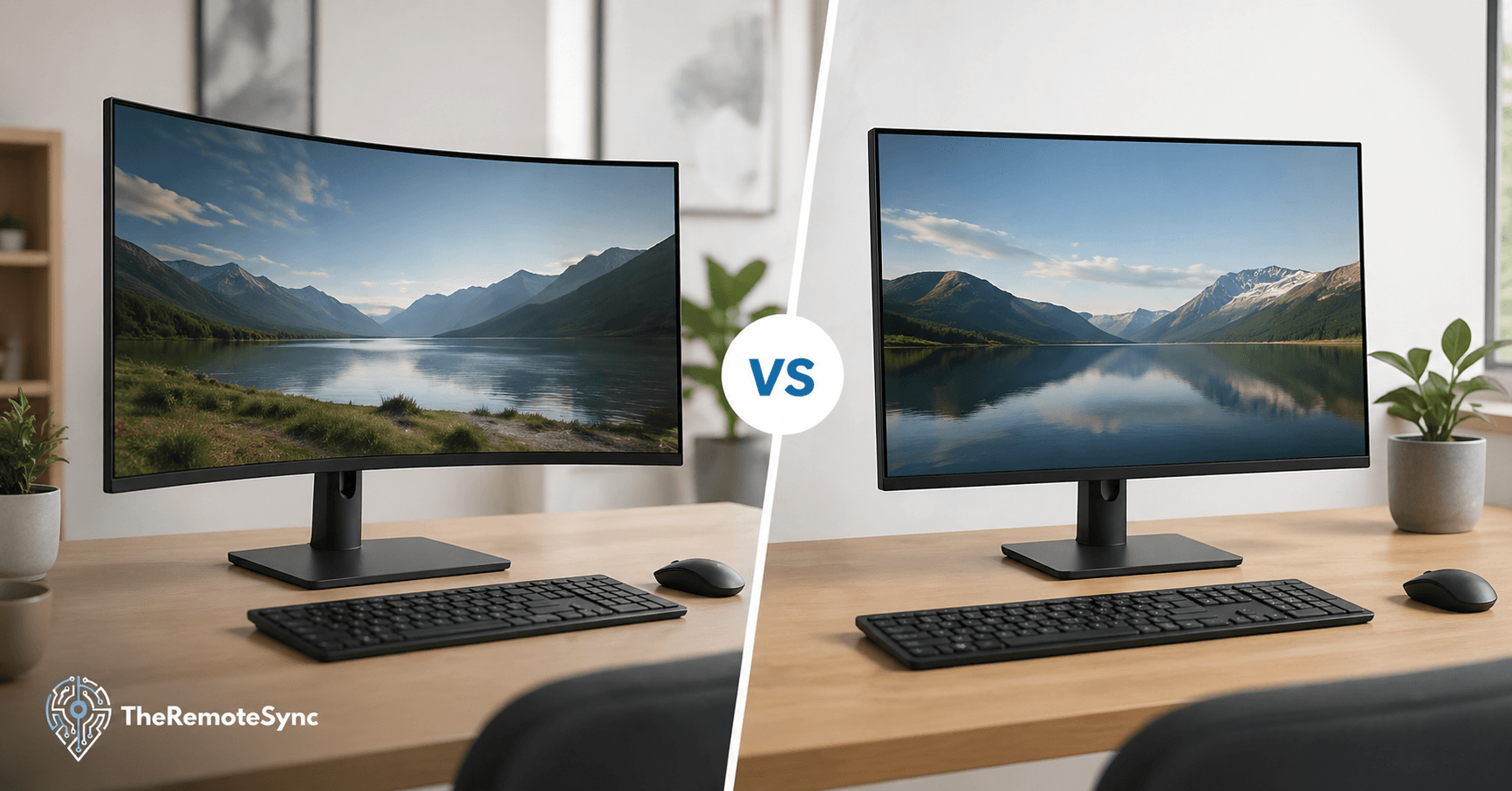
The curved vs flat monitor debate sounds like a spec argument. It isn’t. It’s a question about how your eyes feel at 4 PM, how much desk real estate you’re willing to give up, and whether a single screen can genuinely replace your dual-monitor setup.
This article breaks it down for remote workers specifically. Not gamers. Not graphic designers with studio budgets. People who are on video calls, switching between tabs, and writing documents for most of the day.
What Actually Separates a Curved Monitor From a Flat One
The difference is simpler than most reviews make it sound.
A flat monitor is a completely straight panel. What you see on screen is projected at the same angle across the entire surface, which works fine at smaller sizes. Once you go above 27 inches, the edges of a flat monitor start sitting at a noticeably different distance from your eyes than the center does.
A curved monitor bends the panel slightly inward toward you. The curve is measured in “R” values. A 1800R curve means the screen would form a full circle with a 1800mm radius. A 1000R curve is tighter. A lower number means a more aggressive curve.
The practical point: the curve is designed to keep every part of the screen at roughly the same distance from your eyes. On a large screen, that matters more than people expect.
Curved vs Flat Monitor for Work: The Real Comparison
Most articles compare curved and flat monitors for gaming. That’s the wrong frame for remote workers. The questions that matter for a home office are different.
Eye Strain Over Long Sessions
The curved monitor eye strain argument has actual backing. A 2020 study published on PubMed found that curved displays reduced visual fatigue compared to flat screens at larger sizes, specifically at the 33-inch and 50-inch range.
The reason is geometry. When you look at a flat monitor that’s 34 inches or wider, your eyes are constantly making small adjustments as they track from the center to the edges. The distance changes. The angle changes. Over a full workday, that adds up.
A curved screen eliminates most of that adjustment. Your eyes move, but the focal distance stays consistent. For remote workers logging six to ten hours of screen time daily, that difference is not trivial.
That said, if you’re using a 24-inch or 27-inch screen, the curve provides far less benefit. At that size, the geometry advantage mostly disappears.
Posture and Neck Movement
This is the point that gets skipped in most comparisons.
On a wide flat monitor, your neck tends to turn more to track content at the edges. You might not notice it in the first hour. After a full week of 8-hour sessions, you will.
A curved screen keeps more of the display within your natural cone of vision. You move your eyes rather than your head. That reduces neck and shoulder strain over time, which is directly relevant if you’re already dealing with a home office posture that isn’t perfect.
The tradeoff: if you share your screen with someone sitting beside you, curved monitors are not ideal. The image quality degrades noticeably when viewed from an angle. Flat monitors are far better for shared viewing.
Does Monitor Shape Affect Productivity?
The honest answer is: it depends on what kind of work you do.
For multitaskers working across multiple windows, an ultrawide curved monitor is genuinely useful. A 34-inch ultrawide at 3440×1440 resolution gives you the equivalent of two 24-inch monitors side by side, with no bezel running down the middle. Tiling a browser, a document, and a Slack window side by side becomes practical rather than cramped.
For focused, single-window work, like writing, coding, or spreadsheet work, the shape of the monitor matters less than the resolution and brightness. A high-quality flat monitor at 27 inches will perform just as well.
For video calls, flat monitors are slightly better. A curved screen puts a mild bow in anything behind you when your camera faces toward the screen, though this is only noticeable on very tight curves.
Curved Monitor Desk Space Requirements
This is where a lot of remote workers get caught off guard.
A curved monitor, especially ultrawide models, takes up significantly more physical depth on your desk than a flat monitor of equivalent screen size. The curve means the sides of the monitor push further back than the center. On a shallow desk, that can create real problems.
Before buying, measure the depth of your desk from the front edge to the wall or monitor position. A 34-inch ultrawide curved monitor typically needs around 24 to 28 inches of viewing distance to use comfortably. Add the depth of the stand, and you’re looking at a setup that demands a desk at least 24 inches deep, ideally 30 inches or more.
Flat monitors are considerably easier to position. They sit flush, mount flat against a wall or arm, and work in tighter spaces without issue.
A few practical points on desk space:
- Monitor arms help with curved screens. A good arm lets you push the monitor back when not in use and pull it forward during long sessions. This is especially useful on a standing desk where you’re adjusting height throughout the day.
- Wall mounting is tricky with curved monitors. They need specific VESA-compatible curved mounts, and they don’t sit flush. If your setup requires a clean, wall-mounted look, flat is the easier choice.
- Ultrawide curved monitors can replace a dual monitor setup. If you’re currently running two 24-inch flat monitors side by side, switching to a single 34-inch ultrawide curved monitor often results in a cleaner desk and more usable screen real estate.
Curved Monitor vs Dual Monitor Setup
This is a genuine decision point for a lot of remote workers.
A dual flat monitor setup gives you two independent screens. You can have completely different content on each, drag windows freely between them, and use each monitor independently for video calls, documents, or reference material. The bezel gap in the middle is a minor annoyance, but something most people stop noticing after a week.
A single ultrawide curved monitor gives you one continuous screen with no bezel break. The viewing experience feels more cohesive. Tiling windows feels more natural. But you cannot truly split it into two independent displays, the way you can with two separate monitors. Most operating systems treat it as one large screen, which means some workflows that rely on snapping windows to full-screen on separate monitors will require adjustment.
For remote workers who do a lot of video calls while referencing documents, two flat monitors often win on pure workflow flexibility. You can put the call full-screen on one and your notes on the other.
For remote workers who primarily multitask within a single workflow, like a developer with a code editor, terminal, and documentation open simultaneously, an ultrawide curved monitor is frequently the better single-screen experience.
What Are the Disadvantages of a Curved Monitor?
Fair question, and one worth answering directly rather than burying.
- Cost: A curved monitor for home office use costs more than an equivalent flat panel. At the 34-inch ultrawide range, expect to pay a significant premium over a comparable flat 27-inch. The price gap narrows at smaller sizes, but curved monitors at 27 inches or below offer minimal ergonomic benefit.
- Glare: The curve catches light from more angles than a flat surface. In a home office with windows on the side, a curved screen can develop glare patches that are harder to manage than on a flat monitor. Position and room lighting matter more with curved screens.
- Not ideal for multi-monitor setups: Aligning two curved monitors side by side is awkward. The bezels don’t meet cleanly. If you’re planning a dual-monitor setup, flat monitors are the better practical choice.
- Color work limitations: For remote workers doing graphic design, photo editing, or video color grading, flat monitors are generally preferred. The curve can introduce subtle distortion at the edges that affects how straight lines and geometry appear on screen. Professional creatives tend to stick with flat IPS or OLED monitor panels for accuracy.
Are Curved Monitors Really Better for Your Eyes?
The honest answer is: for most remote workers, yes, with conditions.
The eye strain benefit is real but size-dependent. At 27 inches and below, the curve provides minimal advantage. At 32 inches and above, particularly with ultrawide formats, the consistent focal distance makes a measurable difference during extended sessions.
The benefit also depends on your viewing distance. A 1800R curved monitor is designed to be viewed from around 1.8 meters. A 1000R is designed for about 1 meter. If you’re sitting too far from a tightly curved monitor, the effect reverses, and the curve starts to feel unnatural.
If you’re setting up a home office and you’re choosing between a 27-inch flat monitor and a 27-inch curved monitor at a similar price, pick the flat one and put the saved money toward a better chair or monitor arm. The curve at that size is largely aesthetic.
If you’re upgrading to a 34-inch ultrawide and considering whether to go curved or flat, go curved. At that size, the ergonomic case is legitimate.
Curved Monitor Viewing Distance: A Quick Reference
Getting the viewing distance right matters more with curved monitors than flat ones. Use this as a starting point:
- 1000R curve: Designed for around 1 meter (39 inches) of viewing distance. Common in gaming monitors. Tighter, more immersive curve. Works well for single users sitting close.
- 1500R curve: Designed for around 1.5 meters (59 inches). A middle-ground option common in 34-inch ultrawide monitors. Works for most desk setups.
- 1800R curve: Designed for around 1.8 meters (71 inches). Subtle curve. Closest to flat in feel. Better for shared viewing or larger desks.
Most remote workers sitting at a standard desk will be somewhere between 50 and 80 centimeters from their screen. A 1500R or 1800R curve tends to feel most natural at that distance.
OLED Monitor: Does It Change the Curved vs Flat Equation?
OLED monitors have entered the mainstream home office market, and they complicate the comparison slightly.
An OLED monitor, whether curved or flat, offers significantly better contrast, more accurate colors, and a noticeably different viewing experience compared to a standard IPS or VA panel. The blacks are deeper, the image is sharper, and the text tends to look cleaner.
The curved vs flat monitor decision still applies to OLED. A curved OLED ultrawide gives you all the geometry benefits of a curved screen with the display quality of OLED. It also comes with a price tag that reflects that combination.
For most remote workers, a high-quality flat IPS monitor will serve daily work needs without the cost of a curved OLED. If budget allows and you’re planning to keep the monitor for several years, a curved OLED ultrawide is a serious upgrade for eye comfort and overall screen experience.
Which Is Better, Curved or Flat Monitor? Here’s How to Actually Decide
Stop trying to find a universal answer. The right monitor depends on your specific setup and workflow.
Choose a curved monitor if:
- You’re buying at 32 inches or larger, particularly ultrawide formats
- You work long hours, and eye comfort is a genuine concern
- You want to replace a dual monitor setup with a single cohesive screen
- You multitask heavily across multiple windows in a single workflow
- Your desk has adequate depth (at least 24 to 30 inches)
Choose a flat monitor if:
- You’re buying at 27 inches or below
- You need accurate color work for design, photo editing, or video
- You’re building a dual or triple monitor setup
- Your desk is shallow, or your office space is limited
- You share your screen frequently with someone sitting beside you
- Budget is a primary concern
The best dual monitor setup for most remote workers, if that’s the direction you’re heading, remains two flat 27-inch IPS monitors on adjustable arms. Clean, flexible, and widely compatible with any desk configuration.
Setting up Either Monitor Correctly for Remote Work
Whichever you choose, the setup matters as much as the monitor itself.
- Eye level alignment: The top of your monitor should sit at or just below eye level. Looking slightly downward reduces neck strain over long sessions. This applies to both curved and flat monitors.
- Viewing distance: Sit far enough from the screen that you can see the full display without moving your head. For most 27-inch monitors, that’s around 60 to 70 centimeters. For a 34-inch ultrawide, aim for 70 to 90 centimeters.
- Monitor arm vs stand: A monitor arm gives you far more positioning flexibility than a fixed stand, especially if you’re adjusting height on a standing desk throughout the day. It also frees up desk space. If you’re buying a curved ultrawide, a dual-arm setup rated for heavier monitors is worth the investment.
- Lighting: Reduce glare by positioning your monitor perpendicular to any windows rather than directly facing or backing them. This matters more with curved monitors, which pick up light from wider angles.
Frequently Asked Questions
Curved monitor vs flat for office work?
It comes down to screen size more than preference. Below 27 inches, a curved monitor offers little real benefit, so a flat monitor is the more practical, versatile choice. At 32 inches and above, particularly ultrawide formats, the curve keeps every part of the screen at a consistent focal distance, which genuinely reduces eye strain and neck movement over long sessions. If you’re deciding between a 27-inch flat and 27-inch curved at a similar price, pick flat and put the savings toward a better chair or monitor arm instead.
What are the disadvantages of a curved monitor?
Curved monitors cost more than an equivalent flat panel, catch glare from more angles, and don’t align cleanly if you’re building a dual or triple monitor setup, since the bezels don’t meet flush. They also introduce subtle edge distortion that makes them a weaker choice for color-sensitive work like design or photo editing, where flat IPS or OLED panels remain the professional standard.
Are curved monitors really better for your eyes?
Yes, but only above a certain size. At 27 inches and below, the eye strain benefit is minimal. At 32 inches and above, especially ultrawide formats, the consistent focal distance makes a measurable difference over long sessions, since your eyes aren’t constantly readjusting between the center and edges of the screen the way they do on a large flat panel.
Is a 27 inch monitor better for gaming, curved or flat?
For gaming specifically, a 1000R curved monitor is the more immersive choice, since that tighter curve is designed for closer viewing distances around 1 meter, which matches typical gaming setups. For general remote work at 27 inches, the ergonomic case for curved mostly disappears, so the gaming context is really what tips the decision toward curved at that size, not office use.
The Bottom Line for Remote Workers
The curved vs flat monitor question does not have one right answer. But it does have the right answer for your setup.
If you are working at a smaller screen size or on a tight budget, flat monitors are the more practical and versatile choice. They cost less, fit in tighter spaces, play well with multi-monitor setups, and deliver accurate image quality for most work tasks.
If you are upgrading to a larger ultrawide screen and you’re investing in a long-term home office setup, a curved monitor earns its price through genuine ergonomic benefits. Less eye strain over long sessions, more natural head and neck movement, and a single-screen multitasking experience that holds up under daily use.
The monitor you sit in front of for eight hours a day deserves more than a quick comparison chart. Match the size, curve, and format to how you actually work, not how someone else’s setup looks.