You just spent good money on an OLED monitor. The colors look amazing. Then you open a spreadsheet, and it hits you. That taskbar at the bottom of your screen is going to sit there for eight hours a day, five days a week, for years. Is that going to burn a permanent line into your new screen?
This worry is common with remote workers and hybrid workers. Most OLED warnings online are written for TV owners or gamers. Almost none of them talk about what happens when you stare at the same document, the same browser tabs, and the same taskbar for a full workday. That is a different kind of stress on a screen than watching a movie.
This guide covers what actually causes OLED monitor burn in in a home office setup, how much of a real risk it is in 2026, and the exact settings and habits that keep it from happening to you.
What OLED Burn In Actually Is
OLED monitors work differently than the LCD monitor you probably used before. Each pixel makes its own light. There is no backlight sitting behind the whole screen.
That is why OLED monitors have such deep black colors. A pixel that should show black just turns off.
The problem is that these pixels wear out as they work. A pixel that shows the same bright color in the same spot for months will age faster than the pixels around it. Over time, that uneven aging leaves a faint shadow of whatever was on screen the most.
That shadow is burn in. It does not go away when you change the picture.
Image Retention vs Burn In
People mix these two up constantly, and the difference actually matters.
Image retention is temporary. You might see a ghost of your last window after closing it, but it fades in a few seconds or minutes. This is normal and not a sign of damage.
Burn in is permanent. It is caused by pixels aging unevenly over weeks or months. Once it shows up, running a video or closing the app will not make it disappear.
If you see a faint shape after switching tasks and it is gone by the time you get coffee, you are fine. If the same shape is still there a day later, that is worth paying attention to.
Why Home Offices Are a Higher Risk Than TVs
Most OLED burn in warnings were written with TVs in mind. TVs mostly show moving video. Shows, movies, and games change the picture constantly, which spreads the wear across the whole panel.
A work from home setup is the opposite. Your screen usually looks like this all day:
- A taskbar that never moves: It sits in the exact same pixels from your first coffee to your last email.
- The same two or three browser tabs: Pinned tabs and open documents rarely move position.
- A mostly white or light gray background: Word processors, spreadsheets, and browsers default to bright backgrounds, which is harder on OLED pixels than dark content.
- Long single sessions: Many remote workers leave their monitor on for eight, nine, or ten hours without a real break.
This is exactly the kind of static, bright, long-duration use that creates the most burn in risk. If your WFH setup looks like this, you are not being paranoid by asking about it.
Is OLED Burn In Still a Problem in 2026?
Short answer: less than it used to be, but not zero.
Manufacturers know office use is a real market now, not just gaming and movies. Every major OLED monitor brand ships protection features today that older OLED TVs never had.
Independent testers have been running OLED monitors through brutal, worst-case conditions for years now to see what actually happens. One long-term test ran a QD-OLED monitor for over 5,000 hours using mostly static desktop content, and found that burn in happens fastest in the first six months, then slows down considerably after that.
Another tester ran an OLED monitor through 250 hours of heavy office work, including bright white Word documents and static toolbars, and found no visible burn in or brightness change at all.
So the honest answer is this: OLED burn in is real, it can happen with office use, but it is a slow, cumulative problem rather than something that ruins your monitor in a few weeks. Modern panel protection and a few smart habits make a big difference.
How Long Before an OLED Monitor Burns In?
There is no single number that applies to every monitor. It depends on your brightness setting, how static your layout is, and whether you use the built-in protection features.
That said, real-world testing gives us a useful range. One remote worker style test logged 2,656 hours of daily use, roughly a year and a half of normal work, and only found faint traces of wear under harsh test patterns, not during normal daily work.
Worst-case tests that disable most protection features and run at high brightness for 60 hours a week start showing visible wear in the taskbar area within the first six months. Normal, protected use with moderate brightness pushes that timeline out much further, often past the monitor’s warranty period.
The takeaway: with default settings and a bit of care, most remote workers will not see visible burn in inside the first year or two of normal, non-worst-case use.
Is OLED Bad for Spreadsheets and Documents?
Not bad, but it is the type of content that puts the most stress on an OLED panel.
Spreadsheets and documents are usually bright white with static grid lines, static toolbars, and static menu bars. That combination, bright and unmoving, is the exact profile that ages OLED pixels the fastest.
This does not mean you should avoid OLED for office work. It means you should adjust a few settings if your day is mostly spreadsheets, documents, and browser tabs rather than video or games. We cover the exact settings in the next section.
How to Prevent OLED Burn In While Working From Home
Here is the actual routine that matters. You do not need to babysit your monitor. You need to set it up once and build two or three small habits.
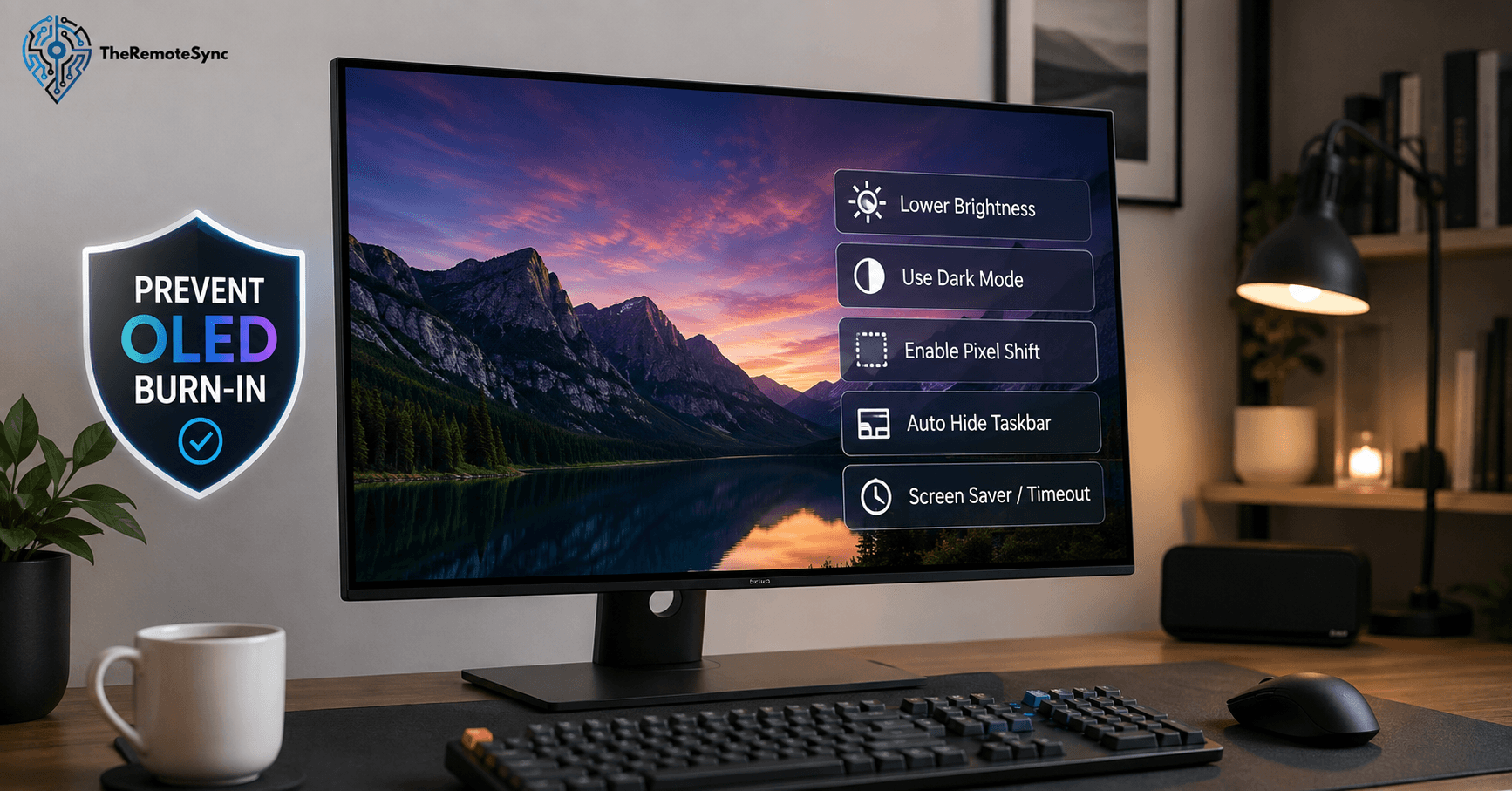
Turn On the Panel Protection Features
Every OLED monitor brand includes built-in protection tools. Most people never open the menu to turn them on.
- Pixel shift: Moves the entire image by a tiny, invisible amount every few minutes so the exact same pixels are not always doing the work.
- Pixel refresh or panel refresh: Runs a short maintenance cycle, usually when the monitor is off or in standby, that evens out pixel wear. Let this run. Do not unplug the monitor to skip it.
- Screen dimming or logo detection: Automatically lowers brightness on static bright areas like a taskbar or a logo.
- Auto screen off or screen saver: Turns the screen off or blanks it after a set time of no activity, which matters a lot if you step away for calls or lunch.
If you bought your OLED monitor used or skipped setup, go into the on-screen menu and confirm these are switched on. They usually are not aggressive by default, and turning them on costs you nothing in daily use.
Build These Habits Into Your Workday
Settings only do half the job. A few habits handle the rest.
- Auto-hide your taskbar: This single change removes the single biggest burn in risk on a work monitor. Most operating systems let you turn this on in a few clicks.
- Lower your brightness for office work: You do not need TV brightness for reading documents. Around 50 to 60 percent brightness is plenty for indoor office lighting and puts far less stress on the panel.
- Use dark mode in your main work apps: Less bright surface area on screen means less wear. More on this below.
- Let the screen sleep or turn off during breaks: Set your display to sleep after 5 to 10 minutes of inactivity. This matters more for remote workers than office workers, since you are often the only one who will notice if the screen stays on during a long call or a lunch break.
- Shift your window layout occasionally: If you always keep the same app pinned to the same half of the screen, move things around every so often. Even small changes reduce repeated wear on the same pixels.
OLED Monitor Settings for Office Use by Brand
Menu names are different across brands, but the settings you want are usually in the same place.
- LG monitors: Look for OLED Screen Move, OLED Screen Saver, and OLED Image Cleaning under the on-screen display. Turn all three on.
- Samsung monitors: Look for Pixel Shift and Adjust Logo Brightness under Panel Care in the settings menu. Set Adjust Logo Brightness to High for office use.
- MSI monitors: Look for OLED Care and Static Screen Detection. MSI’s productivity guide recommends running Panel Protect every 4 hours if you are available, and no later than 16 hours of cumulative use.
- Asus monitors: Look for OLED Care Pro, which includes auto dimming during no-movement periods and, on some models, a proximity sensor that blacks out the screen when you step away.
Whatever brand you own, spend five minutes in the settings menu once. That is the whole job.
Pixel Refresh vs Pixel Shift Explained
These two terms get confused constantly, so here is the plain difference.
Pixel shift works while you are using the monitor. It nudges the entire image by a tiny amount, small enough that you will never notice it, so the same pixels are not always displaying the exact same content.
Pixel refresh works after you are done using the monitor. It is a maintenance cycle, usually 10 to 15 minutes long, that runs when the screen is off or in standby. It evens out pixel wear that has already built up.
Think of pixel shift as prevention while you work, and pixel refresh as recovery after you are done. You want both turned on. They are not competing features, they work together.
Does Dark Mode Actually Prevent OLED Burn In?
Yes, and this is one of the easiest changes you can make.
On an OLED screen, a black pixel is simply turned off. It uses no power and creates zero wear. A white pixel is running at close to full brightness the entire time it is displayed.
If your main work apps, browser, and operating system are set to light mode, you are running most of your screen at high brightness for eight hours a day. Switching to dark mode where possible cuts that exposure significantly.
This will not eliminate burn in risk on its own, since taskbars and toolbars still show up as bright elements even in dark mode. But it is one of the lowest-effort changes with a real impact, and most remote workers can make this switch in a few minutes across their main apps.
How to Clean an OLED Monitor Without Damaging It
Cleaning is worth covering here because doing it wrong can cause real damage, separate from burn in.
- Turn the monitor off first: This makes smudges and dust easier to see and protects the panel from pressure marks while it is displaying an image.
- Use a dry microfiber cloth: Wipe gently in one direction. Do not press hard. OLED panels are more sensitive to pressure than older LCD screens.
- Avoid glass cleaners and alcohol-based sprays: These can damage the anti-glare coating on the screen. If you need moisture, lightly dampen the cloth with distilled water, never spray it directly onto the screen.
- Never use paper towels or tissues: These are abrasive enough to scratch the coating over time.
A clean screen is not related to burn in prevention, but a badly cleaned one can create separate damage that looks similar to a novice, so it is worth doing right.
How Do I Know If My OLED Monitor Has Burn In?
The easiest way to check is with a plain gray or light gray background, since burn in shows up most clearly on flat, even colors.
- Open a full screen gray image or a blank document set to a light gray background.
- Look closely at the areas where your taskbar, toolbars, and pinned tabs usually sit.
- Check for a faint outline or discoloration that stays in the exact shape of those elements.
- Compare it to the rest of the screen, which should look even and uniform.
If you see a faint shadow in the shape of your taskbar or a frequently used app window, and it does not fade after a few minutes of different content, that is early taskbar burn in. Catching it early is useful, since some panel refresh cycles can slow further progress if you run them consistently from that point on.
Can OLED Burn In Be Fixed?
Partially, depending on how far it has progressed.
Early, light burn in often improves noticeably after running several pixel refresh cycles in a row. The panel’s maintenance system can even out some of the wear if you catch it early and let it run consistently.
Advanced burn in, the kind you can see during normal content and not just on test patterns, is permanent. No software update, cleaning method, or refresh cycle will fully remove it once it reaches that stage.
This is why prevention matters more than fixing. Once burn in is visible under normal daily use rather than just a test pattern, you are managing existing damage, not reversing it.
OLED vs Mini-LED for Productivity Work
If you are still deciding which panel type fits your work from home setup, here is the honest tradeoff.
OLED gives you better contrast, true black levels, and faster response times. It looks noticeably better for photo work, video editing, and any content with dark scenes or high contrast. The tradeoff is a small ongoing burn in risk that requires a bit of attention.
Mini-LED and standard IPS panels do not have a meaningful burn in risk at all. They will never develop this issue no matter how static your layout is. The tradeoff is less impressive contrast and blacks that look more like dark gray than true black.
If your day is almost entirely spreadsheets, documents, and the same static layout with no variation, Mini-LED or IPS is the lower maintenance choice. If your work is mixed with creative tasks, video, or you just want the best possible picture quality and are willing to spend five minutes on setup, OLED is a strong choice.
Are OLED Monitors Worth It for Remote Work?
Yes, for most people, with a small amount of upfront setup.
The burn in risk that gets so much attention online is manageable for a typical remote worker or hybrid worker. Turn on the built-in protection features, hide your taskbar, keep brightness reasonable, and let your screen sleep during breaks. That combination handles the vast majority of the risk.
Where OLED is not worth it is for a desk that runs the exact same static layout at high brightness for 10 plus hours a day with the protection features turned off. That is a genuine worst-case setup, and it is avoidable with the settings covered above.
For most WFH and hybrid work setups, the picture quality, contrast, and comfort of an OLED monitor are worth the small amount of care it takes to protect it.
Frequently Asked Questions
Is OLED burn-in permanent?
It depends on how far it’s progressed. Advanced burn-in that shows up during normal daily use, not just on a test pattern, is permanent and won’t fully reverse with any refresh cycle or software update. Early, light burn-in caught quickly can often improve noticeably after running several pixel refresh cycles in a row, which is why catching it early matters more than trying to fix it later.
How do I know if my OLED monitor has burn in?
Display a full screen gray or light gray image and check the areas where your taskbar and most used windows normally sit. A faint shadow that stays in that exact shape, even after switching to different content, is burn in.
How to prevent OLED burn-in?
Turn on the built-in panel protection features (pixel shift and pixel refresh), set your taskbar to auto-hide, and bring your brightness down to around 50 to 60% for office work. Switching your main apps to dark mode and letting the screen sleep after 5 to 10 minutes of inactivity round out the routine. This is a five-minute setup, not an ongoing chore.
Is OLED safe for everyday work use?
Yes, with a few adjustments. Turn on pixel shift and pixel refresh, hide your taskbar, keep brightness moderate, and let the screen sleep during breaks. Normal office use with these settings on carries low risk.
Do OLEDs still burn in 2026?
Yes, it can still happen, but modern panel protection has made it far less common and far slower to develop than on older OLED displays. Real-world testing shows most normal use, even heavy daily use, does not produce visible burn-in within the first year or two.
How long will an OLED monitor last before burning in?
There’s no fixed number since it depends on brightness, how static your layout is, and whether protection features are on. Worst-case testing with protections disabled shows early wear within a few hundred hours of heavy use. Normal, protected use with moderate brightness often runs well past a year, and in several long-term tests, past a year and a half, without visible burn-in.
What is static image upkeep?
This generally refers to the built-in protection features that manage wear from unmoving content like a taskbar or toolbar, pixel shift, which nudges the image by an imperceptible amount while you work, and pixel refresh, a maintenance cycle that runs when the monitor is off to even out wear that’s already built up. Static screen detection is a related feature that automatically dims bright, unmoving elements like a taskbar or logo.
Set Your Monitor Up Once and Stop Worrying About It
Burn in is a real thing, but it is not a reason to avoid OLED for your home office. Open your monitor’s settings menu today, turn on pixel shift and pixel refresh, set your taskbar to auto-hide, and bring your brightness down to a comfortable office level. That five minute setup covers almost everything that matters. Do it once, then get back to work.
Discover more from TheRemoteSync
Subscribe to get the latest posts sent to your email.