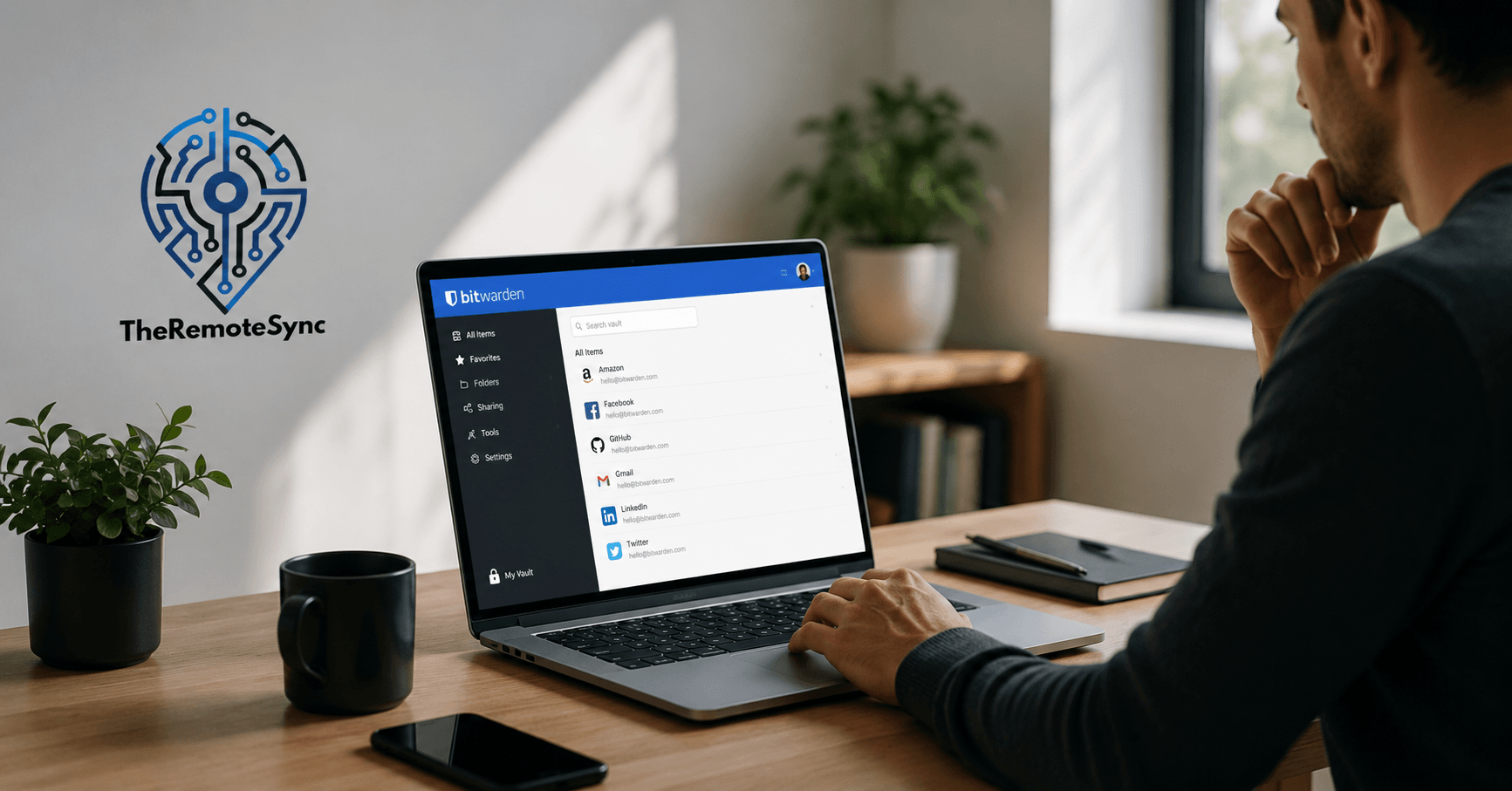
Most remote workers have a password problem they haven’t fully dealt with yet.
They’re juggling 40, 60, maybe 80 accounts across project tools, client portals, cloud storage, communication apps, and everything in between. Some save passwords in the browser. Some use the same one everywhere. Some keep a notes file buried in their desktop.
None of that is fine. And most people know it.
The difference between working in an office and working remotely is that in an office, there’s usually someone else who catches the security gap. There’s an IT policy. There are enforced password requirements. There’s a corporate VPN and a helpdesk ticket when things go wrong.
In a WFH setup, you are the IT department. What you decide to use is what protects your accounts, your clients’ data, and your livelihood. That’s a different level of responsibility than most remote workers give themselves credit for.
I started using Bitwarden right around the start of 2022. That was years ago. I’ve used it daily across a work laptop, a personal laptop, and an Android phone. This Bitwarden review is based on that experience, not a one-week test run for a product roundup.
What Is Bitwarden?
Bitwarden is a free, open-source password manager. It stores your passwords, credit card details, secure notes, and identity information in an encrypted vault that syncs across every device you use.
The “open-source” part is worth pausing on. Unlike LastPass, 1Password, or Dashlane, anyone can inspect Bitwarden’s code on GitHub. That means independent security researchers regularly review it for vulnerabilities. You’re not just trusting the company’s word that your data is safe.
For remote workers, that matters more than it sounds. You’re often the only person managing your own security. There’s no IT department watching your back.
Is Bitwarden Safe to Use?
This is the first question most people ask, and it deserves a direct answer.
Yes. Bitwarden uses AES-256 encryption, the same standard used by banks and governments. It operates on a zero-knowledge architecture, which means Bitwarden’s servers never store your master password or any unencrypted data. Your vault is encrypted on your device before it’s ever sent anywhere.
A few specifics worth knowing:
- Third-party audits: Bitwarden undergoes independent annual security audits. The results are published. That level of transparency is rare in this space.
- No known breaches: As of this writing, Bitwarden has never had a reported data breach. Compare that to LastPass, which suffered a significant breach in 2022 that exposed encrypted vault data.
- Zero-knowledge encryption: Even Bitwarden’s own employees cannot access your passwords. If you forget your master password, there is no recovery option that bypasses this. That’s the tradeoff for true security.
- Open-source codebase: Every component, including the server, apps, browser extensions, and mobile clients, is publicly available and community-reviewed on GitHub.
Does Bitwarden sell your data? No. Their privacy policy is explicit about this, and the zero-knowledge architecture makes it technically impossible for them to access or sell your vault contents.
Who Should Actually Use Bitwarden?
Bitwarden works best for a specific type of person. It’s not for everyone.
It’s a good fit if you:
- Work remotely and manage a lot of accounts across different devices
- Want strong security without paying for it
- Are comfortable setting things up without hand-holding
- Use multiple platforms (Windows, macOS, Linux, iOS, Android)
- Are migrating away from LastPass or a browser’s built-in password saver
It’s probably not the right fit if you:
- Want the most polished, beginner-friendly interface on the market (1Password does this better)
- Need advanced features like live dark web monitoring out of the box
- Rely heavily on inline autofill icons appearing inside form fields automatically
Bitwarden is built for people who prioritize function and trust over aesthetics. For a WFH setup where you’re constantly switching between tools and accounts, that trade-off makes sense.
The Free Tier Is Enough for Most Remote Workers
This is the part that surprises people most when they start looking at Bitwarden.
The free plan includes:
- Unlimited passwords stored in your vault, with no cap
- Unlimited devices, synced automatically, for free
- Browser extensions for every major browser, including Chrome, Firefox, Safari, Edge, Brave, and Opera
- Mobile apps for iOS and Android
- A password generator to create strong, unique passwords for every account
- Basic two-factor authentication (email and authenticator app)
Most password managers either limit free users to one device or lock multi-device sync behind a paid plan. Bitwarden’s free tier is genuinely functional. For a solo remote worker who just wants secure, synced passwords on a laptop and a phone, the free plan handles all of it.
If you want more, the premium plan costs $1.65 per month (billed annually at $19.80/year). That adds:
- Advanced 2FA options, including YubiKey and FIDO2 hardware keys
- Vault health reports showing weak, reused, or exposed passwords
- Emergency access for a trusted contact
- 1GB of encrypted file storage
- Priority customer support
For most people in a standard WFH setup, the free tier is enough. The premium upgrade is worth considering once you have a reason to need it, not before.
How Bitwarden Works Day-to-Day
Browser Extension Setup
The browser extension is how you’ll use Bitwarden most of the time. Install it from your browser’s extension store, log in once, and it stays active in your toolbar.
When you visit a login page with saved credentials, a number appears on the Bitwarden icon showing how many entries match that site. Click the icon, select the right account, and it fills in your username and password.
One thing to know: Bitwarden does not display a clickable inline icon inside the password field itself, the way 1Password or Dashlane do. You trigger autofill from the extension popup or with a keyboard shortcut (Ctrl+Shift+L on Windows/Linux, Cmd+Shift+L on Mac). It takes about two uses to make it automatic.
Some complex single-page apps and banking sites can cause autofill to miss a field. When that happens, you copy and paste from the vault. It’s a minor inconvenience, not a dealbreaker.
For the Bitwarden browser extension setup, the process is the same across Chrome, Firefox, Edge, and Brave. Visit the extension store for your browser, search “Bitwarden,” install it, and log in with your vault credentials. You’ll be prompted to set a vault timeout period. Setting it to lock after 15 to 30 minutes of inactivity is a reasonable default for most work-from-home setups.
Mobile and Desktop Experience
Bitwarden works smoothly on mobile and laptop. The Android and iOS apps are clean, the vault loads quickly, and Face ID/fingerprint unlock works reliably.
On desktop, the app is minimal. That’s a feature, not a flaw. You can search your vault, copy credentials, and organize entries without anything getting in the way. The interface won’t win design awards, but it doesn’t slow you down either.
Syncing across devices is automatic and happens in the background. If you add a new login on your laptop, it’s available on your phone within seconds.
Bitwarden Vault Organization Tips
A disorganized vault defeats the purpose of having a password manager. A few things that make Bitwarden easier to navigate:
- Use folders for broad categories: Client accounts, finance, personal, and subscriptions. Keep the category count small, or it becomes another thing to manage.
- Use the search function first: Bitwarden’s search is fast. Searching the name of the site is usually faster than browsing folders.
- Add usernames to entry names when you have multiple accounts: Instead of “Gmail,” use “Gmail (work)” and “Gmail (personal).” Makes autofill selection much faster.
- Run a vault health report (premium): This surfaces weak, reused, or compromised passwords so you can fix them in one sitting.
Bitwarden Two-Factor Authentication Setup
Two-factor authentication on your vault is non-negotiable. If someone gets your master password, 2FA is the only thing standing between them and everything else.
With the free plan, you can use any TOTP authenticator app (Google Authenticator, Authy, or similar). Go to Account Settings > Security > Two-step Login and follow the setup. It takes under five minutes.
If you’re on the premium plan, you can use hardware security keys like YubiKey for a stronger setup. For most remote workers, an authenticator app is sufficient.
How to Import Passwords Into Bitwarden From LastPass
If you’re migrating from LastPass, this is easier than it looks.
- Log in to LastPass and go to Account Options > Advanced > Export.
- Export your vault as a CSV file.
- Log in to your Bitwarden web vault at vault.bitwarden.com.
- Go to Tools > Import Data.
- Select “LastPass (csv)” from the dropdown.
- Upload the file.
Bitwarden walks you through each step with a help guide linked directly in the import screen. Most people complete the migration in under 15 minutes. After importing, delete the CSV file from your computer immediately. It contains all your passwords in plain text.
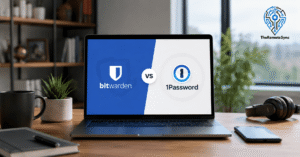
Bitwarden vs 1Password for Remote Workers
This is the comparison that comes up most often. Both are solid. They solve the same problem differently.
Bitwarden strengths:
- Free plan covers everything most individuals need
- Open-source and independently audited
- Works on unlimited devices for free
- Self-hosting option for teams that want full data control
1Password strengths:
- Better polished interface, especially for non-technical users
- Inline autofill icons appear in form fields automatically
- Travel Mode (hides sensitive vaults when crossing borders)
- Smoother family and team sharing experience
The honest verdict: If you’re a solo remote worker who can handle a modest learning curve, Bitwarden’s free plan wins on value. If you’re setting up password management for a non-technical partner or a small team that needs hand-holding, 1Password’s experience justifies the cost.
For remote teams where IT knowledge varies, the choice depends on what people will actually use consistently. A polished tool that gets adopted beats a powerful one that gets ignored.
Where 1Password genuinely wins is in the detail. The Watchtower feature actively monitors for compromised credentials and flags them inside the app. The interface for creating and organizing shared vaults is more intuitive. If you’re handing password management setup to someone who doesn’t want to think about it, 1Password requires less guidance.
But for a remote worker who takes five minutes to learn the keyboard shortcuts and vault structure, Bitwarden is functionally equivalent for daily use. The autofill behavior is the only recurring friction point, and it’s a small one.
Bitwarden Alternatives for Remote Workers Worth Knowing
Bitwarden is the recommendation here, but it’s worth knowing what else exists before you commit.
KeePass: Free, fully offline, open-source. Your vault is stored as a local file, not in the cloud. If you never want your passwords on any external server, KeePass is the only mainstream option. The trade-off is manual syncing across devices. You manage the file yourself, which means no automatic sync between your laptop and phone unless you set up your own solution.
Dashlane: A polished, well-designed password manager with a built-in VPN on paid plans. The free tier is now limited to 25 passwords on one device, which makes it impractical for serious use without paying. The premium plan is significantly more expensive than Bitwarden.
NordPass: Made by the team behind NordVPN. Clean interface, competitive pricing. The zero-knowledge architecture is solid. It lacks Bitwarden’s open-source transparency and self-hosting option, which makes it harder to independently verify the security claims.
Browser-built-in password managers (Chrome, Safari, iCloud Keychain): Convenient, but they tie you to an ecosystem. Chrome Passwords works well if you never leave Chrome on any device. The moment you’re on Firefox, Edge, or a device outside the Apple ecosystem, the experience breaks. For remote workers who hop between environments, this is a structural problem.
None of these change the core recommendation. For the best free password manager for remote workers who want cross-platform sync and verifiable security, Bitwarden is the answer. The alternatives are worth knowing when you’re evaluating options for different contexts or teammates with different needs.
Bitwarden offers a self-hosted option that most password managers simply don’t have.
Self-hosting means you run Bitwarden’s server software on your own infrastructure instead of using their cloud. Your vault data never leaves your own server.
This is relevant for:
- Freelancers or consultants under strict client data agreements
- Remote teams in regulated industries (healthcare, legal, finance)
- Anyone who wants absolute control over where their data lives
Self-hosting requires Docker and a Linux server. It’s not a click-and-done process. If you’re comfortable with basic server administration, the official Bitwarden self-hosting documentation walks you through it. If you’re not, the cloud-hosted version with zero-knowledge encryption is already a high-trust option.
Is Bitwarden Good for Teams?
Yes, with some caveats.
Bitwarden’s Teams plan costs $4 per user per month and includes shared collections, event logs, user management, and SSO integration. For a small remote team, this is a reasonable price for centralized credential management.
The workflow for sharing credentials works through “organizations” and “collections.” An admin creates a collection (say, “Client X Access”), adds the relevant logins, and assigns access by user or group. Team members see shared items in their vault alongside personal ones.
Where it gets clunky: shared vault management is more manual than it should be. Adding or removing users from collections requires more steps than competing tools. EntraID (formerly Azure AD) sync is limited to the standard Teams plan. For larger organizations or those with frequent staff changes, the administrative overhead is worth weighing.
For a team of five to fifteen people sharing credentials across a handful of shared services, it works well. For a fast-growing team with complex access control needs, it’s worth looking at the Enterprise plan or evaluating whether 1Password Teams fits better.
What Happens If You Forget Your Bitwarden Master Password?
This is the most important thing to understand before you switch.
Bitwarden uses zero-knowledge encryption. That means they genuinely cannot recover your master password. If you lose it and don’t have a recovery option set up in advance, your vault data is gone.
Before you rely on Bitwarden, do two things:
- Write down your master password and store it somewhere physically secure. Not in a notes app. Not in an email draft. A physical location.
- Set up Emergency Access (premium feature): This lets you designate a trusted contact who can request access to your vault after a waiting period you define. If you’re incapacitated or locked out, they can get in after the waiting period expires and you haven’t rejected the request.
This isn’t a flaw in Bitwarden’s design. It’s the direct result of building a system where only you hold the keys. Understanding it up front avoids a very bad day later.
My Honest Opinion: Bitwarden Review
Bitwarden is the best password manager for most remote workers and me, personally. Not because it has the most features or the best interface, but because it does the important things correctly, it’s free to use at a meaningful level, and it’s built on a foundation you can actually verify.
The free tier is enough for me. It covers my WFH setup across multiple devices without a subscription, and the $19.80/year premium plan is there when the health reports and advanced 2FA become worthwhile.
The interface requires one afternoon to get comfortable with. The autofill quirks take about a week to stop noticing. After that, it runs quietly in the background and does its job.
If you are currently using browser-saved passwords or the same password across multiple accounts, switching to Bitwarden is one of the higher-leverage things you can do for your remote work security this year. It takes less than an hour to set up and costs nothing to start.
What It Does Not Do Well
Being direct about the limitations saves you from discovering them the hard way.
The autofill experience on complex web apps is inconsistent. Banking sites, some government portals, and apps with unusual login flows will require manual copy-paste on occasion. It happens a few times a week for a typical remote worker.
The sharing workflow is clunky for families and small teams compared to 1Password. If you want to share a handful of credentials with a partner, it requires setting up an organization and a collection, which is more steps than it should be for a simple use case.
Customer support for free users relies on community forums. If something goes wrong and you need direct help, paid users get priority. For most questions, the documentation and community are comprehensive enough, but it’s worth knowing.
None of these are reasons not to use it. They’re reasons to go in with accurate expectations.
Frequently Asked Questions
Is Bitwarden better than LastPass?
For most remote workers, yes. Bitwarden’s free plan is more functional, its security architecture is more transparent, and it has no history of breaches. LastPass’s 2022 incident exposed encrypted vault data for millions of users.
Can Bitwarden be used on multiple devices for free?
Yes. Bitwarden’s free plan includes unlimited devices with automatic sync. This is one of the most important distinctions from other free password managers, which typically restrict sync to a single device.
Is Bitwarden good for non-technical users?
It’s manageable but not effortless. The setup process is straightforward, but the interface is more functional than intuitive. Non-technical users who want the smoothest possible experience may prefer 1Password. Non-technical users who are willing to spend an afternoon getting familiar will find Bitwarden works well.
What is the best free password manager for remote workers?
Bitwarden. The combination of unlimited passwords, unlimited device sync, open-source transparency, and zero known breaches makes it the strongest free option available for people working remotely.
Is Bitwarden really secure?
Yes. Bitwarden uses AES-256 encryption, the same standard used by banks and governments, on a zero-knowledge architecture, meaning Bitwarden’s servers never store your master password or any unencrypted data. It undergoes independent annual security audits with published results, and its entire codebase, server, apps, extensions, and mobile clients, is open source and publicly reviewable on GitHub, which is rare transparency in this space.
Has Bitwarden been breached?
No. As of 2026, Bitwarden has no reported data breaches. That’s a meaningful differentiator from a competitor like LastPass, which suffered a significant breach in 2022 that exposed encrypted vault data for millions of users.
If you’re ready to make the switch, start with the free plan at Bitwarden. Import your existing passwords, set up 2FA on your vault, and write down your master password somewhere physical. That’s the whole setup. Everything else you can learn as you go.