My desk used to have three browser tabs open just to find one file. One tab for Google Docs. One for Trello. One for a random notes app I forgot the password to half the time. I was working from home, but my work was scattered across five different places.
That is the real problem most remote workers run into. Not a lack of tools. Too many of them.
This is my honest Notion review after using it daily to run my home office setup, my content work, and my task list. I will cover what works, what does not, and who should actually use it. No affiliate pitch, just what actually happened when I moved my whole workflow into one app.
What Notion Actually Is
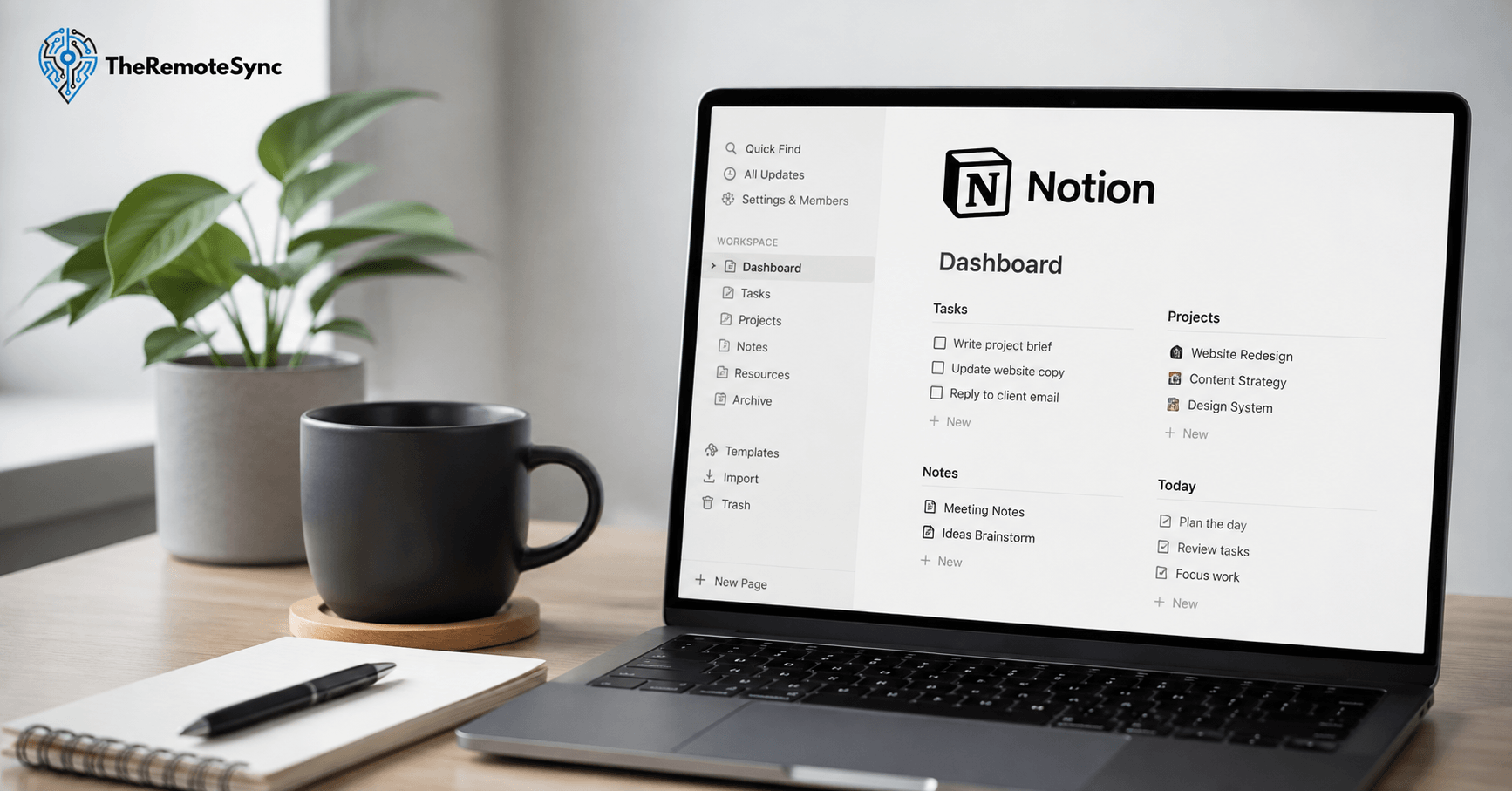
Notion is one app that holds your notes, your tasks, and your project tracking. You build pages, and inside those pages you can add databases, checklists, and text.
Think of it as a blank notebook that can also act like a spreadsheet. You decide the structure. Nothing is locked into a template you did not choose.
That flexibility is the whole pitch. It is also the source of most of the frustration people feel in their first week. More on that later.
How I Use It Every Day
I run three things out of one Notion workspace:
- Daily task list: A simple database with a status column. I sort it by due date every morning.
- Content calendar: Every article I write for TheRemoteSync lives here, from draft to published.
- Client and project notes: One page per project, with subpages for research, drafts, and feedback.
That is the whole appeal. One place, three jobs.
Why I Switched to Notion for My Remote Work Setup
Before Notion, my WFH setup was a mess of half-used apps. Google Docs for writing. A sticky note app for quick reminders. A separate calendar tool for deadlines.
Every remote worker knows this pattern. You start using a new app to fix one problem, and six months later you have eight apps and no system.
I switched because I was tired of the search. I would remember writing something down but not where. That cost me time every single day, and time is the one thing remote workers cannot get back once a distraction eats it.
This is not just a personal complaint. Tool sprawl has a real cost. One industry analysis puts the price of redundant software licenses at roughly $340,000 a year for the average 1,000 employee company. You are not running a 1,000 person company from your home office, but the same waste shows up on a smaller scale. Every extra app you pay for and half use is money and attention leaking out of your workday.
Notion fixed that specific problem for me. Everything lives on one search bar now. I type a keyword and I find the note, no matter which project it was buried in.
Why Do People Use Notion for Productivity
I am not the only one who made this switch, and the reasons tend to repeat. Most people who move to Notion are not chasing a trendy app. They are trying to stop losing time to their own disorganization.
Remote work already removes a lot of the built-in structure an office gives you. Nobody walks past your desk to remind you of a deadline. Research on remote productivity backs this up in a different way: employees working from home have shown measurable performance gains, with some studies putting the increase around 13 percent compared to in-office work, largely from fewer interruptions and more control over the day.
That extra control only helps if you have a system to point it at. Without one, flexible hours just turn into scattered hours. Notion becomes the structure that remote work does not hand you automatically.
The Notion Features That Actually Matter for Remote Workers
Not every feature in Notion is useful. Some are there to impress people in a product demo. Here is what I actually rely on for my remote work.
Notion Templates I Actually Use
Templates save setup time, but most template libraries are bloated. I stripped mine down to three:
- Weekly planner: A simple table with days as rows and priorities as columns. I rebuild it every Monday in under two minutes.
- Meeting notes template: One header for decisions, one for action items, one for follow-up questions. Nothing fancy.
- Home office task tracker: A kanban board with three columns: To Do, In Progress, Done. This is the one I open first every morning.
- Expense tracker: A simple table with columns for date, category, and amount. I check it once a week to see where my money is actually going, not just where I planned for it to go.
- Books tracker: A database with status columns for Want to Read, Reading, and Finished. I add a one line note on my main takeaway before I move a book to Finished.
- Movie and TV show tracker: A gallery view with poster covers pulled in automatically, sorted by status. It is the one page in my workspace that has nothing to do with work, and that is exactly why I keep it.
If you are looking for the best Notion templates for remote work and for personal use, skip the templates that try to do everything. The ones that work are the ones you can rebuild from memory. A template you cannot recreate by hand is a template you will abandon the first time it breaks.
Notion Note Taking for Daily Work
Notion note taking is not fancy, and that is why it works. You type, and it organizes into blocks. You can turn any line into a checklist, a header, or a table with one keyboard shortcut.
What I actually use this for:
- Meeting notes during calls: I type live, then tag the note to the right project page after the call ends.
- Quick capture: If an idea hits me mid-task, I drop it into an inbox page and sort it later, instead of breaking focus to file it properly.
- Research collection: Screenshots, links, and quotes for an article all live on one page, instead of forty open browser tabs.
The habit that made this work was the inbox page. Before I added it, I would stop what I was doing to file every small idea properly. Now I dump it and move on, which protects my focus far better than a perfectly organized note ever did.
Notion AI: Is the Upgrade Worth It
Notion AI is a paid add-on, and I want to be honest about it. It is good at summarizing long notes and drafting rough outlines. It is not good at deep research or anything that needs real accuracy.
I used it once, mostly to summarize a long client call into bullet points. For that specific job, it saved me about ten minutes.
If you are asking whether Notion AI is worth the upgrade, my answer depends on your workload. If you spend hours a week summarizing notes or meetings, it pays for itself. If you rarely touch that kind of task, skip it and save the monthly cost.
The Mobile App Is a Backup, Not a Workspace
I have the Notion mobile app on my phone, and I use it for exactly one thing: checking my task list while I am away from my desk. Typing long notes on a phone keyboard inside Notion is slow, and the mobile layout hides some database views that are easy to reach on desktop.
If your remote work happens mostly from a laptop, this will not bother you. If you were hoping to run your whole workspace from your phone, set that expectation aside now.
Where Notion Falls Short
A review that only lists pros is not a review. Here is what actually frustrates me after using Notion for remote work.
The Learning Curve Is Real
Notion gives you a blank page and expects you to build your own system. That is powerful once you know what you are doing. It is confusing on day one.
I spent my first two weeks rebuilding my workspace three times because my first structure did not hold up. If you want something that works the moment you open it, this is not that tool.
Does Notion Work Offline
This is one of the most common questions people ask before switching, and the honest answer is: barely. Notion caches recently viewed pages, so you can read them without the internet. But editing offline is unreliable, and syncing issues happen when your connection comes back.
If you work from cafes, trains, or anywhere with spotty WiFi, this is a real limitation. I have lost edits twice from a bad sync after working offline on a flight.
It Can Get Slow
Once a page has a database with hundreds of rows, Notion starts to lag. I noticed this most in my content calendar after a year of entries piling up. Archiving old entries into a separate page helped, but it is extra maintenance most tools do not require.
It Rewards Tinkering Over Working
Because you can customize almost anything, it is easy to spend an afternoon rebuilding a database view instead of doing the actual task the database was meant to support. I have caught myself doing this more than once. If you already struggle with procrastination, a fully customizable workspace can become a very convincing distraction.
Notion Free vs Paid: What You Actually Need
The free plan covers a single user with unlimited pages and blocks. For most solo remote workers, that is genuinely enough.
Notion Pricing Plans Explained
Here is the plan breakdown in plain terms, based on what each tier actually unlocks:
- Free: Unlimited pages and blocks for one person. Basic file uploads and limited page history. This is where most freelancers should start.
- Plus: Adds unlimited file uploads and longer version history. Built for individuals or very small teams who have outgrown the free tier’s storage limits.
- Business: Adds advanced permissions, more admin controls, and better support for larger shared workspaces. This is the tier most small companies land on.
- Notion AI: A separate add-on cost, not included by default in any plan. It layers onto whichever tier you already have.
When the Paid Plan Actually Matters
- You are collaborating with a team: The free plan limits file uploads and version history, which becomes a problem once other people rely on the same pages.
- You need longer page history: Free plans keep limited version history. If you need to recover an old draft, paid plans hold onto it longer.
- You want Notion AI: This only comes as a paid add-on, separate from the base subscription.
If you are a freelancer working alone, start free. Upgrade only when a specific limit actually blocks your work, not because a review told you to.
Notion vs Google Docs for Remote Teams
This comparison comes up constantly, so here is the direct answer based on my own switch between the two.
Google Docs wins for real-time collaborative writing. If three people need to edit one document at the same time with zero lag, Docs handles it better. It has had years to refine that specific job, and it shows.
Notion wins for structure. If you need that document connected to a task, a deadline, and a project page, Docs cannot do that on its own. Notion can.
My actual workflow: I draft in Notion because it lives next to my task list and research. If a document needs heavy live collaboration with a client, I export or copy it into Google Docs for that step. I use both, and I stopped pretending one tool should replace the other entirely.
What Six Months of Daily Use Actually Looks Like
The first month, I overbuilt everything. I made databases for things that did not need one, like a database to track which database I was using. It was a mess disguised as organization.
By month three, I had cut it down to the three workspaces I described earlier. That is when it actually started saving me time instead of costing me time.
By month six, the system runs almost on autopilot. I open my task database, sort by due date, and start working. The setup effort was real, but it was a one-time cost. The daily use since then has been close to effortless.
That delay matters for anyone comparing this to a simpler tool. Notion does not save you time in week one. It starts saving you time once your structure stops changing.
Is Notion Worth It for Remote Workers and Freelancers
Here is the direct verdict, based on daily use, not a demo.
Who Should Use Notion
- Solo remote workers juggling multiple projects: The single search bar and linked pages save real time once your workspace is organized.
- Freelancers who need one client hub per project: A single page per client, with subpages for notes, invoices, and deadlines, beats a folder full of scattered files.
- Anyone building a personal system for tasks and notes: If you like customizing your own structure instead of following a rigid template, Notion rewards that.
Who Should Skip It
- Teams needing tight project execution: If your work depends on strict deadlines, dependencies, and automation, dedicated project tools handle that better.
- Anyone who needs reliable offline access: If your work happens without steady internet, the sync issues will cost you more time than they save.
- People who want a tool that works instantly: If you do not have time to build your own system, the learning curve will frustrate you before it helps you.
How to Set Up Notion for Your Home Office Workflow
If you decide to try it, do not copy someone else’s 40-page template on day one. Start small.
- Build one page first: A single task list. Nothing else. Use it for a full week before adding anything more.
- Add a notes inbox: One page for anything you need to capture fast. Sort it into proper pages once a day, not in the moment.
- Connect your calendar view: Add a database with a calendar view for deadlines. This becomes your second monitor glance check during a work session.
- Review and cut weekly: Delete pages you did not open in seven days. A workspace that grows without pruning becomes as messy as the scattered apps you were trying to replace.
This slow build is the difference between a system you use for years and one you abandon after a month, which is what happens to most people who try to build everything on day one.
Keep It Off Your Second Monitor All Day
One habit worth mentioning for anyone setting up a hybrid work or WFH desk: do not leave Notion open on a second screen the entire day. It turns into a place to tinker instead of a place to check in and get back to work. I open it three times a day on purpose: morning planning, a midday check, and an end of day review. That is enough.
Notion and the Mental Load of Hybrid and Remote Work
There is a side to this that has nothing to do with features. Working from home, or splitting time between home and an office, means you carry more of the organizing in your own head. Nobody else is structuring your day for you.
That mental load adds up. Every scattered note, every “where did I save that” moment, is a small tax on your attention. You do not notice one of them. You notice all of them by Friday afternoon, when you feel wiped out and cannot explain exactly why.
Having one place for my notes and tasks did not just save clicks. It gave me back some of that mental space. I stopped carrying a running list of “things I need to remember to check later” in my head, because I trusted the system to hold it instead.
If you are building a WFH setup that supports your focus and not just your output, this is worth weighing alongside your desk chair and your monitor height. A cluttered digital workspace tires you out the same way a cluttered desk does. It is just easier to ignore because you cannot see it piling up.
Frequently Asked Questions
What is Notion used for?
Notion is used for notes, task management, and project tracking, all inside one workspace. Remote workers use it most often to replace several separate apps with a single connected system.
Is Notion free?
Yes. The free plan supports a single user with unlimited pages and blocks, which covers most solo remote workers and freelancers. Paid plans add team collaboration limits, longer version history, and the optional Notion AI add-on, which isn’t included by default in any tier.
Is Notion better than Google Docs?
Notion is better for structure and connecting notes to tasks and projects. Google Docs is better for real-time collaborative writing with multiple editors at once. Most remote workers benefit from using both for different jobs.
Does Notion work offline?
Partially. Notion caches pages you have already opened for offline reading, but editing offline is unreliable and can cause sync problems once your connection returns.
Is Notion good for personal use?
Yes, and this is where it performs best. A single person organizing notes, goals, and tasks gets the full benefit of Notion’s flexibility without hitting the collaboration limits that affect teams.
Is Notion AI worth the upgrade?
It depends on your workload. If you regularly summarize long notes or meetings, it saves real time. If you rarely do that kind of task, the base free or paid plan without AI covers most remote work needs.
Is Notion worth paying for?
For solo users, often not right away. The free plan covers most individual needs. It becomes worth paying for once you are collaborating with a team or need longer file history and version recovery.
Is there a better app than Notion?
It depends on the job. Google Docs is better for real-time collaborative writing when multiple people need to edit one document at the same time with zero lag, something Notion doesn’t handle as well. Dedicated project management tools handle strict deadlines, dependencies, and automation better than Notion’s flexible structure. Notion’s advantage is connecting notes, tasks, and projects in one place, which none of those alternatives do as well on their own.
What are the drawbacks of Notion?
The learning curve is real since it gives you a blank page and expects you to build your own system, which can mean rebuilding your workspace more than once in the first few weeks. Offline editing is unreliable and can cause sync issues once your connection returns. Databases with hundreds of rows start to lag over time, and the same flexibility that makes it powerful also makes it easy to spend an afternoon tinkering with a database view instead of doing the actual work.
Is Notion really worth it?
For solo remote workers, often not right away since the free plan covers most individual needs. It becomes worth paying for once you’re collaborating with a team or need longer version history for file recovery. As a tool overall, it earns its place for anyone juggling multiple projects who wants one connected system instead of several scattered apps, but it takes a real setup investment before it starts saving time rather than costing it.
Try It Before You Build Around It
Do not overhaul your entire workspace on week one. Open a free Notion account, build a single task list, and use only that for seven days. If it sticks, add your notes inbox next. If it does not, you have lost nothing but the price of trying.
That slow test is the honest way to find out if Notion fits your remote work setup, not a review telling you it will.