You’re leaving for a trip tomorrow, and you still haven’t touched your out of office reply. Or worse, you’re already gone, and a client is emailing your manager asking why nobody’s responding.
This happens constantly on remote and hybrid teams. Nobody is walking past your desk to remind you. Your calendar and your inbox are the only signals people get.
Setting out of office in Outlook takes about two minutes once you know where to look. The problem is Outlook hides the setting in a different spot depending on which version you’re using. So people click around, give up, and just let the inbox pile up instead.
This guide covers every version of Outlook: web, classic desktop, the new Outlook for Windows, Mac, and mobile, on how to set out of office in Outlook. It also covers the specific situations that trip people up, like setting no end date, scheduling weeks ahead, setting it for someone else, and getting it to work properly with Microsoft Teams.
Why Out of Office Matters More When You Work Remotely
When you worked from an office, people could see your empty desk. They knew you were out. Nobody needed an email to explain it.
Remote and hybrid work removed that visual cue. Your calendar and your automatic reply are now the only signal your team has that you’re unreachable.
More people are working this way than ever before. Gallup’s ongoing workplace research shows that over half of remote-capable employees now work a hybrid schedule, with roughly another quarter working fully remote, meaning close to eight in ten remote-capable workers spend at least part of their week away from a traditional office.
That means most of the people emailing you do not share a physical space with you at all. If your out of office reply isn’t set, they have no other way to know you’re away.
There’s a second reason WFH setup and hybrid work schedules make this feel higher stakes. When your team spans time zones, a delayed reply doesn’t just sit for a few hours. It can sit overnight while half the team sleeps. A clear out of office message tells people exactly when to expect you back, so nobody sits around guessing.
Automatic Replies vs. Out of Office Status: They Are Not the Same Thing
This trips up almost everyone the first time.
Automatic replies are the email Outlook sends back to anyone who messages you while you’re away. This is what most people mean when they say “out of office.”
Out of Office calendar status is different. It’s the purple block on your calendar that tells colleagues you’re unavailable when they try to book a meeting with you. On its own, it does not send any email.
You can turn on one without the other. A later section covers exactly how, including how to show the calendar block without sending an automatic reply to your entire company.
How to Set Out of Office in Outlook on the Web (Outlook 365)
This is the version most people use day to day, whether you access it through Outlook.com or through a work Microsoft 365 account.
- Sign in at outlook.office.com. Use the account you want the automatic reply attached to.
- Open Settings. Click the gear icon in the top right corner of the page.
- Go to Mail, then Automatic Replies. This is sometimes labeled just “Automatic replies” depending on your account type.
- Turn on the toggle. This switches automatic replies from off to on.
- Set a time period, if you want one. Check the box for “Send replies only during a time period” and enter a start and end date and time.
- Write your message for people inside your organization. This is the message coworkers and teammates will see.
- Turn on replies for people outside your organization, if needed. Choose between “My contacts only” or everyone who emails you, and write a separate message if you want one.
- Save. The reply activates immediately, or on the start date you set.
How to Set Out of Office in Outlook 365 Desktop (Classic Windows)
If you’re using the classic, full-featured Outlook desktop app on Windows, the setting lives under File instead of a gear icon.
- Open Outlook and click the File tab in the top left corner of the ribbon.
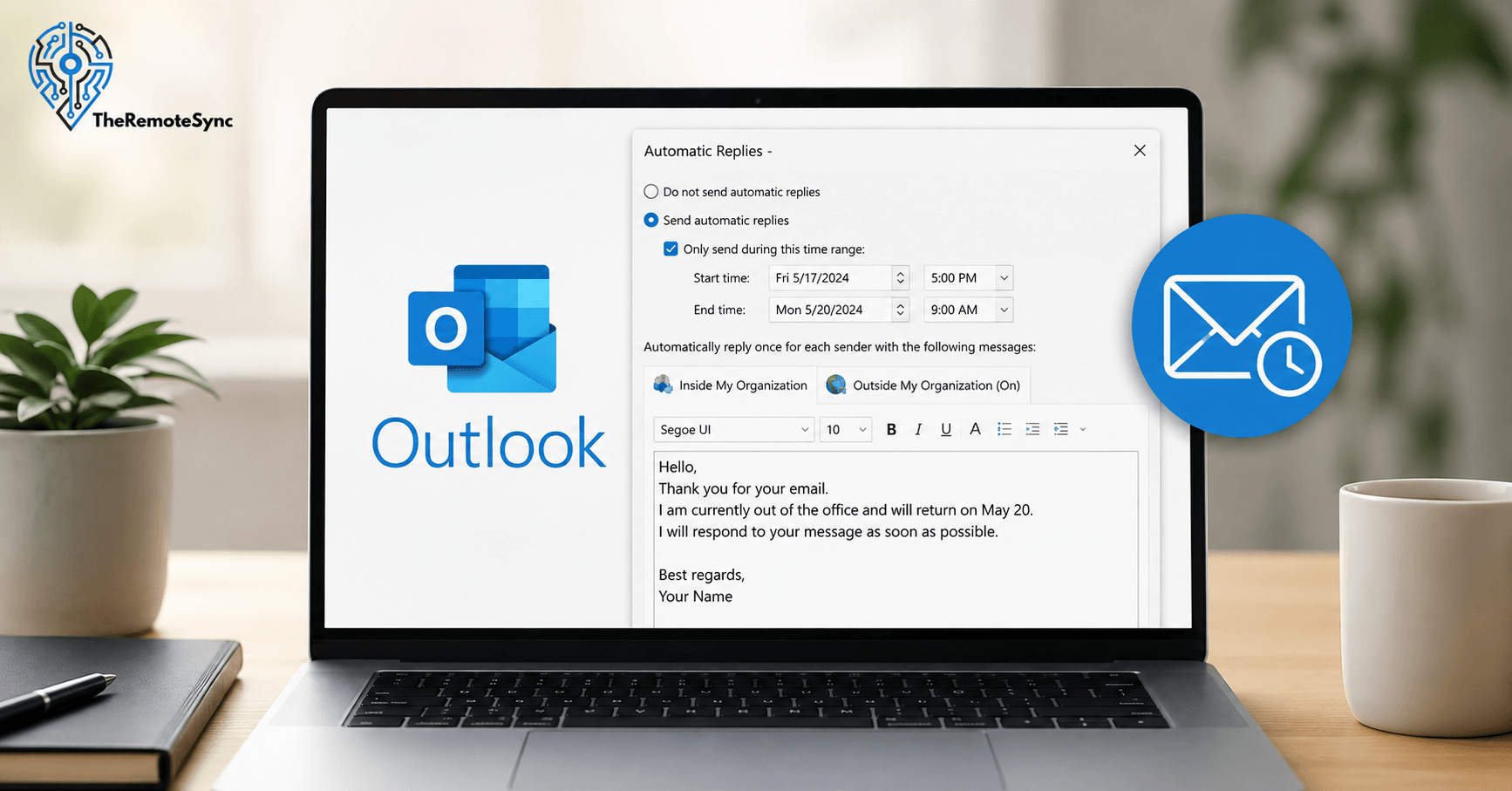
- Select Automatic Replies (Out of Office). This button only appears for Microsoft 365 or Exchange accounts. If you don’t see it, skip to the section on why your reply might not be working.
- Choose “Send automatic replies.” This is the radio button that turns the feature on.
- Set your date range, if you want one. Check the box and pick a start and end date so it turns off automatically.
- Write your message under “Inside My Organization.” This tab is selected by default.
- Click the “Outside My Organization” tab and write a separate message for external senders, then check the box to send it.
- Click OK. Your automatic reply is now active.
How to Set Out of Office in the New Outlook for Windows
Microsoft has been shifting everyone toward the new Outlook for Windows, which looks and behaves like Outlook on the web instead of the classic desktop app.
- Click the File tab, or select the gear icon depending on your build.
- Go to Automatic Replies. In the new Outlook, this opens the same panel as the web version.
- Turn on the toggle, set your dates, and write your inside and outside organization messages the same way you would on the web.
- Select Save.
If your Outlook doesn’t look like either version described above, check which one you’re running. Microsoft labels it clearly in the top right corner as either “classic” or “new.”
How to Set Out of Office on Outlook for Mac
The Mac version uses its own menu structure, separate from Windows.
- Open Outlook and click Tools in the top menu bar.
- Select Out of Office.
- Check the box to send automatic replies.
- Type your message in the text box provided.
- Check the box for a time period if you want the reply to turn off on its own, and set your dates.
- Check the box for external senders if you want a separate reply for people outside your company.
- Click OK to save and activate.
How to Set Out of Office on the Outlook Mobile App
Setting this up on your phone matters more than people expect. A lot of out of office replies get set from an airport gate, not a desk.
- Open the Outlook app and tap your profile picture in the top left.
- Tap Settings, then select the account you want to update.
- Tap Automatic Replies.
- Turn on the toggle, add your message, and set a date range if you want one.
- Tap Save, usually in the top right corner.
This works the same way on both iOS and Android. The Outlook app keeps everything in sync with the desktop and web versions, so a reply set on your phone shows up correctly everywhere else.
How to Turn On Out of Office Without an End Date
Sometimes you genuinely don’t know when you’ll be back. Medical leave, an open-ended sabbatical, or a role transition are common reasons.
To do this, follow the normal steps above but leave the “send replies only during a time period” checkbox unchecked. The reply stays active indefinitely, until you manually turn it off.
The catch is that Outlook won’t remind you it’s still running. People forget these are on for months. If you go this route, set a personal calendar reminder for your likely return date so you don’t come back to a live auto-reply that makes it look like you’re still gone.
How to Schedule Out of Office in Advance
You don’t have to wait until your last day to set this up. Outlook lets you schedule the entire thing ahead of time.
Follow the same automatic replies steps, then set your start date for whenever your time away actually begins, not today. Outlook holds the setting and turns it on automatically at that date and time.
This is worth doing a few days before you leave, not the night before. Your last day at work is usually your busiest one. Handling this earlier means one less thing competing for your attention while you’re trying to wrap up loose ends.
How to Set Out of Office for Someone Else in Outlook
This comes up most often for executive assistants managing a manager’s inbox, or anyone covering a colleague’s mailbox while they’re out.
You need delegate access or full mailbox permissions first. Without that, Outlook won’t let you touch someone else’s automatic replies.
- Open the other mailbox through File, then Open & Export, then Other User’s Folder, or by adding their account to your profile if you have full access permissions.
- Follow the same Automatic Replies steps covered earlier, but inside their mailbox instead of your own.
- Confirm with the person first. Even with permission, always check the exact wording they want before you send it on their behalf.
If you’re managing this across many accounts as an IT admin rather than one or two colleagues, that’s typically handled through Exchange admin tools rather than clicking through each mailbox individually. That’s a separate workflow outside the scope of a single automatic reply.
How to Set Out of Office in Outlook for External Senders Only
Sometimes you want coworkers to know you’re online and reachable for anything urgent, but you don’t want to blast a generic reply to every internal email.
The reverse is more common: sending a reply only to people outside your company, while leaving internal colleagues without one.
In the Automatic Replies panel, leave the “Inside My Organization” message blank or turn off replies to your organization, and only fill in and enable the “Outside My Organization” section. This sends your reply to clients, vendors, and other external contacts while your internal team gets nothing, since they can usually just message you directly or check your calendar instead.
How to Show Out of Office on Your Calendar Without Sending an Automatic Reply
This is the “no automatic reply” scenario, and it’s genuinely useful. You want your team to see you’re unavailable on your calendar, but you don’t want an email reply going out to every newsletter and cold pitch that lands in your inbox.
- Open your Calendar and create a new event covering the dates you’ll be away.
- Set “Show As” to Out of Office in the event details.
- Turn on All Day if it covers full days.
- Save the event, and stop there. Do not turn on Automatic Replies.
Your calendar now shows the purple Out of Office block to anyone checking your availability, but your inbox stays silent. This works well for short internal breaks where you don’t need external senders to get a reply at all.
How to Set Out of Office in Outlook Calendar for Others
If you’re managing someone else’s calendar, such as an executive’s schedule, the process is the same calendar event steps above, done inside their calendar instead of yours.
You’ll need calendar-sharing or delegate permissions from that person first. Once you have access, you can open their calendar, create the Out of Office event, and it will show correctly to anyone trying to book time with them, without needing to touch their email settings at all.
How to Set Out of Office in Microsoft Teams
If your company uses Teams alongside Outlook, you can set your out of office status from either app, and they sync with each other.
- Click your profile picture in the top right corner of Teams.
- Select Set status message, then choose Schedule out of office.
- Turn on the toggle next to “Turn on automatic replies.”
- Type your out of office message. This message appears in Teams chats and on your profile card, and it’s also sent as your Outlook automatic reply.
- Set a start and end date, or leave it open if you don’t have one yet.
- Save.
An out of office message is required for the Teams status and the Outlook sync to work together. If you skip the message, the sync won’t activate properly.
Changes flow in both directions. If you update your automatic replies directly in Outlook instead, that change shows up in Teams too. You don’t need to set it twice.
How to Turn Off Out of Office in Outlook
If you set an end date, Outlook turns the reply off automatically. No action needed.
If you didn’t set one, or you’re back early, go back to the same Automatic Replies panel you used to turn it on, whether that’s web, desktop, Mac, or mobile, and switch the toggle off, or select “Don’t send automatic replies.” In Teams, clear your out of office status from the same profile menu you used to schedule it.
Why Isn’t My Out of Office Reply Working?
A few things usually cause this, and none of them require reinstalling anything.
- You didn’t click Save or OK. This sounds obvious, but it’s the most common cause. Closing the window without confirming discards the change.
- Your account is POP or IMAP, not Exchange or Microsoft 365. The Automatic Replies button only appears for supported account types. If you don’t see it, you’ll need to use Rules instead to send a reply while Outlook stays open.
- You’re expecting a reply on every single email. Automatic replies are usually sent once per sender for the duration of your time away, not once per message. If a colleague emails you five times in one week, they typically only get the auto-reply once.
- Teams and Outlook are stuck out of sync. This can lag by a few minutes after you change one of them. If it doesn’t resolve on its own, turning replies off and back on in Outlook usually forces both to match.
- The reply is filtered as spam by the sender’s system. This isn’t something you can control on your end, but it’s worth knowing if someone claims they never got your notice.
Out of Office Message Examples for Remote Workers
Keep it short. A recent study on email habits found that a large majority of professionals feel pressure to respond to messages quickly, which means a long, over-explained out of office reply often gets skimmed, not read.
Short Reply for a Few Days Out
“Thanks for your email. I’m out of office until [date] with limited access to email. I’ll respond when I’m back. For anything urgent, contact [name] at [email].”
Professional Template for Longer Absences
“Thank you for reaching out. I’m currently out of office from [start date] through [end date] and will have limited to no access to email during this time. I’ll respond to your message as soon as I’m able after my return. If this is time-sensitive, please contact [name] at [email/phone], who is covering for me while I’m away.”
No-Access Reply for True Time Off
“I’m out of office until [date] and not checking email during this time. Your message won’t be forwarded or reviewed until I’m back. For urgent matters, reach [name] directly at [email].”
Notice none of these promise to “catch up on everything” the moment you’re back. That’s a habit worth breaking. It sets an expectation that you’ll answer immediately, which defeats the point of stepping away in the first place.
Frequently Asked Questions
How do I set an automatic reply for someone else in Outlook?
You need delegate or full mailbox access to that person’s account first. Once granted, open their mailbox and follow the same Automatic Replies steps you’d use for your own account, and always confirm the message wording with them directly.
Does the out of office reply send once per sender or every time?
Generally once per sender for the length of time your automatic replies are active, not once per email. This prevents the same person from getting five copies of your message if they email you five times.
Why isn’t my out of office reply working in Outlook?
The most common causes are forgetting to click Save, using a POP or IMAP account that doesn’t support Automatic Replies, or a temporary sync delay between Outlook and Teams. Check the troubleshooting section above for the full list.
Can I schedule out of office in Outlook in advance?
Yes. Set your start date to a future date when you set up Automatic Replies, and Outlook will turn the reply on by itself when that date arrives.
How do I turn off out of office in Outlook?
If you set an end date, it turns off automatically. If you didn’t, return to the same Automatic Replies panel and switch the toggle off, or select “Don’t send automatic replies.”
What’s the difference between Out of Office calendar status and automatic replies?
Automatic replies are the emails Outlook sends to people who message you while you’re away. Out of Office calendar status is the visual block on your calendar showing you’re unavailable for meetings. You can use either one on its own, or both together.
Can you set an out-of-office on someone else’s Outlook?
Yes, but only if you’ve been granted delegate access, or the account is a shared mailbox you have permission for. If you’re set up as a delegate, open Outlook on the web, click your profile icon, select “Open another mailbox,” and enter their email address. Once their mailbox opens, go to Settings → Mail → Automatic replies and set it up as if it were your own. You can’t do this for someone’s personal account without that access; they’d need to grant you delegate permissions first (File → Account Settings → Delegate Access, on their end) or have an IT admin set it up via a shared mailbox or PowerShell for an entire organization.
Set Yours Up Before You Close Your Laptop Today
Don’t leave this for your last hour before vacation. Pick the version of Outlook you actually use from the steps above, turn on automatic replies, and set a start date for the last day you’re realistically okay checking email, not the day you technically leave.
If your team also runs on Teams, take the extra thirty seconds to schedule your status there too, so your calendar, your inbox, and your chat all say the same thing at the same time.