You lean in closer to your screen. The text still looks a little soft. You bump up the brightness. You clean your glasses. Nothing helps.
Then you notice it. A layer of dust sitting on the glass. A few fingerprints near the corner. A faint film across the whole thing that you have been squinting past for weeks.
This happens to almost every remote worker. You stare at the same screen for eight, ten, sometimes thirteen hours a day. It gets dusty. It gets touched. And most people never clean it properly, because they are worried about damaging it, or they just do not know the right steps.
This guide covers exactly how to clean a PC monitor without streaks, without damage, and without guessing which household product is safe to use.
Why a Dirty Monitor Is Worse Than It Looks
A dusty or smudged screen is not just a visual annoyance. It changes how hard your eyes have to work.
Dust and grime scatter light unevenly across the screen. This lowers contrast and adds glare, which forces your eyes to strain to focus on text and images that should be sharp. A 2023 systematic review published in Scientific Reports found that digital eye strain affects close to 70 percent of workers who spend long hours on screens. A dirty monitor adds one more layer of strain on top of that.
If you already deal with tired eyes by the end of the day, your screen surface might be part of the problem. A clean monitor will not fix poor lighting or bad posture, but it removes one easy source of extra strain.
There is also a practical side that has nothing to do with eye health. A dirty screen makes color and detail harder to judge accurately. If your work involves reviewing photos, checking design files, or reading dense spreadsheets, a hazy layer of dust flattens contrast just enough to make small details blend together. You end up zooming in more than you should, which adds time to tasks that should take minutes.
What Actually Builds Up on a Monitor Screen
Most people assume it is just dust. It is usually more than that.
- Dust particles: Monitors carry a small static charge, which pulls dust out of the air and onto the screen surface.
- Skin oil and fingerprints: Touchscreens and regular monitors both pick these up from adjusting the screen or pointing at something on it.
- Respiratory droplets: Talking, coughing, or sneezing near your desk sends tiny droplets onto the screen more often than people realize.
- Food residue: Eating at your desk is common in remote work. Crumbs and grease drift onto the screen over time.
None of this is unusual. It is just part of using a screen for most of your working day.
What You Need Before You Start
You do not need a specialized cleaning kit. Most of what you need is already in your home.
- A microfiber cloth: This is the single most important tool. It lifts dust without scratching the screen coating. Keep at least two on hand, one for dusting and one for drying.
- Distilled water: Tap water contains minerals that can leave streaks and, in rare cases, contribute to corrosion around the screen edges over time. Distilled water avoids this.
- A spray bottle: For mixing water with a small amount of white vinegar if you are dealing with dried-on marks.
- A soft-bristled brush: Useful for the vents, stand, and speaker grilles where dust builds up but a cloth cannot reach well.
If you want a ready-made option instead of mixing your own solution, look for an alcohol-free screen cleaning kit that pairs a pre-mixed spray with a microfiber cloth. I keep one in my desk drawer specifically because it saves me from second-guessing whether a cleaning spray is safe for my monitor’s coating. If you already own a microfiber cloth, you can skip the kit and just use distilled water instead. The tool matters less than the technique.
How to Clean a PC Monitor Step by Step
This is the core process. It works for LED, LCD, and IPS monitors, and it applies whether you are cleaning a desktop monitor or a laptop screen.
Step 1: Turn Off and Unplug the Monitor
Always start here. A powered-off screen shows smudges and dust far more clearly than a lit one, since the glare from the display hides a lot of grime.
Turning it off also removes any risk of electrical issues if a small amount of moisture reaches the wrong spot.
Step 2: Dust It First, Before Any Liquid Touches the Screen
Take your dry microfiber cloth and wipe the screen gently. This step alone removes most of what is on there.
Skipping this step and going straight to a damp cloth just turns dry dust into a muddy paste that is harder to remove.
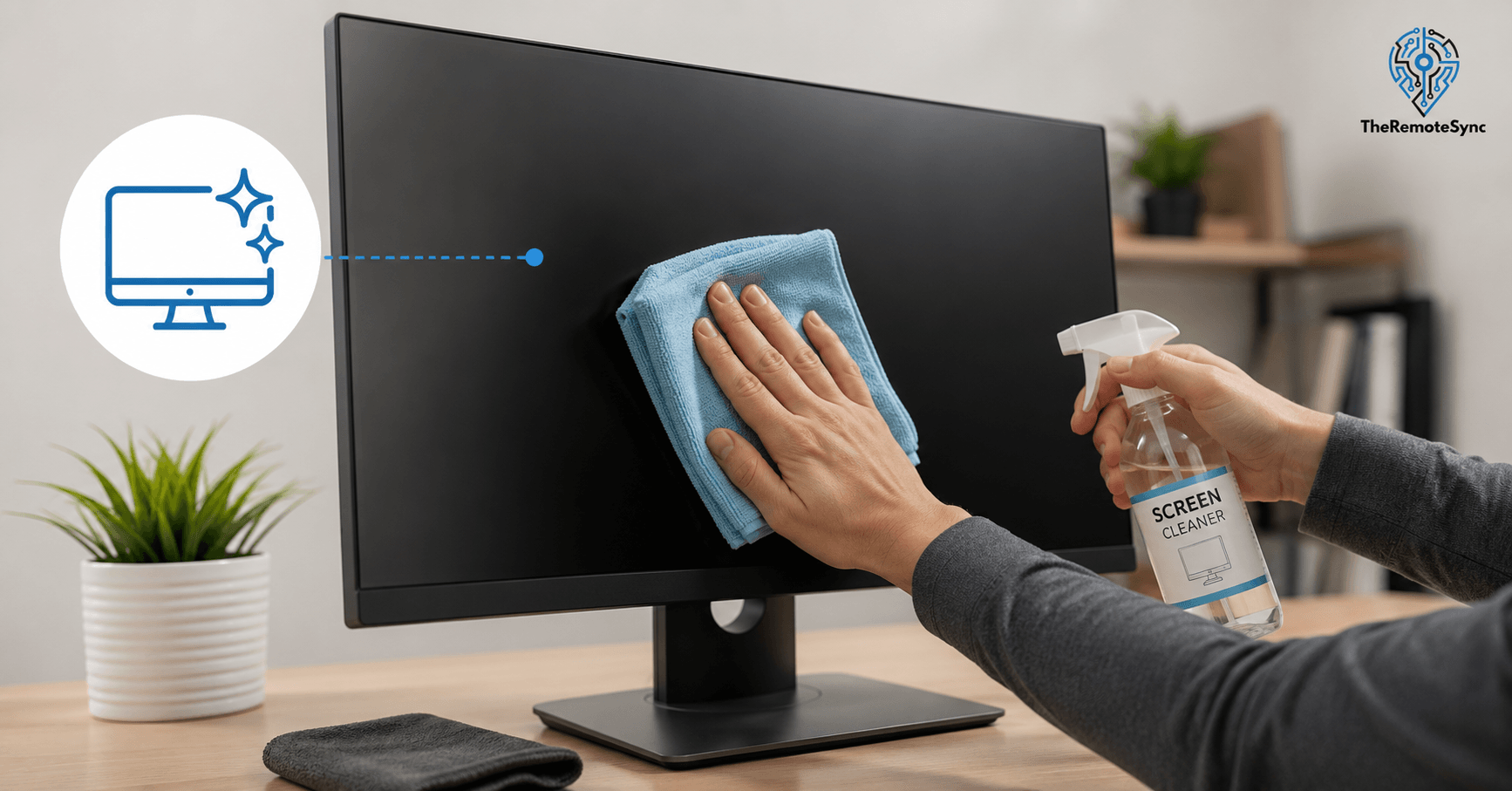
Step 3: Dampen the Cloth, Never the Screen
If dust removal alone did not clear the smudges, it is time for a light dampening.
Spray your cleaning solution onto the cloth, not the monitor. Even a small amount of liquid that seeps behind the bezel can damage the internal components. This is the single most common mistake people make, and it is also the easiest one to avoid.
Step 4: Wipe in Straight Lines, Not Circles
Most guides tell you to wipe in circular motions. After cleaning more monitors than I can count, I have found that straight, top-to-bottom passes leave fewer visible streak lines, especially on darker screens where circular marks catch the light.
Try one pass top to bottom, then one pass left to right if needed. Use light pressure. Pressing hard will not clean it faster. It just risks pressure marks or dead pixels on some panels.
Step 5: Dry With a Second Clean Cloth
Once you have wiped away the grime, go over the screen again with a dry section of cloth, or a second cloth entirely.
This step removes any leftover moisture before it has a chance to dry into a streak. Skipping it is why some people end up with a clean but streaky screen.
Step 6: Handle Stubborn Spots Separately
If something is still stuck after two passes, do not scrub harder. Let a slightly damp cloth sit on the spot for a few seconds to loosen it, then wipe again.
Picking at it with a fingernail or a sharp object is one of the fastest ways to scratch a screen coating permanently.
Can I Use Water to Clean My Monitor?
Yes, but with conditions. Plain tap water can leave mineral streaks and, over repeated cleanings, may contribute to buildup around the screen edges.
Distilled water is the safer option because it has had the minerals removed. If you do not have distilled water on hand, a very lightly dampened cloth with tap water is still far better than skipping cleaning altogether, or worse, reaching for a household glass cleaner.
For tougher marks, a 50/50 mix of distilled water and white vinegar works well on most LCD and LED screens. Apply it to the cloth, never directly to the glass.
What Not to Use on a PC Monitor
This list matters as much as the steps above. A wrong product can cause damage that no amount of careful wiping will fix.
- Windex or any glass cleaner: These often contain ammonia, which breaks down the anti-glare coating on most modern screens.
- Alcohol-based wipes: Isopropyl alcohol can be used in very small amounts on some screens, but full-strength alcohol wipes are too harsh for most consumer monitors and can dull the coating.
- Paper towels or tissues: Both are more abrasive than they look under a microscope. Repeated use can create fine scratches you will not notice until the screen catches light at certain angles.
- Compressed air sprayed directly at the screen: Compressed air works fine on keyboards and vents, but the force of the air can flex the thin display layer on some monitors.
- Dish soap or all-purpose cleaners: These often leave a residue that is hard to remove without more liquid, which increases the risk of moisture getting behind the screen.
- Baby wipes or hand sanitizer wipes: These are convenient because they are already sitting on most desks, but they usually contain alcohol or fragrance oils that are not meant for screen coatings.
I have seen all of these mistakes made by people trying to save time. The irony is that using the wrong product usually creates a bigger problem than the one you started with. A faint layer of dust wipes away in seconds. A scratched coating or a patch of dulled anti-glare finish does not come back.
Cleaning a Desktop Monitor vs a Laptop Screen
The steps are almost the same, but there are a couple of differences worth knowing if you split time between a desktop setup and a laptop.
- Hinge pressure: A laptop screen sits on a hinge, so pressing down while wiping can flex the whole panel. Use lighter pressure than you would on a desktop monitor, which is held firmly in a stand.
- Keyboard contact: Closing a laptop lid presses the screen against the keyboard. Any grease or crumbs on the keys get pressed straight into the display. Wiping the keyboard before the screen prevents this transfer.
- Bezel width: Many desktop monitors have thicker bezels, which give you more room to grip the frame while cleaning. Laptops often have thin bezels, so keep your fingers off the glass itself as you work along the edges.
If you use both a laptop and an external monitor in a dual setup, clean them on the same day. It is easy to forget the smaller laptop screen once a bigger external display becomes your main focus.
How to Clean Your Screen and Keyboard Together
Since most desks have both a monitor and a keyboard collecting grime at the same time, it makes sense to clean them in the same sitting.
- Start with the keyboard: Turn it upside down and gently shake out loose crumbs first. This keeps debris from landing back on a screen you already cleaned.
- Use compressed air on the keyboard: This is where compressed air is genuinely useful, since it reaches between the keys without needing to remove them.
- Wipe the keys with a barely damp cloth: A cloth dampened with the same distilled water and vinegar mix works fine here. Avoid soaking the cloth, since liquid can seep under the keys.
- Clean the monitor last: This way, any dust stirred up from the keyboard has already settled before you do your final pass on the screen.
Doing both at once also means you are not tempted to skip one because you already put the cleaning supplies away.
How to Clean an IPS or Matte Monitor Screen
IPS panels and matte-finish screens need a lighter touch than standard glossy monitors.
Matte coatings are applied to reduce glare, and they scratch more easily than glossy glass. Stick to a dry microfiber cloth first. If you need moisture, use less than you think you need, and avoid any scrubbing motion. A light, single pass is usually enough.
If you clean a matte screen the same way you would clean a glossy one, with more pressure and more liquid, you risk leaving faint marks that never fully go away.
How to Clean a Monitor Without a Microfiber Cloth
If you do not have one handy, a clean, soft cotton cloth is the next best option. A worn-out cotton t-shirt, freshly washed and lint-free, works in a pinch.
Avoid anything with a rough texture, and skip fabric softener on the cloth you plan to use, since residue from softener can transfer onto the screen and cause smearing.
This is a temporary fix. A proper microfiber cloth costs very little and is worth adding to your desk setup permanently.
How Often Should You Clean Your Monitor
Once every one to two weeks is a reasonable baseline for most home office setups. If you eat at your desk, work near a window with dust circulation, or share the space with a pet, you may need to clean weekly.
A simple way to check: if you can see fingerprints or a haze when the screen is off, it is time to clean it. Waiting until dust is visibly thick just makes the job harder and increases the chance you will need liquid cleaner instead of a quick dry wipe.
Fitting Monitor Cleaning Into Your Remote Work Routine
Most remote work advice focuses on chairs, desks, and lighting. Screen cleanliness rarely gets mentioned, even though it directly affects how much strain your eyes carry through the day.
A few ways to build this into a normal WFH routine without turning it into a chore:
- Pair it with your Friday wrap-up: Clean your screen at the end of the work week, right before you shut down for the weekend. It takes less than two minutes and starts your next week with a clear screen.
- Keep the cloth in reach: Store your microfiber cloth in a desk drawer, not in another room. If it takes effort to find it, you will skip the task.
- Treat it like part of your desk setup, not a separate cleaning task: The same way you would adjust your monitor height or wipe down your keyboard, screen cleaning fits into general workspace upkeep.
If you already follow a digital wellness routine that includes breaks for your eyes, add a clean screen to that list. It is a small habit that removes one avoidable source of visual strain from a long work day.
Signs It Is Time to Clean Your Monitor
Instead of guessing based on the calendar, watch for these signs. They tell you more than a fixed schedule ever will.
- You find yourself leaning in to read small text: If you are moving closer to the screen more than usual, check for a dust layer before assuming it is your eyesight.
- The screen looks dull even at full brightness: A film of dust reduces how bright and sharp colors appear, even when the display itself is working fine.
- You can see fingerprints when the monitor is off: This is the clearest sign. If marks are visible with no backlight to hide them, they are visible during work too.
- Colleagues on video calls mention glare or reflections: A dirty screen scatters light differently than a clean one, which can make webcam lighting look worse than it needs to.
Checking for these signs takes a few seconds and saves you from either over-cleaning a screen that does not need it or ignoring one that clearly does.
Frequently Asked Questions
What can I use to clean my PC monitor?
A dry microfiber cloth handles most regular dusting on its own. For smudges, lightly dampen the cloth, never the screen, with distilled water, and for tougher marks, a 50/50 mix of distilled water and white vinegar applied to the cloth works on most screens. Turn the monitor off first, wipe in straight lines rather than circles, then dry with a second clean cloth.
Is it okay to use alcohol wipes on a monitor?
Not recommended for most screens. Standard alcohol wipes are typically too strong and wear down the anti-glare coating with repeated use. Follow the manufacturer’s specific guidance if they explicitly approve alcohol wipes for your model.
Is it OK to clean a monitor with water?
Yes, as long as the cloth is only lightly dampened rather than wet, and the water goes on the cloth, never sprayed directly onto the screen. Distilled water is the safer choice since it avoids the mineral streaks tap water can leave behind.
What are the most common mistakes when cleaning a monitor?
Spraying liquid directly onto the screen, using paper towels instead of microfiber, applying too much pressure, and using ammonia-based glass cleaners are the most frequent mistakes.
How often should you clean your monitor?
Every one to two weeks for most setups. More often if you eat at your desk or work in a dusty environment.
Is it safe to use compressed air on a monitor?
It is safe for the vents, stand, and bezel, but avoid spraying it directly at the screen surface. The force of the air can put pressure on the thin display layer.
Do screen protectors reduce how often I need to clean my monitor?
Somewhat. A screen protector takes the direct contact with fingerprints and dust, which means you can clean the protector instead of the monitor itself. It does not eliminate cleaning, but it can make the process easier.
How to clean a monitor screen without distilled water?
Start with a dry microfiber cloth. If you need moisture and have no distilled water on hand, lightly dampen the cloth with plain tap water rather than skipping the cleaning step entirely, since the risk of minor mineral streaks is smaller than the buildup from never cleaning at all. Dry the screen with a clean cloth right after to reduce streaking.
How to clean a dusty monitor?
Do a full dry dusting pass first with a microfiber cloth before any liquid touches the screen, since going straight to a damp cloth turns dry dust into a muddy paste that’s harder to remove. If months of dust have built up, work in small sections with a lightly damp cloth afterward rather than tackling the whole screen at once, and expect to need two full passes rather than one.
How to clean a matte monitor?
Use a lighter touch than you would on a glossy screen. Matte coatings are applied to reduce glare and scratch more easily, so stick to a dry microfiber cloth first, and if you need moisture, use less than you think and skip any scrubbing motion. A single light pass is usually enough.
How to clean fingerprints off a monitor?
Dry dust the screen first, then lightly dampen a microfiber cloth with distilled water and wipe in straight top-to-bottom lines. Fingerprints usually come off in a single damp pass; if any residue remains, dry the area with a second clean cloth right after rather than letting it air dry.
Can I use eyeglass cleaner on my monitor screen?
It’s best avoided. Most eyeglass cleaners are formulated for glass and plastic lenses, not the anti-glare and anti-reflective coatings on modern monitors, and some contain alcohol or ammonia that can dull those coatings over time. A microfiber cloth with distilled water is the safer, purpose-built approach.
Is it okay to use Windex on a computer monitor?
No. Windex and other glass cleaners typically contain ammonia, which breaks down the anti-glare coating on most modern screens. Stick to a dry microfiber cloth or one lightly dampened with distilled water instead.
How to clean a monitor screen without a microfiber cloth?
A clean, soft cotton cloth is the next best option, like a worn-out, freshly washed, lint-free t-shirt. Avoid anything with a rough texture, and skip fabric softener on the cloth, since residue can transfer onto the screen and cause smearing. Treat this as a temporary fix rather than a regular habit.
Conclusion
A clean monitor will not fix bad lighting or a chair that hurts your back, but it removes one small strain your eyes deal with every single day without you noticing.
Grab a microfiber cloth, set aside two minutes, and clean your screen before you start work tomorrow. Then add it to your weekly desk routine, so it never builds up again.
Discover more from TheRemoteSync
Subscribe to get the latest posts sent to your email.