Most remote workers upgrade their monitor after they realize the pain they’ve been working through. The headaches, the constant window-switching, the neck turning toward a second screen that’s never quite at the right angle. A well-chosen curved ultrawide fixes most of those problems in one shot.
This guide covers the 5 best curved computer monitors worth buying in 2026, with honest assessments of where each one works and where it falls short.
At a Glance: Best Curved Monitors Compared
| Monitor | Size | Resolution | Panel | Refresh | USB-C | Best For |
|---|---|---|---|---|---|---|
| Samsung Odyssey G9 | 49″ | 5120×1440 | QD-OLED | 240Hz | No | Ultrawide power users |
| LG 34WN80C-B | 34″ | 3440×1440 | IPS | 60Hz | 60W | Laptop-first WFH users |
| Dell UltraSharp U3423WE | 34″ | 3440×1440 | IPS Black | 60Hz | 90W | Professional & multi-PC setups |
| Acer Nitro EDA323QU | 31.5″ | 2560×1440 | VA | 180Hz | No | Budget WFH + casual gaming |
| MSI Optix MAG342CQR | 34″ | 3440×1440 | VA | 144Hz | No | Work-gaming hybrid setups |
What Actually Matters When Picking a Curved Monitor
The specs pages will tell you panel type, refresh rate, and resolution. What they won’t tell you is how those specs translate to a real eight-hour workday. Here’s what’s worth understanding before you spend money.
IPS vs VA: It’s About Your Work, Not Just Specs
IPS panels have wider viewing angles and more consistent color accuracy, which matters if you share your screen during video calls or do any design, photo editing, or color-sensitive work. The trade-off is lower contrast, so blacks look more like dark gray.
VA panels deliver deeper blacks and higher static contrast ratios, which makes a real difference in low-light home offices or for evening gaming. The downside is that colors shift slightly when viewed from an angle, and fast-motion content can show ghosting at lower refresh rates.
For pure productivity work in a normally lit room, IPS is the better default. For someone who games in the evening or works in a dimmer space, VA’s contrast advantage is genuinely visible.
Curvature: 1000R vs 1500R vs 1800R
The number represents the radius of the curve in millimeters. A lower number means a tighter curve.
1800R is a gentle, almost subtle curve. It works well for productivity use and is the most versatile curvature for standard desk setups.
1500R is noticeably more curved and feels more immersive. It suits gaming well and works fine for productivity, though some users find it distracting on a wide screen if they sit close.
1000R is aggressively tight and designed for very close viewing. It is rarely practical for office use.
For most remote work setups, 1500R to 1800R is where you want to be.
Resolution and Screen Size: What Actually Fits Your Workflow
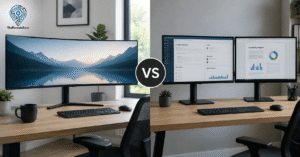
A 34-inch ultrawide at 3440×1440 (21:9) gives you roughly the same horizontal span as two 24-inch 1080p monitors side by side, but without the bezel gap down the middle. If you keep reference material, code, or communication tools open alongside your primary work window, this format eliminates most of the tab-switching you’re currently doing.
A 49-inch 32:9 ultrawide replaces two 27-inch monitors. It’s a significant commitment in terms of desk space and GPU requirement, but the screen real estate is almost excessive in a good way.
If you’re working from a compact desk, a 31.5-inch curved monitor in 16:9 is a reasonable starting point that doesn’t demand a deep setup.
USB-C With Power Delivery: More Important Than It Sounds
For anyone working from a laptop, USB-C with Power Delivery is one of the most practical features a monitor can have. One cable carries your video signal and charges your laptop simultaneously. No separate power brick, no extra cable running across the desk.
The LG 34WN80C-B delivers 60W, sufficient for most ultrabooks. The Dell U3423WE delivers 90W, which handles even the MacBook Pro under load. If USB-C isn’t on a monitor you’re considering, factor in the cable management trade-off.
Curved vs Flat: What the Decision Actually Comes Down To
This question comes up in every WFH setup conversation. The honest answer: curved wins for most remote workers who stay at their desk all day, and flat wins for specialized precision work.
The practical case for curved comes down to two things. First, consistent focal distance. On a wide flat monitor, the edges are physically farther away than the center. On a curved display, the screen wraps to maintain roughly equal distance across your field of view, which reduces the micro-adjustments your eyes make all day. Second, ultrawide format. Most curved monitors at 34 inches and above are 21:9 or wider, which gives you a layout closer to two monitors without the gap.
Where flat still wins: CAD work, print layout, and anything requiring geometric accuracy at the edges of the screen. A curved panel introduces slight distortion at the periphery that most productivity users never notice, but precision workers will.
For the majority of remote workers, the ergonomic and multitasking benefits of a curved ultrawide are worth the switch.
The 5 Best Curved Computer Monitors in 2026
1. Samsung Odyssey G9 (49″) — Best Ultrawide for Replacing Dual Monitors
Best for: Power users, multi-app professionals, anyone eliminating a two-monitor setup
Price range: Premium
The 49-inch Odyssey G9 is the most ambitious option on this list. It’s the monitor you buy when you want to consolidate everything onto one panel and stop thinking about it.
Key specs:
- Screen size: 49 inches
- Resolution: 5120×1440 (Dual QHD)
- Panel: QD-OLED
- Refresh rate: 240Hz
- Response time: 0.03ms
- Curvature: 1800R
- Aspect ratio: 32:9
- Color coverage: 99% DCI-P3, 96% Adobe RGB
- HDR: DisplayHDR True Black 400
- Connectivity: HDMI 2.1, DisplayPort 1.4, 3x USB 3.0, Wi-Fi 5, Bluetooth 5.2
- Built-in speakers: 2x 5W
What makes it a genuine step up
The QD-OLED panel is the most significant thing about this monitor. Each pixel produces its own light independently, so blacks are actually black, not a washed-out dark gray. When you combine that with quantum dot color technology, you get a display that is visually in a different category from standard IPS or VA panels.
At 49 inches with a 32:9 aspect ratio, this is genuinely equivalent to two 27-inch monitors placed side by side. The difference is that there’s no bezel split down the middle, the brightness is consistent across the full width, and your eyes don’t have to adjust between two separate calibrations.
The 240Hz refresh rate and 0.03ms response time are primarily gaming specs, but they also mean day-to-day scrolling, window movement, and cursor tracking are noticeably smoother than on 60Hz productivity displays. It’s a small thing until you go back to 60Hz and notice the drag.
Samsung also included Tizen OS, their Smart TV platform, with built-in streaming apps and Wi-Fi. For a remote worker who also wants to catch a show or meeting replay without switching inputs, this is a practical addition.
What to think about before buying
OLED burn-in is a legitimate concern for office use. Static elements like taskbars, dock icons, and always-open spreadsheet grids can cause permanent image retention over time. Samsung includes protection features, but if your day is heavily spreadsheet or dashboard-driven, this is worth taking seriously. The best OLED monitors handle it better than earlier generations, but it remains a real consideration.
This monitor also requires a deep desk and a capable GPU to drive 5120×1440 at high refresh rates. Budget GPUs will bottleneck it significantly.
There’s no USB-C, which is a gap for laptop users who want single-cable simplicity.
Pros:
- True per-pixel lighting with genuine blacks
- Effective replacement for dual 27-inch monitors
- 240Hz suits both gaming and high-refresh productivity
- Wide color gamut works for casual creative review
- Built-in streaming platform adds flexibility
Cons:
- OLED burn-in risk for static productivity workloads
- No USB-C Power Delivery
- Requires a large desk and a capable GPU
- Premium price is a serious commitment
2. LG 34WN80C-B (34″) — Best for Laptop-Based Remote Workers
Best for: MacBook and laptop users, WFH professionals who want single-cable simplicity
Price range: Mid-range
The LG 34WN80C-B has been the default recommendation for productivity-focused ultrawide monitors for a few years now, and it earns that position. It does the fundamentals well without asking you to pay for features you don’t need.
Key specs:
- Screen size: 34 inches
- Resolution: 3440×1440 (WQHD)
- Panel: IPS
- Refresh rate: 60Hz
- Response time: 5ms
- Curvature: 1900R
- Color coverage: 99% sRGB
- USB-C: Yes, 60W Power Delivery
- Connectivity: HDMI 2.0 ×2, DisplayPort 1.4, USB-C, 2x USB-A 3.0
- Built-in speakers: None
What makes it a strong pick for WFH
The single-cable USB-C story is the main selling point. Plug one cable into your laptop, and you get a full 34-inch display plus laptop charging. No power brick on the desk, no separate video cable. For laptop-first remote workers who want a clean setup, this is a genuinely useful feature.
The IPS panel is accurate at 99% sRGB, which means colors are consistent and reliable for productivity work, light photo review, and video calls. Text is sharp at 3440×1440 on a 34-inch panel, around 109 PPI, which is comfortable at standard desk viewing distances without needing display scaling.
The 21:9 format lets you run two full-width windows side by side at a usable size. LG’s Screen Split 2.0 provides preset layouts, which help if you want structured zones rather than manually resizing windows.
Ergonomically, the stand is solid: 110mm of height adjustment, tilt, and VESA compatibility if you prefer a monitor arm. The 1900R curvature is gentle enough that it doesn’t feel aggressive in a typical home office environment.
What to think about before buying
The 60Hz refresh rate is fine for office work, but it will disappoint if you game. If your evenings involve anything faster than casual gaming, this monitor won’t keep up well.
The 60W USB-C power delivery charges most ultrabooks and smaller MacBooks cleanly, but it may not fully power a 16-inch MacBook Pro under heavy CPU/GPU loads. You may notice the laptop draining battery during intensive tasks even when plugged in.
One commonly noted limitation: when USB-C is used for the video signal, the USB-A ports on the monitor drop to USB 2.0 speeds. If you plug a fast external drive or high-speed peripheral into the monitor’s hub, this matters.
There are no built-in speakers, so you’ll need external audio.
Pros:
- Single USB-C cable connects and charges most laptops
- Accurate IPS panel for consistent color across productivity and light creative work
- Full ergonomic adjustability
- Clean mid-range value
Cons:
- 60Hz limits gaming usefulness
- No built-in speakers
- USB-A ports drop to USB 2.0 when the USB-C display is active
- 60W PD may not fully charge high-performance laptops under load
3. Dell UltraSharp U3423WE (34″) — Best for Professional and Multi-Device Setups
Best for: Developers, photographers, hybrid workers managing two computers
Price range: Premium
The Dell U3423WE is purpose-built for professionals who spend all day in front of their monitor and need it to do more than display a picture. It’s the most connectivity-rich option in this list, and the IPS Black panel gives it a genuine image quality advantage over standard IPS displays.
Key specs:
- Screen size: 34.1 inches
- Resolution: 3440×1440 (WQHD)
- Panel: IPS Black
- Refresh rate: 60Hz
- Response time: 5ms
- Curvature: 1900R
- Contrast ratio: 2000:1
- Color coverage: 99% sRGB, 98% DCI-P3
- USB-C: Yes, 90W Power Delivery
- Connectivity: DisplayPort 1.4, HDMI 2.0 ×2, USB-C (90W), USB-C (15W), 4x USB-A 3.2 Gen 2, RJ45 Ethernet
- Built-in speakers: 2x 5W
- KVM switch: Yes
What makes it stand apart from the competition
The IPS Black panel is worth understanding because it changes the visual experience in a meaningful way. Standard IPS displays have a contrast ratio around 1000:1. Dell’s IPS Black technology doubles that to 2000:1, which means blacks look noticeably richer and the overall image has more depth. You don’t get the deep blacks of OLED, but you get closer than any other IPS alternative at this screen size, without the burn-in concern.
Color accuracy is also strong: 99% sRGB and 98% DCI-P3 coverage, which makes this a credible display for photographers and designers who need reliable color output. Dell includes ComfortView Plus, a panel-level blue light reduction that doesn’t introduce the warm color cast that software night modes add. For anyone dealing with eye strain from extended screen time, this is a meaningful difference from generic “eye care” modes.
The connectivity is where this monitor becomes a full docking station. 90W USB-C handles the MacBook Pro. Built-in RJ45 Ethernet means you plug into wired internet through the monitor without a separate adapter. Four USB 3.2 Gen 2 ports cover all your peripherals. Two 5W speakers handle basic audio.
The KVM switch is the feature most reviews undervalue. It lets you connect two computers to the same monitor, keyboard, and mouse, and switch between them with a button press. For hybrid workers who have a personal machine and a work laptop on the same desk, this removes a significant amount of daily friction.
What to think about before buying
At 60Hz, this is not a gaming monitor. The price is on the higher end for a 60Hz display, and if gaming matters to you, the MSI or Acer options in this list offer much better value.
Out-of-the-box color calibration is decent but not exceptional. For color-critical professional work like photography output or print review, calibrating with a colorimeter will get meaningfully better results than trusting factory settings.
The included cables are short (around 3.3 feet). Depending on your desk layout, you may need longer replacements.
Pros:
- IPS Black panel delivers the best contrast of any IPS curved monitor at this size
- 90W USB-C fully charges most laptops, including MacBook Pro
- Built-in RJ45 Ethernet simplifies wired WFH networking
- KVM switch enables seamless two-computer management
- Comprehensive hub connectivity effectively replaces a separate dock
Cons:
- Premium pricing for a 60Hz display
- Not suitable for gaming
- Factory color calibration could be better for professional color work
- Short included cables
4. Acer Nitro EDA323QU (31.5″) — Best Budget Curved Monitor for Home Office
Best for: Budget-conscious remote workers, students, casual gamers
Price range: Budget
The Acer Nitro EDA323QU makes a strong case that you don’t need to spend $500+ to get a capable curved monitor for home office use. It covers the fundamentals well and adds a refresh rate and curvature most budget monitors skip.
Key specs:
- Screen size: 31.5 inches
- Resolution: 2560×1440 (WQHD)
- Panel: VA
- Refresh rate: Up to 180Hz
- Response time: 1ms (VRB)
- Curvature: 1500R
- Color coverage: 92% DCI-P3
- Brightness: 250 nits (400 nits HDR)
- HDR: DisplayHDR 400
- Connectivity: DisplayPort 1.4, HDMI 2.0 ×2
- Built-in speakers: 2x 3W
What makes it worth considering
At this price point, getting a 31.5-inch WQHD display with 180Hz and a 1500R curve is genuinely strong. The 1500R curvature is tighter than the 1900R on the LG and Dell, which gives the display a noticeably immersive feel even at 31.5 inches.
The VA panel brings a contrast ratio around 3000:1, which means dark scenes and dark-themed applications look significantly better than they would on a comparable IPS option in this price range. For anyone working in a dim room or spending evenings gaming, that contrast advantage is real and visible.
AMD FreeSync Premium keeps frame output smooth during both gaming and general use. DisplayHDR 400 certification means the monitor meets a defined standard across brightness, color gamut, bit depth, and response timing — not just a marketing badge.
The frameless design looks cleaner than you’d expect at the price. Built-in 3W speakers cover basic video calls without needing external audio, which matters when you’re keeping costs down.
What to think about before buying
This is a 16:9 monitor, not an ultrawide. If your main goal is replacing a dual-monitor setup or getting the sprawling multitasking layout that curved ultrawides offer, this won’t deliver that. It’s a larger, more immersive single display, not a two-window workspace replacement.
At 250 nits standard brightness, this monitor can struggle in rooms with a lot of natural light. If your home office faces a window, you may find it washed out during daylight hours.
No USB-C. Single-cable laptop connections aren’t possible.
Pros:
- Strong value proposition at the price point
- 180Hz and 1ms suit gaming and smooth general use
- 1500R curvature delivers a noticeably immersive feel
- DisplayHDR 400 certification at this price is notable
- Built-in speakers included
Cons:
- 16:9 aspect ratio doesn’t provide the multitasking space of an ultrawide
- No USB-C
- 250 nit brightness struggles in bright rooms
- VA motion handling can show ghosting in very fast content
5. MSI Optix MAG342CQR (34″) — Best for Work-Gaming Hybrid Setups
Best for: Remote workers who game in the evenings, setups that need to handle both well
Price range: Mid-range
The MSI MAG342CQR occupies a practical position: it’s a 34-inch ultrawide with a 144Hz refresh rate and a 4000:1 contrast ratio, priced below most comparable ultrawides. For remote workers who also game and don’t want to buy two separate monitors, it delivers well on both sides.
Key specs:
- Screen size: 34 inches
- Resolution: 3440×1440 (UWQHD)
- Panel: VA
- Refresh rate: 144Hz
- Response time: 1ms
- Curvature: 1500R
- Contrast ratio: 4000:1
- Color coverage: 90% DCI-P3
- Brightness: 300 nits
- Connectivity: DisplayPort 1.4, HDMI 2.0 ×2
- Built-in speakers: None
- RGB: Yes (MSI Mystic Light)
What makes it worth the mid-range price
The 4000:1 contrast ratio is the standout specification here. Most IPS-based curved monitors reach 1000:1. Dell’s IPS Black technology reaches 2000:1. The MSI’s VA panel doubles even that figure, which translates to blacks that are noticeably deep in gaming, dark-themed productivity applications, and movie watching.
The 21:9 ultrawide format at 3440×1440 gives you the same horizontal workspace as the LG and Dell options in this list. Remote workers consistently report that this format functions closer to a two-monitor setup than any 16:9 display can. The 1500R curvature on a 34-inch panel is more immersive than the 1900R options, with the edges curving visibly toward you.
At 144Hz with AMD FreeSync, gaming performance is substantially better than any 60Hz productivity monitor. The 1ms response time handles fast-paced game content cleanly.
Users across forums and review threads consistently report it handling AutoCAD, Excel, coding, and gaming without any single use case feeling like a compromise.
What to think about before buying
There’s no USB-C, which is a meaningful gap for laptop users. If clean cable management and single-cable laptop connectivity matter to you, the LG or Dell options serve that better.
The HDMI ports are limited to 100Hz at 3440×1440. You’ll need DisplayPort 1.4 to reach the full 144Hz.
No built-in speakers, so external audio is required.
Some users have reported minor backlight bleed in dark content, which is common with VA panels and not specific to this model. It typically isn’t noticeable in normal work or gaming but can appear in very dark scenes at narrow viewing angles.
Pros:
- 4000:1 contrast delivers the deepest blacks in this lineup
- 144Hz handles gaming and smooth general use
- A 34-inch ultrawide format is excellent for WFH multitasking
- Competitive pricing for a 34-inch ultrawide
- Full ergonomic adjustability, including height and pivot
Cons:
- No USB-C
- No built-in speakers
- HDMI limited to 100Hz (DisplayPort required for 144Hz)
- Some backlight bleed reported in dark content
Which Curved Monitor Works Best for Long Sessions?
If you’re putting in eight-plus-hour days, eye comfort matters as much as image quality. A few things separate the options here beyond the spec sheet.
The Dell U3423WE’s ComfortView Plus is the most practically designed eye comfort feature in this lineup. It’s a panel-level hardware reduction of blue light, not a software filter, which means it reduces high-energy light emissions without introducing the orange color shift that software modes cause. For professionals doing color-sensitive work who can’t afford that shift, this is the right choice.
The LG 34WN80C-B also includes a flicker-free backlight and a blue light mode, which is solid for the price range.
The Samsung Odyssey G9’s OLED panel is inherently flicker-free at standard brightness levels, and the per-pixel lighting means there’s no harsh backlight pushing uniform light at your eyes all day.
Worth noting: monitor settings for eye health matter as much as the hardware you choose. Brightness around 100-120 nits in a normally lit room, color temperature between 5500K and 6500K during daylight, and keeping the display at arm’s length (50-90cm) will do more for your eyes over time than any single hardware feature.
Best Curved Monitor for Programming
Developers need horizontal space, sharp text at natural scaling, and a display comfortable enough for ten-hour sessions.
The Dell U3423WE is the top pick here. The IPS Black panel reads cleanly across the full width, the 3440×1440 resolution at 34 inches sits at around 109 PPI (sharp without forced scaling), and the KVM switch is genuinely useful for developers who test across two machines. The USB hub replaces a separate dock.
The LG 34WN80C-B is the more budget-friendly alternative with near-identical screen real estate and similar text clarity.
For developers who also game, the MSI MAG342CQR handles code editors, terminals, and documentation simultaneously during work hours, and steps up to 144Hz gaming when the day ends. It’s a better all-in-one option than paying for separate work and gaming displays.
Frequently Asked Questions (FAQs)
What is the downside of a curved monitor?
The main downsides are desk space and slight edge distortion. Curved monitors generally need more desk depth to sit at the right viewing distance than a flat display, and the curve introduces minor distortion at the edges that matters for precision tasks like CAD work or print layout. For most remote work and general productivity, these trade-offs are minor compared to the ergonomic and multitasking benefits.
Are curved PC monitors any good?
Yes, for most remote workers. A curved ultrawide keeps your focal distance more consistent across the screen than a wide flat monitor, since the edges wrap to stay roughly equidistant from your eyes, which reduces the micro-adjustments your eyes make all day. It also gives you enough horizontal space to run multiple windows side by side without the bezel gap of a dual-monitor setup. The exception is precision work like CAD or print layout, where a flat panel is still the safer choice.
Do professionals use curved monitors?
Yes, increasingly so.
Developers, financial analysts, video editors, content creators, and marketing professionals are among the most common professional users of curved ultrawide monitors.
The productivity gains are most pronounced in roles that require constant context-switching between multiple applications.
What curvature is best for office work?
For office work and WFH productivity, 1800R to 1900R is generally the most comfortable.
It provides a noticeable curve that brings edges into a more natural focal range without feeling overly pronounced when used at a standard desk viewing distance.
Tighter curves like 1000R and 1500R are better suited for gaming or immersive use cases.
Can a curved monitor replace dual monitors?
A 34-inch 21:9 ultrawide comes close to matching the total horizontal resolution of two 24-inch 1080p monitors side by side.
A 49-inch 32:9 ultrawide goes further and effectively replaces two 27-inch displays.
For most workflows, yes, a curved ultrawide can replace a dual-monitor setup while delivering a cleaner, more ergonomic experience.
Which curved monitor is the best?
It depends on what you’re replacing. The Samsung Odyssey G9 (49-inch, QD-OLED) is the most complete option if you’re replacing a dual-monitor setup, with the caveat that OLED burn-in is worth managing for static, spreadsheet-heavy work. For laptop users who want single-cable simplicity, the LG 34WN80C-B and Dell UltraSharp U3423WE are the practical picks, with the Dell justifying its higher price through a 90W USB-C port, an IPS Black panel, and a built-in KVM switch.
Final Thoughts
If you want the best image quality and are replacing a dual-monitor setup, the Samsung Odyssey G9 is the most complete option, with the caveat that OLED burn-in requires some workflow consideration.
If you work primarily from a laptop and want a clean desk with one cable, the LG 34WN80C-B or Dell U3423WE are the practical picks. The Dell justifies its premium through the 90W USB-C, IPS Black panel, and KVM switch. The LG is the leaner, lower-cost version of the same core idea.
If budget is the constraint, the Acer Nitro EDA323QU delivers solid value at a price point where most monitors cut too many corners.
If you split your time between work and gaming, the MSI MAG342CQR handles both without asking you to compromise significantly on either side.
Building out the rest of your workspace? Check out the full WFH setup guide and the best computer monitor settings for eye health to get the most out of whichever display you choose.
Discover more from TheRemoteSync
Subscribe to get the latest posts sent to your email.