
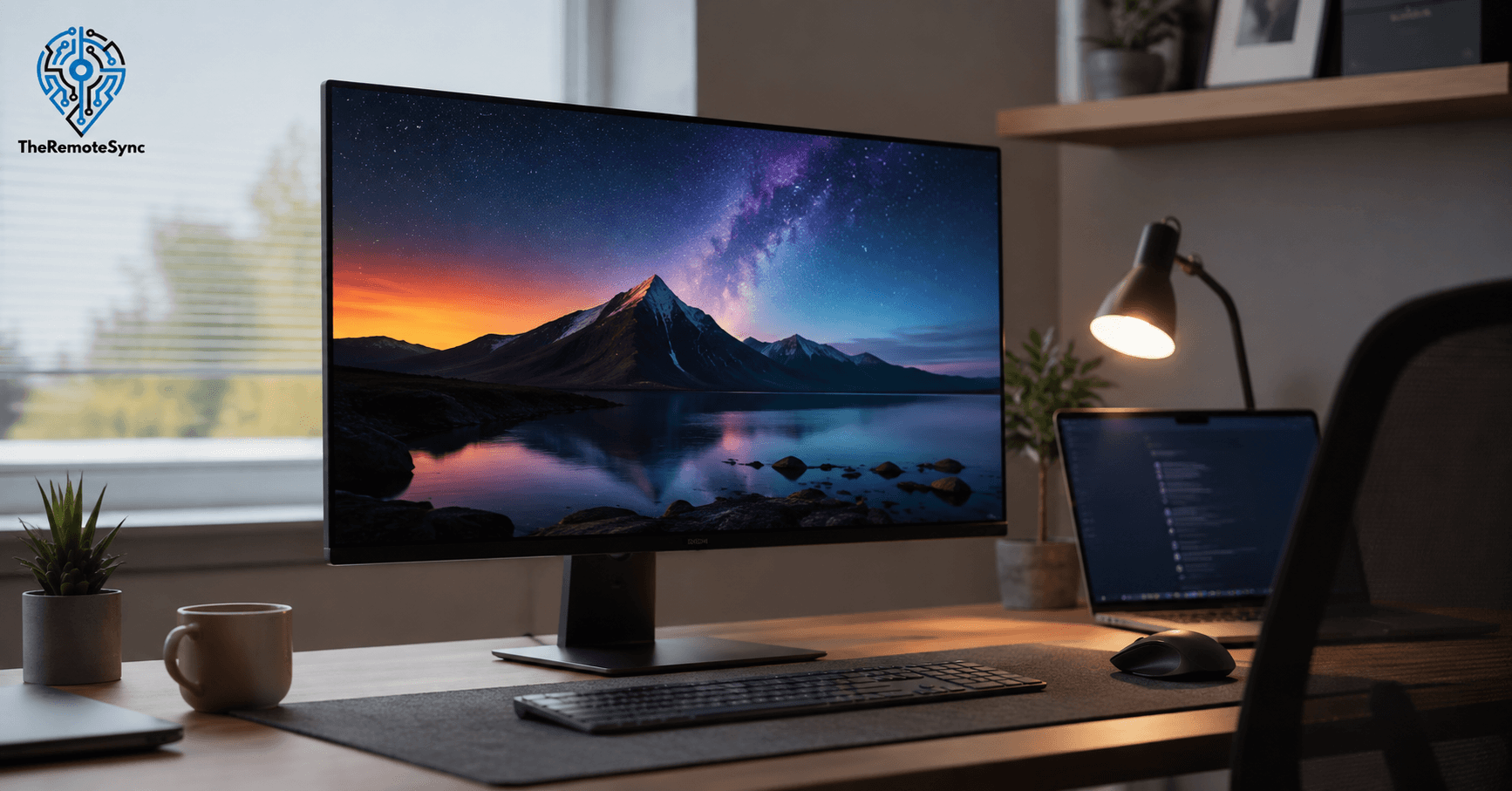
You have been staring at the same spreadsheet since 9 a.m. Your eyes feel tired. Your neck is stiff. Then you see an ad for an OLED monitor with deep blacks and a fast refresh rate, and you wonder if a new screen could fix some of this.
It will not fix your posture. But it might change how your eyes feel by 5 p.m. That is the real question behind “are OLED monitors worth it,” and it deserves a real answer, not a spec sheet.
This guide walks through what OLED actually changes for a remote work setup, what it does not change, and where the burn-in and eye strain worries are true and where they are outdated.
What Makes OLED Different From a Regular Monitor
Most monitors use a backlight. A layer of LEDs shines light through liquid crystals to make the picture. This is called LCD or LED.
OLED skips the backlight. Each pixel makes its own light. It can turn fully off, which gives true black instead of dark gray.
This sounds like a small detail. At a desk, it changes more than you would expect.
Why the Contrast Actually Matters at a Desk
Dark mode apps, code editors, and PDFs with black text on white pages all look sharper on OLED. Text edges look cleaner because there is more contrast between light and dark pixels.
Video calls also look better. Skin tones and backgrounds separate more clearly instead of blending into a gray haze, which matters more than most buyers expect once they switch.
Is OLED Worth It for Office Use, Spreadsheets, and Coding?
Short answer: yes, but not for the reason most ads focus on.
An OLED computer monitor will not make you type faster or read a spreadsheet more accurately. What it does is reduce the visual noise that builds up over an 8-hour day. Sharper text and true black backgrounds are easier on tired eyes than a washed-out gray.
If your day is mostly:
- Spreadsheets and documents: Text stays sharp, and a dark mode theme in your spreadsheet app looks noticeably cleaner than on a standard IPS panel.
- Code editors: Dark themes are common among developers, and this is exactly where OLED’s true blacks show their biggest advantage.
- Video calls and presentations: Colors and skin tones render with more depth, which makes long call days feel a little less flat.
Where OLED stops being a clear win is a bright, sunlit office. Glossy OLED coatings pick up glare fast, and that glare fights the contrast advantage you paid for.
OLED vs LED Monitor for Work: The Real Trade-Offs
Neither panel type is universally better. The right pick depends on your room, your budget, and how static your screen layout is during the day.
OLED Advantages for Remote Work
- True blacks and high contrast: Text and dark UI elements look sharper, which reduces eye fatigue during long reading sessions.
- Near-instant pixel response: Scrolling through long documents or dragging windows feels smoother, with almost no motion blur.
- Wide viewing angles: Colors stay accurate even if you lean back or someone looks at your screen from the side during a call.
- Thinner, lighter designs: No backlight layer means slimmer monitors that take up less desk depth.
LED or IPS Advantages for Remote Work
- No burn-in risk: A static spreadsheet grid or taskbar left on screen for years will not leave a mark.
- Lower price for the same screen size: You get a large, sharp panel without paying the OLED premium.
- Better performance in bright rooms: Matte IPS coatings handle window glare and overhead lighting better than glossy OLED panels.
- Longer track record for all-day static use: IPS panels were designed around exactly this kind of use case from the start.
Neither list makes one option “wrong.” It makes this a fit question, not a quality question.
The Burn-In Question: What Testing Actually Shows
Burn-in is real. It is not a myth from 2018 that manufacturers quietly fixed. But the risk today is smaller and more specific than most forum threads suggest.
RTINGS has run one of the longest independent burn-in tests on the market, pushing over 100 TVs and several monitors through simulated years of nonstop use. Their multi-year results found that OLED panels developed burn-in under extreme, unmoving test content, but the failures were less severe overall than many aging LCD backlights, which suffered their own uniformity problems after heavy use.
A separate long-term test aimed specifically at desk use is even more relevant here. Monitor testers ran an OLED gaming monitor under productivity conditions with over 95 percent static desktop apps on screen, for at least 8 hours a day, and found visible but limited image retention after 18 months of that punishing schedule.
Two things stand out from these tests:
- The worst cases involve one unchanging image, at high brightness, for years. A single static news logo or a permanently fixed toolbar is the setup that causes trouble, not a normal mixed workday.
- Normal remote work is not the worst case. You switch between apps, take breaks, and your screen sleeps at night. That alone puts real-world use far from the torture-test conditions above.
So does OLED still burn in during 2026? Yes, under sustained static use. Does that mean it will happen to your setup? Only if you ignore a few basic habits.
How to Prevent OLED Burn-In During Work Use
You do not need to baby the monitor. You need a short list of habits, done consistently.
- Auto-hide your taskbar: A visible taskbar sits in the same spot for hours every day. Hiding it removes one of the most common burn-in triggers.
- Keep brightness moderate: Full brightness speeds up pixel wear. Most office work looks fine well below max brightness, especially indoors.
- Let the screen sleep: Set a short idle timeout so the display turns off instead of showing a frozen layout during breaks or meetings.
- Vary your layout during the day: Move windows around, switch between light and dark themes, or resize your browser instead of leaving one fixed grid up all day.
- Turn on the manufacturer’s care features: Pixel shift, logo dimming, and panel refresh cycles exist for this exact reason. Leave them on.
Follow these and OLED becomes a reasonable choice, even for a desk-bound remote job.
Are OLED Monitors Bad for Your Eyes During Long Work Hours?
This question splits people into two camps, and both have a point.
Most LCD monitors dim their backlight using a method called PWM, short for pulse-width modulation. It flashes the light on and off very fast to lower brightness. Some people cannot consciously see this, but they still feel it as strain, headaches, or tired eyes after a few hours.
OLED does not need a backlight, so it usually avoids this specific flicker mechanism at normal desktop brightness. For a lot of people, that makes OLED feel easier on the eyes over a long work session.
But it is not universal. Independent research on display comfort has noted that roughly 10 to 30 percent of users report heightened sensitivity to screen flicker, and some OLED panels can reintroduce a form of PWM at very low brightness settings. A smaller group of users also report more general fatigue on OLED, regardless of flicker, especially during nighttime or dim-room work.
The honest takeaway: OLED removes the most common cause of LCD eye strain for most people, but “most people” is not “everyone.” If you already know you are flicker-sensitive, test a floor model in person before you buy, rather than trusting a spec sheet.
What Is the Real Downside to OLED Monitors?
Every upside above comes with a trade-off. Here is what does not make it into most ads.
- Higher price for the same screen size: You are paying for the panel technology, and that premium is real, even as prices have dropped in 2026.
- Glossy coatings and glare: Many OLED monitors use a glossy or semi-glossy finish that reflects window light and overhead lamps more than a matte IPS panel.
- Lower peak brightness in daylight: OLED panels can struggle to stay readable in a very bright room, since pushing brightness too high accelerates wear.
- Burn-in risk with static habits: It is manageable, as covered above, but it is a form of ongoing awareness IPS owners simply do not need.
- Delicate anti-glare coatings: These screens need gentler cleaning than a standard monitor, which is a small but real extra chore.
None of these are dealbreakers on their own. Together, they explain why OLED is not the automatic upgrade for every remote worker.
Who Should Buy an OLED Monitor for Remote Work (and Who Shouldn’t)
A good fit if you:
- Work in a dim to moderately lit room, where glare is not a daily fight.
- Spend real time in dark-themed apps, code editors, or creative software.
- Are on video calls often and care about how you and your work look on screen.
- Are willing to spend two minutes a day on habits like hiding the taskbar and letting the screen sleep.
A better fit for standard IPS if you:
- Work near a bright window or under strong overhead lighting most of the day.
- Keep the exact same spreadsheet, dashboard, or trading window open for 8-plus hours, every day, without much variation.
- Want to buy a monitor once and never think about it again.
- Are working with a tight budget where a larger, sharper IPS panel beats a smaller OLED at the same price.
This is not about OLED being “better.” It is about matching the panel to how you actually work.
Does a High Refresh Rate Matter for Work?
Most OLED monitor ads lead with refresh rate, 144Hz, 240Hz, sometimes higher, because it’s an easy number to market. For office and remote work specifically, it matters far less than the ad implies.
Refresh rate controls how smoothly motion renders on screen. That’s a real advantage for fast-moving content: gaming, video editing timelines, or dragging windows around quickly. For spreadsheets, documents, code, and video calls, the difference between 60Hz and 144Hz is close to invisible, since none of that content involves the kind of fast on-screen motion refresh rate is built to smooth out.
Where a higher refresh rate does help, even for typical desk work, is general responsiveness: cursor movement feels tighter, and scrolling through a long document has slightly less blur trailing behind the text. It’s a small quality-of-life improvement, not a productivity one.
The practical takeaway: if you’re choosing between two otherwise similar OLED monitors and one has a notably higher refresh rate for a small price difference, take it, there’s no downside. But don’t pay a significant premium for 240Hz over 144Hz, or 144Hz over 60Hz, if office work is genuinely all you’re doing on the screen. That premium is better spent on panel size, resolution, or the anti-glare coating quality that actually affects daily comfort, points this guide covers in more depth above.
If you also game or edit video on the same monitor, the calculation changes, refresh rate stops being a nice-to-have and becomes a real factor. But for a desk that’s spreadsheets, code, and calls all day, it’s the spec on the box least worth optimizing for.
How to Clean an OLED Monitor the Right Way
OLED panels use a more delicate anti-glare coating than a standard monitor, so the wrong cleaning method can leave permanent marks.
Follow this order every time:
- Power off and unplug the monitor first. This protects you and makes fingerprints and dust easier to spot on a dark screen.
- Dust it with a dry microfiber cloth. Wipe gently in one direction to lift loose dust and particles before adding any liquid.
- Dampen a second cloth, not the screen. Use distilled water, or a dedicated screen cleaner made for coated panels. Never spray liquid directly onto the monitor.
- Wipe gently in one direction. Avoid circular scrubbing and avoid pressing hard. The coating scratches more easily than glass.
- Let it dry fully before powering it back on. Touching the screen while it dries can leave new marks or push moisture into the edges.
Skip alcohol, ammonia, window cleaner, and paper towels. All four can strip the coating or scratch the surface, and the damage is usually permanent.
Frequently Asked Questions
Are OLED monitors better now than a few years ago?
Yes. Brightness, burn-in protection, and pricing have all improved since the early OLED monitor generations. The panels sold in 2026 handle office-style use far better than the first wave did.
Is LCD or OLED worse for your eyes?
Neither wins for everyone. OLED tends to avoid the low-brightness flicker that bothers many LCD users, but a small share of people report more fatigue on OLED, especially in dim rooms. Try both in person if you are sensitive to screen strain.
What is the biggest downside to OLED monitors?
Price and burn-in awareness are the two most common complaints. You pay more upfront, and you need a few basic habits, like hiding your taskbar and letting the screen sleep, to keep the risk low.
Do OLED monitors still get burn-in from spreadsheets or taskbars in 2026?
They can, if the same static element stays on screen at high brightness for years without a break. Normal daily variation, moderate brightness, and screen sleep settings keep the real-world risk low for most remote workers.
How long do OLED monitors last with daily office use?
Most well-cared-for OLED monitors hold up well for several years of normal, mixed-use office work. Heavy, unbroken static use at full brightness is the scenario that shortens that lifespan the most.
Are OLED Monitors Worth It & What to Do Next
Do not decide based on a spec sheet alone. Look at your own screen for one week first.
Notice how static your layout really is, how bright your room gets in the afternoon, and whether you already own a monitor that flickers or strains your eyes. That short audit will tell you more than any review, including this one.
If your week is mixed and your room is not fighting you with glare, an OLED monitor is a real upgrade for a remote work desk. If your day is one fixed spreadsheet under bright office lights, put that budget into a good matte IPS panel instead, and spend the difference on your chair.
Discover more from TheRemoteSync
Subscribe to get the latest posts sent to your email.