
Your video call freezes right as you are answering a client’s question. The screen share lags. You are typing “sorry, can you repeat that” for the third time this week. This is not a ‘you’ problem. It is almost always a speed problem, and most people never check the right numbers before they blame their laptop or their WiFi.
This guide gives you the exact speed you need, broken down by what you actually do during your workday. No guesswork. No upselling. Just the numbers that matter for a real WFH setup.
The Short Answer: What Internet Speed Do I Need to Work From Home?
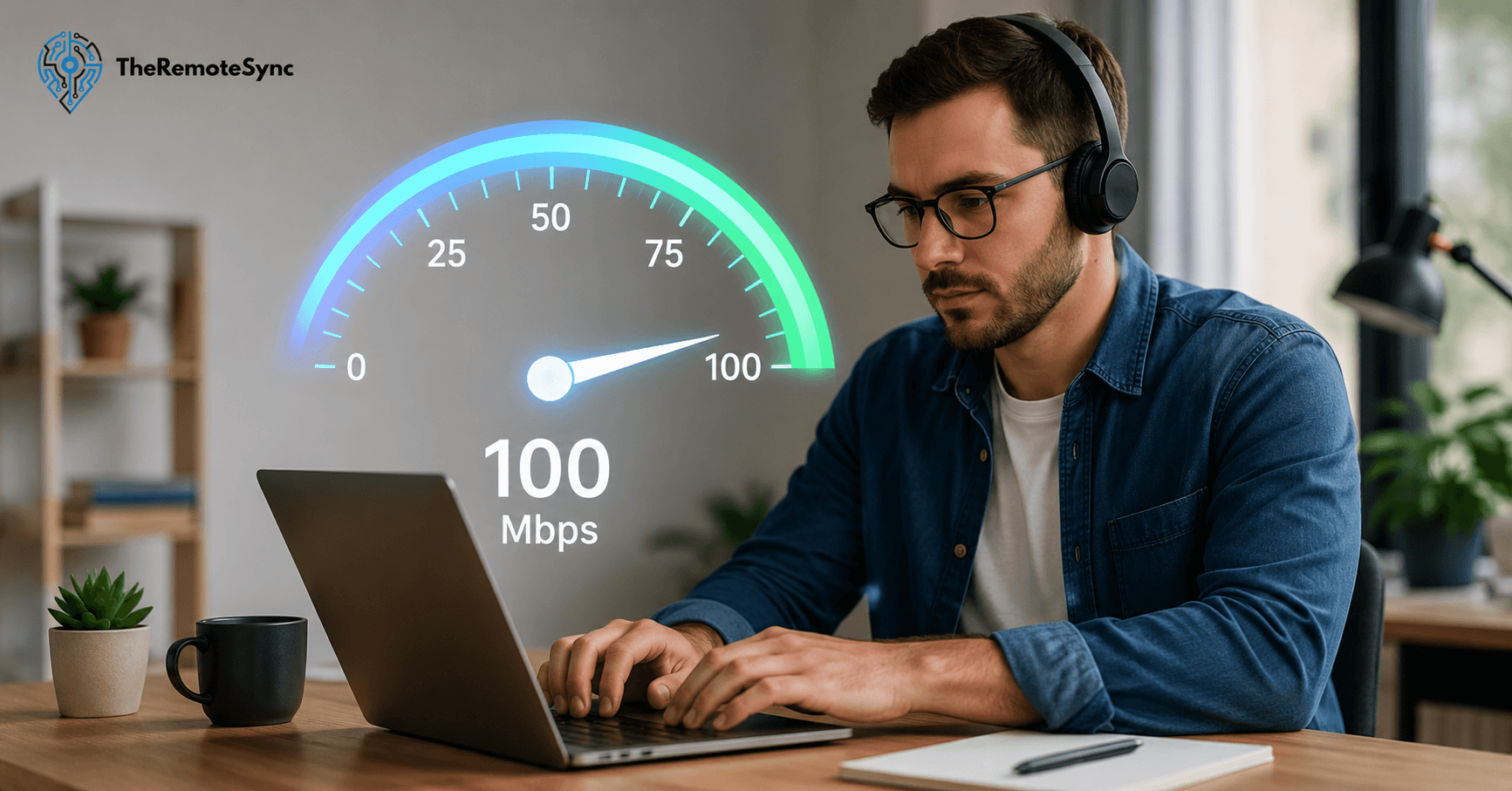
For one person working from home, aim for at least 100 Mbps download and 20 Mbps upload.
This covers video calls, cloud tools, email, and normal file sharing without stress. It also matches the FCC’s current benchmark for broadband, which sets 100/20 Mbps as the standard for a connection that can handle modern work and life.
If you live alone and mostly do calls, docs, and browser-based work, 100/20 is not a compromise. It is genuinely enough.
Where people get into trouble is upload speed, not download. Keep reading, because this is the part almost every ISP conveniently skips over.
Download Speed vs Upload Speed (Why One Gets Ignored)
Download speed is how fast information comes to you. This is what loads a webpage, streams a video, or brings in someone else’s face on a call.
Upload speed is how fast information leaves your device. This is what sends your voice, your video, your screen share, and your files to everyone else.
Internet providers love to advertise big download numbers because that is what sells streaming and gaming plans. Remote work does not care about that number nearly as much.
Every time you are on a video call, sharing a file to the cloud, or connecting through a VPN, your upload speed is doing the heavy lifting. If your upload speed is weak, your download speed will not save you. This is the number one reason people think their internet is “fine” until they start working from home full time and it suddenly is not.
How Much Speed Different Remote Work Tasks Actually Use
Not every part of your job needs the same amount of speed. Here is what actually pulls bandwidth during a normal WFH day.
Email, Docs, and Basic Browsing
- Email and web browsing: This barely touches your connection. Even 5 to 10 Mbps handles this without any strain.
- Google Docs, Notion, Slack: These are lightweight too. Anything above 10 Mbps download runs them smoothly.
Video Calls (Zoom, Google Meet, Microsoft Teams)
This is where most remote workers actually feel slow internet.
- Zoom (1-on-1 HD call): Needs around 3 to 4 Mbps download and upload each. Group calls with several video tiles push closer to 5 to 8 Mbps upload.
- Google Meet: Similar range, roughly 3.2 Mbps for a solid one-on-one video call, more if screen sharing is on.
- Microsoft Teams: Slightly heavier than Zoom or Meet, especially with screen share and background blur turned on. Plan for at least 4 to 5 Mbps upload for a stable Teams call.
If you are on back-to-back calls all day, you want comfortable headroom above these minimums, not the bare number.
Cloud Tools and File Sharing
Uploading files to Google Drive, Dropbox, or a shared company server depends entirely on file size. A few documents a day is nothing. Uploading large design files, video, or datasets regularly is where you start needing 50 to 100 Mbps upload, not just download.
VPN Access
A VPN adds overhead because your data is being encrypted and routed through another server before it reaches its destination. Even simple tasks feel a bit slower on a VPN. If your job requires one for daily access, add at least 10 to 20 Mbps of buffer to whatever your baseline would otherwise be.
Screen Sharing and Webinars
Presenting on a call, especially with video and audio running at the same time, is one of the heaviest common WFH tasks. Budget an extra 3 to 5 Mbps upload on top of your normal video call needs whenever you are the one presenting.
Internet Speed by Household Size
Your job is not the only thing using your connection. Everyone else on your WiFi is pulling from the same pool.
One Person Working From Home
100 Mbps download / 20 Mbps upload is a solid baseline. This covers calls, cloud tools, and normal browsing with room to spare.
Two People Working From Home
300 Mbps download / 50 to 100 Mbps upload is a realistic target. Two people on separate video calls at the same time, plus normal background use, adds up faster than most people expect.
500 Mbps to 1 Gbps, ideally with symmetrical upload, handles a full household. This covers remote work, streaming, online school, and smart home devices without everyone fighting for bandwidth during the afternoon.
A simple rule that holds up in practice: add roughly 20 to 25 Mbps for every extra person or heavy device on the network, beyond your core work needs.
Is Your Speed Good Enough? Quick Answers
Here are direct answers to the specific numbers people search for most.
- Is 25 Mbps enough to work from home? Barely, for one person doing light email and browsing only. It will struggle the moment video calls or file uploads enter the picture.
- Is 40 Mbps good for working from home? It works for solo, light-duty tasks, but leaves almost no room for a second device or a demanding call day.
- Is 100 Mbps good for working from home? Yes. This is the sweet spot for one person doing typical office work, calls included.
- Is 120 Mbps good for working from home? Yes, and it gives you a bit more comfort than 100 Mbps if your household has a couple of extra devices running in the background.
- Is 150 Mbps good or bad? Good. It is a comfortable step above the baseline, especially useful for one person plus light household use.
- Is 200 Mbps enough to work from home? Yes, comfortably, even with a partner streaming or a couple of smart devices connected.
- Is 500 Mbps fast for working from home? Yes, this is well past what one or two remote workers need. It is more useful for larger households than for speed alone.
- Should I get 100 or 200 Mbps? If you live alone with light to moderate video call use, 100 Mbps is enough. Choose 200 Mbps if you share the connection with another person or run a lot of devices.
- Do I need 100 or 300 Mbps? Choose 300 Mbps if two people are working from home at the same time, or if your job involves regular large file uploads.
Fiber vs Cable vs 5G Home Internet for Remote Work
The connection type matters almost as much as the number on the plan.
- Fiber: Offers matching upload and download speeds, which is exactly what remote work needs. If fiber is available at your address, it is the strongest option for stable video calls and fast uploads.
- Cable: Widely available and fast on downloads, but upload speeds are usually much slower in comparison. Fine for most remote work, but the upload gap can show up during heavy call days.
- 5G Home Internet: A reasonable backup or option where fiber and cable are not available. Performance depends heavily on your location and can be less consistent than a wired connection.
Avoid satellite internet and mobile hotspots as your main connection if you can help it. Both come with higher latency and less reliability, which shows up as lag and dropped calls even when the download number looks fine on paper.
Why Your Speed Test Looks Fine But Your Call Still Lags
This trips up a lot of people. You run a speed test, see 300 Mbps, and still get a choppy call an hour later.
Speed is only part of the story. Two other factors matter just as much:
- Latency: This is the delay between sending and receiving data. High latency causes that awkward pause where two people start talking at once.
- Jitter and packet loss: These cause distorted audio and frozen video, even on a fast connection. This is usually a sign of network congestion or an unstable WiFi signal, not a lack of raw speed.
If your download number is high but calls still feel rough, the problem is almost never your plan. It is usually your WiFi setup or too many devices competing for the same connection at once.
How to Improve Your Internet Speed Without Paying for a Bigger Plan
Before you upgrade anything, try these first. They fix a large share of WFH speed complaints for free.
- Plug in with Ethernet during calls: A wired connection is more stable than WiFi and removes a lot of the lag and dropout issues people blame on their internet plan.
- Move your router to a central spot: Walls, furniture, and distance all weaken your signal. A router in a closet or corner is working against you.
- Restart your router regularly: This clears up small performance issues that build up over days of continuous use.
- Disconnect devices you are not using: Old phones, smart plugs, and unused laptops quietly eat bandwidth in the background.
- Upgrade to a WiFi 6 router if yours is older Newer routers handle multiple devices and video calls far better than older models, even on the same internet plan.
If you have done all of this and calls still lag, that is your real signal to upgrade your plan, not before.
Hybrid Work Changes the Math
If you are only home two or three days a week, you do not need to plan your home internet the same way as someone working from home full time.
On office days, your home connection is barely being used. On WFH days, it needs to carry your full workload alone, without a shared office network backing it up.
A practical approach for hybrid workers: size your plan for your busiest home day, not your average day. If your heaviest WFH day includes back-to-back calls and file uploads, plan around that day, not the quieter ones.
How to Check If Your Current Speed Is Actually Enough
Do not guess. Confirm it in a few minutes.
- Run a speed test while nobody else is using the connection. This gives you your baseline number.
- Run a second speed test during your busiest work hour, with calls, uploads, and household devices active at the same time.
- Compare the two. A big drop between the two tests means congestion, not a weak plan.
- Check your upload number specifically, since this is the one most people never look at.
If your numbers hold up during your busiest hour, your current plan is fine. If they collapse, you now know exactly what to fix first.
Frequently Asked Questions
What is a good internet speed when working from home?
100 Mbps download and 20 Mbps upload is a solid, reliable baseline for one person doing typical remote work tasks.
How many Mbps do I need to work from home?
Most solo remote workers are comfortable at 100 Mbps. Two people sharing a connection should aim closer to 300 Mbps.
What upload speed do I need for video calls?
Plan for at least 3 to 5 Mbps upload per call, and more if you are screen sharing or on group calls regularly.
How much internet speed do I need for Teams?
Around 3 to 4 Mbps for a one-on-one call, and up to 8 Mbps upload for group calls with several video tiles active.
Is fiber or cable better for remote work?
Fiber, mainly because of matching upload and download speeds. Cable works fine for most people but tends to lag behind on upload.
What is the minimum internet speed for working from home?
25 Mbps can technically work for light, solo tasks, but it leaves no room for video calls or file uploads without strain.
Is 200 Mbps enough for working from home?
Yes, comfortably, even with a partner streaming or a couple of smart devices connected at the same time. This is well above the 100/20 Mbps baseline that handles typical solo remote work.
Is 400 Mbps good for working from home?
Yes, and it puts you past what most solo or two-person households actually need for calls, cloud tools, and file sharing. At this level, the connection type and your WiFi setup matter more to your day-to-day experience than the plan itself.
What Mbps speed is best for working from home?
For one person, 100 Mbps download and 20 Mbps upload is the sweet spot, enough for calls, cloud tools, and normal file sharing without stress. Two people sharing a connection should aim closer to 300 Mbps download with 50 to 100 Mbps upload.
Is 100 Mbps fast enough to work from home?
Yes. This is the baseline sweet spot for one person doing typical office work, video calls included, and it matches the FCC’s current benchmark for broadband.
Is 500 Mbps fast enough to work from home?
Yes, well past what one or two remote workers actually need. At this level it’s more useful for larger households running multiple devices than it is for remote work speed alone.
Is 40 Mbps good for work from home?
It works for solo, light-duty tasks like email and browsing, but leaves almost no room for a second device or a demanding day of back-to-back video calls.
Get Your Setup Right, Not Just Your Speed
A fast plan does not fix a bad WiFi setup, and a strong signal does not fix a router buried in a closet. Run the two-test check above this week. If your numbers hold up under real work conditions, save your money. If they do not, you now know exactly what to upgrade first, your router, your placement, or your plan, in that order.
Discover more from TheRemoteSync
Subscribe to get the latest posts sent to your email.