By 3 PM, your eyes feel dry and heavy. There is a dull ache behind them. You rub your forehead and blame the screen.
So you lower the brightness. Nothing changes. You switch on a night mode. Still nothing.
Here is what most people miss. The screen may be fine. The room around it may be the real problem.
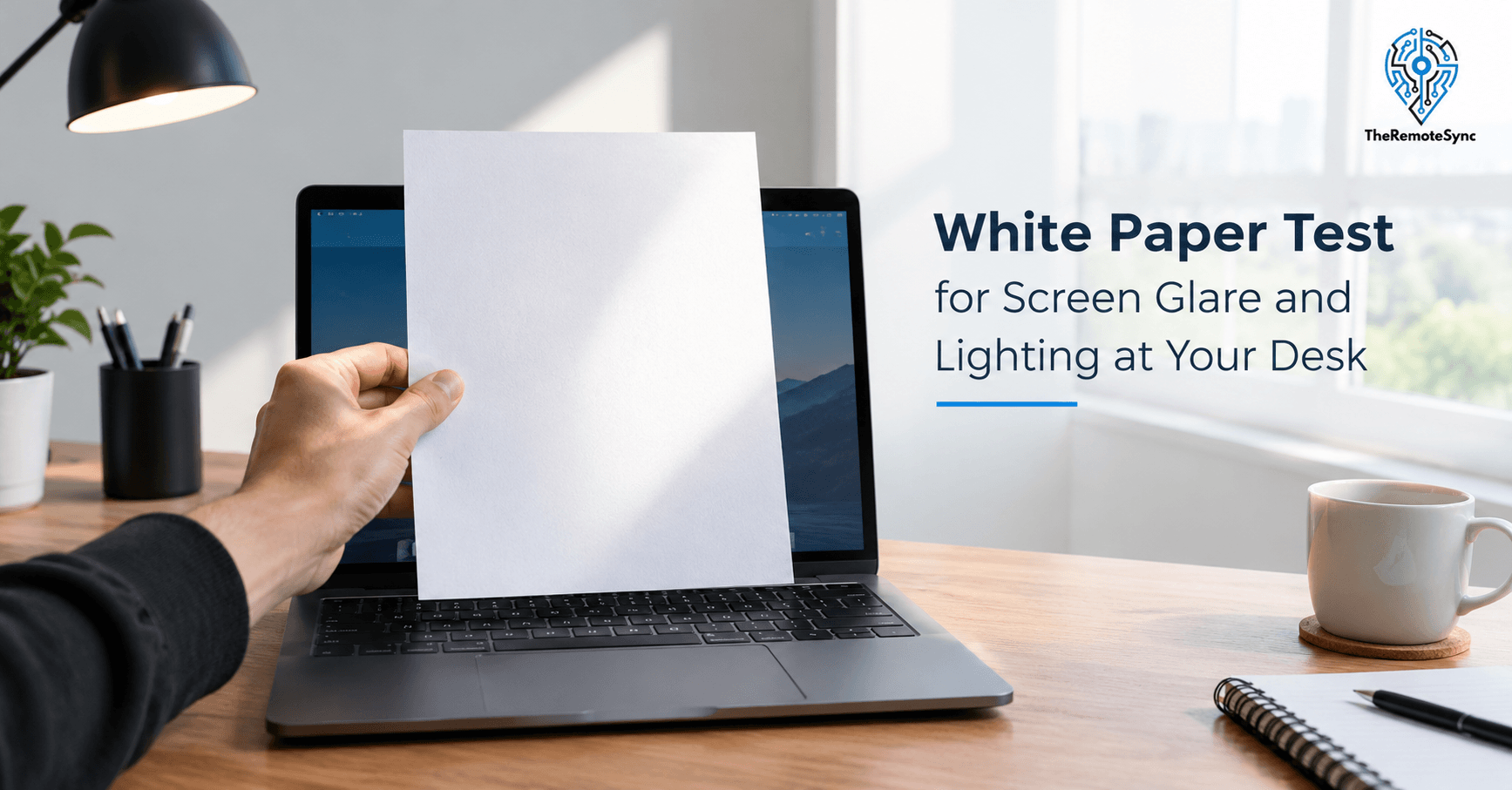
The white paper test helps you find out. You need one plain sheet of paper and about ten minutes. It shows glare, color tint, and uneven light that are hard to spot by eye alone.
This guide is built for anyone with a WFH setup, from a spare-room desk to a kitchen table. You will learn how to run the test, how to read the result, and how to fix each problem in the right order.
Why Your Eyes Hurt Even When Your Screen Looks Fine
Your eyes do not only look at the screen. They take in the whole room. A bright window behind your monitor, a bare bulb above it, or a dark wall around a glowing screen all make your eyes work harder.
That extra work adds up over a long day. It matters most in remote working, where one desk becomes your office for eight hours or more.
The numbers are large. In a 2022 survey, 80 percent of U.S. adults reported some symptoms of digital eyestrain. That survey came from The Vision Council, a trade group for eye care makers. Treat it as a rough signal, not a lab result.
The causes are easier to pin down. The American Optometric Association says poor lighting, screen glare, and bad viewing distance all add to computer vision syndrome. Two of those three are about your room, not your screen.
What an Eye Strain Headache Usually Feels Like
An eye strain headache is often a dull ache around the brow or behind the eyes. It tends to build as the day goes on. It may come with dry, tired eyes and a stiff neck.
An earlier Vision Council survey found that 21.4 percent of adults listed headache as a screen symptom. Headaches have many causes, though. If yours are strong, frequent, or come with vision changes, see an eye doctor or physician.
This test fixes your desk. It does not diagnose you.
Why a Remote Worker Owns This Problem
In an office, someone else picks the bulbs and the blinds. When you work from home, you do. Nobody will tell you the window is washing out your screen.
The white paper test gives you a way to see it yourself.
It also helps with hybrid work. If you split your week between home and an office, your lighting changes with the location. A quick test at each spot shows you what to adjust.
What Is the White Paper Test for a Monitor?
The white paper test is a quick check where you hold a plain sheet of white paper beside your screen and compare the two. It shows color tint, a brightness mismatch, and uneven or harsh room light. It is a free first check, not a lab-grade calibration.
Here is what it can show you:
- Color cast: One side looks yellow, blue, or green next to the other. That points to a screen setting or a lamp.
- Brightness mismatch: The screen glows like a light bulb next to the paper. That often means the brightness is too high for the room.
- Glare and shadows: The paper shows where light lands, where it turns harsh, and where your own body blocks it.
Here is what it cannot show you: exact color accuracy. For that, you need a measuring tool. We cover that near the end.
Is White Paper a Good Reference for White Balance?
It is good enough for comparison. It is not good enough for exact color.
Paper is not perfectly neutral. Many papers include brighteners to look whiter, and some lean slightly blue. Room light also changes how paper looks.
Photographers know this well. Gray cards and white balance cards exist because plain paper can add its own tint.
So use the paper to spot change, not to judge truth. Use the same sheet, in the same spot, every time. If the result looks wrong, you know something in the room or on the screen is off.
Which Paper to Use
The sheet you pick affects the result. Keep it simple:
- Plain, uncoated office paper: It reflects light softly, so it is the easiest to compare against a screen.
- A sheet from a fresh ream: Paper left on a sunny desk can yellow over time. A fresh sheet gives you a cleaner baseline.
- Blank on the side you use: Ink and toner change the color. Pick a side with nothing printed on it.
- Not glossy photo paper: Gloss adds reflections and hides the real color of your light.
- Not tinted or heavily recycled paper: Its own color will change your result.
Once you pick a sheet, keep it flat in a folder. Use that same sheet for every test.
What You Need Before You Start
You do not need to buy anything. Gather these:
- One sheet of plain white paper: Use the same one each time so your results are easy to compare.
- Your normal work lighting: Test at the time of day you work most. A morning test will not catch afternoon sun.
- A blank white page on screen: A new empty document works. So does any plain white web page.
- Your phone camera (optional): Use it to record glare and shadows. Do not trust it for color, because phones adjust color on their own.
- Ten to fifteen minutes: The test is quick. The fixes may take a little longer.
How to Run the White Paper Test, Step by Step
Follow the steps in order. Skipping the first one is the most common reason people get a false result.
Step 1: Turn Off Night Mode and Color Filters
Night modes warm your screen on purpose. Apple calls it Night Shift. Windows calls it Night Light. Other apps do the same job.
Some screens also adjust color to match the room. Apple calls that True Tone. These features will change what you see.
Turn them off for the test. You can turn them back on when you finish.
Step 2: Set the Room the Way You Really Work
Do not stage the room. Leave the blinds where they usually sit. Turn on the lamps you normally use. Keep your chair where it normally is.
If you work at night, test at night. If you work by a window, test in the daytime. The goal is to catch the problem you live with.
Step 3: Show a Plain White Screen
Open a blank document or a blank white page. Make it fill as much of the screen as you can.
Leave the brightness where you normally keep it. Do not change anything yet.
Step 4: Hold the Paper Next to the Screen
Sit in your normal posture. Hold the sheet beside the screen, at the same distance from your eyes. Tilt it so it faces you the way the screen does.
Your eyes adjust to color fast. If you stare at the screen first, the paper may look tinted when it is not. So glance at the paper, then the screen, then look at something far away for a few seconds. Repeat twice.
Trust your first impression. It is usually the most honest one.
Step 5: Write Down What You See
Do not rely on memory. Jot down two or three notes. Then use the table below to read your result.
| What you see | What it usually means | First fix |
| Screen looks yellow or orange next to the paper | Night mode is still on, the screen is set warm, or the room light is very cool | Turn off night mode, then set the screen to 6500K |
| Screen looks blue next to the paper | The screen is set cool, or a warm lamp is making the paper look yellow | Check the lamp color first, then the screen setting |
| Screen looks much brighter than the paper | Brightness is too high for the room | Lower the brightness in small steps |
| Paper looks yellow and the screen looks normal | A warm bulb, often around 2700K | Swap the bulb or move to a neutral white lamp |
| Paper has a bright patch or a hard shadow | The light is too close or aimed straight at the desk | Move the light to the side or soften it |
| Paper looks dim or gray | The room is too dark | Add a soft light instead of raising the screen |
This table also answers a common search: why a monitor looks yellow or blue compared to paper. In most cases, the screen and the lamp are fighting each other.
Is It the Screen or the Lamp?
Change one thing at a time. That is the only way to find the cause.
Turn off the desk lamp and run the check again. Then close the blinds and run it again. If the tint changes when the lamp changes, the lamp is the cause. If the tint stays the same, look at your screen settings.
People often change three things at once and never learn what worked. Go slowly.
How to Check Screen Brightness Against Paper
Brightness is the most common problem the paper test finds. It is also one of the easiest to fix.
Look at the screen white and the paper white together. They should look close in brightness. The screen can be a little brighter. It should not glow like a lamp.
If it does glow, lower the brightness in small steps. Drop it about 10 percent, wait a few seconds, and look again. Stop when text is still easy to read, and the white no longer feels harsh.
Do Not Fight Bad Light With More Brightness
A bright window or overhead bulb makes you want to turn the screen up. That adds glare and tires your eyes faster.
Fix the light first. Then set the brightness. In a very bright room, a higher setting is fine. But the better fix is a calmer room.
What to Do in a Dark Room
A dark room with a bright screen creates its own kind of strain. The contrast between the screen and the dark wall forces your eyes to keep adjusting.
Add a small, soft light behind or beside the screen. A lamp aimed at the wall behind your monitor works well. It lifts the dark background without adding glare to the glass.
How to Check for Screen Glare With Paper and a Dark Screen
The color test is only half of the job. The same sheet of paper also helps you find glare. This part is why the test works so well for a desk setup.
The Screen-Off Reflection Check
Turn the screen off, or set it to a plain black page. Sit in your normal posture and look at the glass.
Do you see a window shape? A lamp? A bright patch of wall? Those reflections sit on top of your work all day. Your eyes have to look past them with every line you read.
Note where each reflection comes from. Take a phone photo if it helps. You will use these notes in the fix list below.
The Paper Shadow Check
Now hold the paper where your screen sits. Then hold it over your keyboard. Look at the shadows.
- A sharp shadow from your hand: The light is small and harsh. Soften it or move it.
- A shadow from your own head: The light is behind you. That same light is probably bouncing off your screen.
- A bright hot spot on one edge: A lamp or window is too close. Move it back or to the side.
- Even, soft light across the sheet: This is what you want. It means your setup spreads light well.
The Three Kinds of Glare
Knowing the kind of glare helps you pick the right fix:
- Direct glare: A bare bulb or a window sits in your line of sight. Your eyes squint without you noticing.
- Reflected glare: Light bounces off the screen into your eyes. Your screen-off check finds this one.
- Contrast glare: The screen is far brighter than the space around it. This is common in dark rooms.
Fix Glare in This Order
Start with the cheapest fix. Stop when the problem is gone.
- Turn the desk so windows sit to the side. Light from behind the screen causes contrast glare. Light from behind you causes reflections. Side light is the safest.
- Close the blinds or add a sheer curtain. Do this at the hours when the sun hits your desk. You do not need a dark room, just a calmer one.
- Tilt the screen a few degrees. A small angle can move a reflection out of your line of sight.
- Move or shield bare bulbs. Put lamps to the side. Use a shade or a diffuser so the bulb is not in view.
- Lower the brightness. Match it to the paper, as covered above.
- Add a matte screen filter. This is a last resort for glossy screens. Try the free fixes first.
After each change, run the paper check again. Then decide if you need the next step.
Check Your Desk Lamp Color Temperature
Your lamp changes how everything looks. It changes the paper, your skin, and your screen.
Kelvin (K) measures the color of light. Lower numbers look warm and yellow. Higher numbers look cool and blue-white.
Most home bulbs sit near 2700K to 3000K. Many office lights sit near 4000K to 5000K. Midday daylight is often around 5000K to 6500K. Most screens aim for a white point of 6500K.
Why a Warm Lamp Can Make Your Screen Look Blue
Put a 2700K lamp next to a 6500K screen. The paper turns yellow. The screen suddenly looks blue by comparison.
Here is the trap. Most people respond by making the screen warmer. Now the whole screen is tinted. Your documents look yellow. Your video calls look off too.
Fix the lamp first. Do not bend the screen to match a warm bulb.
A Good Starting Point for a Work Lamp
For daytime work, a neutral white bulb around 4000K to 5000K is a solid place to start. It sits closer to your screen and looks clean without feeling cold.
This is a starting point, not a rule. Some people find cooler light harsh. If it bothers you, try a step warmer and run the test again.
Two small tips:
- Look at the bulb box: The color temperature is printed on it. Do not guess from the shape or the brand.
- Check the CRI number if you care about color: A higher color rendering index, such as 90 or above, shows colors more truthfully.
In the evening, warmer light is fine. It helps many people wind down. Just know that your paper test will look different at night. That is normal. Run the test at the hours when you do your most important work.
How to Set Monitor Color Temperature to 6500K
Once the lamp is sorted, check the screen. Setting the monitor color temperature to 6500K is the simplest fix for most tint problems.
Find the Setting
Press the small buttons on your monitor to open its on-screen menu. Look for a section called Color, Color Temp, or Picture.
Names vary by brand. You may see Warm, Normal, and Cool. You may see User or Custom with red, green, and blue sliders. You may see an sRGB mode.
Look for a setting that shows 6500K. If you do not see a number, an sRGB mode is often close. If you are unsure, check the monitor manual for what each preset means.
Try More Than One Preset
Do not assume the preset named Normal is neutral. Some monitors ship with a slight cast in their default mode.
Try two or three presets. Run the paper test after each one. Pick the one where the screen and the paper look closest. Then stop changing it.
How to Check Your Monitor White Point Without a Calibrator
White point is the exact shade of white your screen shows. Measuring it truly needs a device. But you can get close without one.
Here is the method:
- Turn off night mode and color filters.
- Set the screen to 6500K or an sRGB preset.
- Put neutral light on the paper. Daylight from a window on an overcast day, or a bulb near 5000K, works well.
- Compare the screen to the paper using Step 4 above.
- If the paper looks warmer or cooler than the screen, check your lamp before you change the screen.
This will not give you exact numbers. It will tell you if something is clearly off. For most remote workers, that is all you need.
Why Does My Screen Look Different From a Printed Page?
A screen makes its own light. Paper only reflects the light in the room. So paper picks up the color of your lamp, while the screen does not.
Screens are also usually brighter than paper. That makes a print look dull next to the glass.
To judge a print fairly, view it under neutral light and lower the screen brightness first. Do not expect a perfect match. A close match is a good result.
Use the White Paper Test on Your Webcam
Your screen is only half of the picture. Your webcam also reacts to your room. If you look yellow or orange on calls, the same paper helps you find out why.
Why Does My Webcam Look Yellow or Orange on Calls?
Your webcam guesses the color of your room light. This guess is called auto white balance. It works fine in one steady light.
It struggles when you mix lights. A window on one side and a warm lamp on the other confuses it. The color may even shift in the middle of a meeting.
That is why people look healthy in one call and orange in the next.
How to Test Webcam White Balance With a Sheet of Paper
- Open your camera preview in your calling app or your webcam software.
- Hold the paper where your face sits, facing the camera.
- Look at the paper in the preview. Does it look white, or does it look yellow, orange, blue, or green?
- Change one light at a time and check again.
If the paper looks tinted, the camera is struggling with your light. Now you know where to work.
Turn Off Auto White Balance on Your Webcam
Many webcams come with their own app. Look there first. Call apps and free camera tools may also have a white balance control. Not every webcam allows manual control, so check what yours offers.
Set white balance to manual. Move the slider until the paper looks white. Then leave it alone.
Auto white balance is useful when your light changes often. But if your light is steady, a locked setting keeps your color from drifting during a call.
One honest limit: a webcam is not a measuring tool either. After you adjust, check your skin tone too. Ask a coworker if you look natural. A quick human opinion beats a slider.
Fix Mixed Light Before You Fix the Camera
If you have two light sources with different colors, fix that first.
- Choose one main light: Face a window, or place a lamp in front of you. Do not mix them if you can avoid it.
- Use matching bulbs: Two lamps with different color temperatures make your face look uneven.
- Close the blinds during calls: Window light shifts with clouds and time of day. Closing the blinds keeps it steady.
Pick a Desk Lamp for Video Calls
The color temperature of your desk lamp matters on calls too. A neutral to daylight white, in the 4000K to 5000K range, usually looks natural on camera. Lamps that let you adjust the color temperature give you more control.
Placement matters as much as color:
- Put the light in front of you: A light behind you makes your face dark.
- Place it slightly above eye level: This is more flattering than light from below.
- Skip the overhead light: Overhead light creates shadows under your eyes and nose.
- Soften the light: A shade or a diffuser keeps it from looking harsh.
A Few Common WFH Setups and What the Test Usually Shows
Every home office is different, but the same problems repeat. Here are three common ones.
The Spare Room With a Window Behind the Monitor
What the test shows: The screen-off check reveals a bright rectangle in the glass. The paper looks dim next to the window. Your eyes squint without you noticing.
Fix: Turn the desk so the window is at your side. If you cannot move the desk, use blinds or a sheer curtain during the brightest hours.
The Kitchen Table With a Bright Overhead Light
What the test shows: The paper looks flat and a little harsh. Your head casts a shadow on the keyboard. The screen shows a reflection of the ceiling light.
Fix: Turn off or dim the overhead light. Use a lamp to the side. Tilt the screen slightly to move the reflection away.
The Bedroom Desk With a Warm Evening Lamp
What the test shows: The paper looks yellow. The screen looks blue next to it. You may have already made the screen warmer to compensate.
Fix: Use a neutral bulb at the desk during work hours. Save warm light for after work. Then reset the screen to 6500K and test again.
How Often Should You Repeat the White Paper Test?
Run it every few months. Run it again any time something changes. This is a guideline, not a hard rule.
Here are the moments worth a quick re-check:
- You change a bulb or add a lamp: New light changes the whole result.
- The seasons shift: The sun sits lower in winter and hits your desk at new angles. Day length also changes your lighting hours.
- You move your desk: Even a small shift changes reflections.
- You get a new screen or update your software: Updates can reset color settings or turn night mode back on.
- You split time across places: With hybrid work, test each space once. Then you know what to adjust when you switch.
- Your eye strain comes back: That is your cue. Run the test before you buy anything.
When the Paper Test Is Not Enough
For most remote workers, the paper test is plenty. It finds the common problems for free.
But if you edit photos or video, work in print design, or need exact color, paper has limits. Two tools are worth knowing about.
- A colorimeter: This is a small sensor that sits on your screen and measures what it really shows. It gives you exact numbers, not an eyeball guess.
- A gray card: This is a flat card made to be neutral. It is a better reference than paper for setting white balance on a camera.
Frequently Asked Questions
What is the white paper test for a monitor?
It is a quick comparison. You show a plain white screen, hold a blank sheet of white paper beside it, and look for differences in color, brightness, and light. It helps you spot a tint, a screen that is too bright, and glare. It is a first check, not an exact measurement.
How do I know if my monitor has a color cast?
Show a blank white page and compare it with white paper in the same room light. If the screen looks yellow, blue, or green next to the paper, you may have a cast. Turn off night mode first. Then check the lamp, because room light can fool your eyes.
What color temperature should my monitor be?
For most screens, 6500K is the standard white point and a good starting point. If your monitor has an sRGB mode, that is often close to it. Preset names like Warm, Normal, and Cool vary by brand, so check the manual. After you set it, repeat the paper test.
Is white paper a good reference for white balance?
It is fine for a quick comparison. It is not exact. Paper is rarely perfectly neutral, and many sheets lean a little blue because of brighteners. Room light also changes how it looks. For exact results, use a gray card or a measuring tool.
Why does my screen look different from a printed page?
A screen makes its own light. Paper only reflects the light in the room. So paper takes on the color of your lamp, while the screen does not. Screens are also usually brighter. Lower the brightness, and view the print under neutral light.
How do I fix a yellow tint on my monitor?
Start with the simple things. Turn off night mode. Check your color preset and set it to 6500K or sRGB. Then check your lamp, because a cool room light can make a screen look warm by comparison. Run the paper test again after each change.
How do I fix my webcam’s white balance?
Open your camera preview and hold white paper where your face sits. Turn off auto white balance in your camera app or call settings. Adjust it by hand until the paper looks white. Then fix mixed light, such as a window plus a warm lamp, so the color stays steady.
How often should I check my screen’s color?
Every few months is enough for most people. Check again when you change a bulb, move your desk, get a new screen, or when the seasons shift. Also check after software updates, which can reset color settings. Run a quick test whenever eye strain returns.
Run the Test Before Your Next Meeting
Grab one sheet of plain white paper. Open a blank page on your screen. Turn off night mode. Then run Steps 1 to 4 at your desk, right now.
Fix the first thing you find, and only that thing. Then test again. Most people see a clear difference after one or two changes.
If the headaches or blurry vision stay after you fix the light, book an eye exam. Your desk may not be the only cause.
Save the sheet in a folder near your desk. Run the test again when the seasons change, or when your eyes start to feel tired by 3 PM.
Discover more from TheRemoteSync
Subscribe to get the latest posts sent to your email.