Modern remote work often means staring at a screen for 8 to 10 hours a day, and by mid-afternoon, that shows up as blurred vision, dry eyes, or a headache that seems to come from nowhere. Often, it’s your monitor settings, not your eyes themselves, that are the real problem.
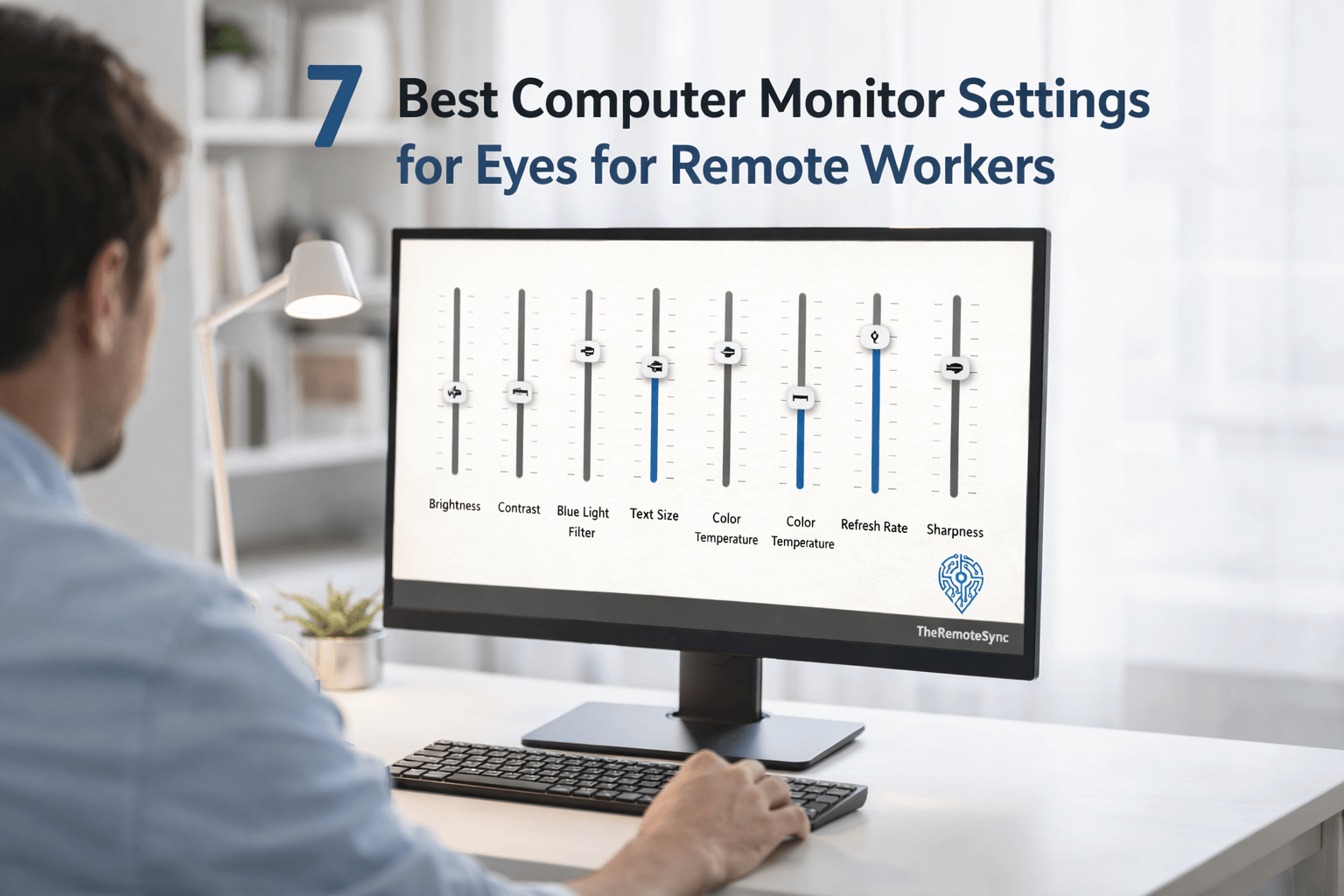
This guide covers the specific settings worth adjusting: brightness, color temperature, contrast, refresh rate, resolution, and a few multi-monitor and HDR details most guides skip. If you want the fuller picture on symptoms, habits, and when eye strain needs more than a settings fix, our eye strain and headaches guide covers that ground.
1. Match Your Brightness to Ambient Lighting
One of the main causes of eye strain is a screen that’s much brighter or dimmer than the room around it. If your monitor glows like a lamp in a dark room, your pupils constrict and dilate constantly trying to compensate, which tires the muscles that control them.
The goal: your screen should look roughly like a piece of paper in that room, not a light source. For most home offices, that generally corresponds to somewhere in the 100 to 150 nit range.
Most consumer monitors don’t display brightness in nits directly, they show a 0 to 100 percent slider instead, so that target needs a practical translation. For most monitors in a normally lit room, that generally lands somewhere between 30 and 50 percent brightness on the on-screen display, though this varies by panel, some monitors run brighter or dimmer at the same percentage than others. If your monitor has an ambient light sensor and an auto-brightness feature, turning that on is usually more accurate than guessing a fixed percentage, since it continuously adjusts as the room changes through the day.
A simple manual check: hold a white piece of paper next to your monitor. If the screen looks noticeably brighter than the paper, turn the brightness down.
2. Adjust Your Color Temperature and Blue Light Filter
Color temperature refers to the warmth or coolness of the light your screen emits. High-energy blue light helps with alertness during the day, but too much of it in the evening contributes to dry eyes and can interfere with sleep.
Use a neutral temperature around 6,500K during the day, which mimics natural daylight, and shift to a warmer, yellowish tone around 3,400K or lower in the evening. Built-in tools handle this automatically: Windows Night Light, macOS Night Shift, or the cross-platform f.lux all adjust color temperature based on the time of day without needing to remember to change it yourself.
3. Set the Correct Contrast Ratio
Contrast ratio is the difference between the whitest whites and blackest blacks your screen displays. Too little contrast makes text harder to distinguish from its background, which forces your eyes to work harder to read.
Keep contrast somewhere in the 60 to 70 percent range on your monitor’s on-screen display, and stick to dark text on a light background for long reading sessions, it remains the easiest combination for quick visual processing.
4. Refresh Rate vs. PWM Flicker
A low refresh rate can cause a subtle flicker that you don’t consciously perceive but that your visual system still responds to, and it’s a real contributor to eye strain for some people. Most office monitors default to 60Hz; moving to 75Hz or higher, where your monitor supports it, makes scrolling and cursor movement noticeably smoother.
It’s worth separating refresh rate from PWM (pulse-width modulation) flicker, which is a different mechanism entirely. Refresh rate is how often the image updates; PWM is how some monitors dim their backlight, by rapidly flashing it on and off rather than genuinely lowering light output. A monitor can have a high refresh rate and still use PWM dimming at lower brightness levels, which is what actually causes flicker-related strain for sensitive users, not the refresh rate itself. If you’re specifically sensitive to flicker, look for a “flicker-free” spec on the monitor’s listing rather than assuming a higher Hz number alone solves it.
5. Use Native Resolution and Display Scaling
Running a monitor at a resolution it wasn’t built for makes images and text blurry, forcing your eyes to work harder to resolve what should be sharp detail. Always set your display to its recommended, native resolution.
If text feels too small at native resolution, increase display scaling (125% or 150%) rather than dropping to a lower resolution. Scaling keeps images sharp while making everything physically larger and easier to read.
A Note on 4K and High-DPI Scaling Specifically
If you’ve upgraded to a 4K or other high-resolution monitor and text looks smaller than expected, or oddly sized compared to your old monitor, that’s a scaling issue rather than a resolution problem, and it’s worth fixing properly rather than working around.
Windows and macOS both apply a default scaling percentage automatically based on screen size and resolution, but that default doesn’t always match your actual viewing distance or preference. Rather than living with text that’s slightly too small, go into your display settings and adjust the scaling percentage directly, most systems offer increments like 100%, 125%, 150%, and 175%, and it’s worth testing adjacent values rather than assuming the default is correct for your setup.
One thing to watch for on 4K displays specifically: some older applications don’t scale cleanly and render blurry or pixelated text at non-100% scaling, even though the display itself is sharp. If a specific app looks blurry while everything else on the same monitor looks fine, that’s usually an application-level scaling bug rather than anything wrong with your monitor settings, worth checking for an app update before assuming your display is at fault.
6. Ergonomic Positioning and Monitor Distance
The best settings won’t help if your screen is positioned wrong. Keep the screen 20 to 28 inches away, an arm’s length, roughly, with the top of the screen at or slightly below eye level. This creates a slight downward gaze that lets your eyelids cover more of your eye’s surface, which helps reduce dryness over a long session.
7. Is Dark Mode Better for Your Eyes?
Whether dark mode helps depends entirely on your ambient lighting. In a dim room, it reduces the total light hitting your eyes and is generally the better choice. In a bright room, white text on a black background can cause “halation,” where the light and dark areas seem to bleed together, making text harder to read rather than easier. The practical rule: light mode during the day, dark mode at night.
Settings Alone Aren’t Enough
The 20-20-20 rule, every 20 minutes, look at something 20 feet away for 20 seconds, remains the most effective single habit for preventing strain, and studies on blink rate during screen use show it can drop anywhere from roughly 30 to 60 percent depending on the task, which is part of why dry eyes are so common during long work sessions. Our eye strain and headaches guide covers this habit, along with lighting and glasses, in more depth.
Matching Brightness and Color Across Multiple Monitors
If you run two or more monitors, mismatched brightness or color temperature between them is its own source of eye strain, one specific to multi-monitor setups. Your eyes constantly readjust every time your focus shifts from one screen to another, on top of the readjustment already happening between your screen and the room, and over a full day of glancing back and forth, that adds up.
Fix this by manually setting both monitors to the same brightness percentage and color temperature preset, rather than trusting each monitor’s out-of-box defaults, which frequently differ even between two units of the same model. If your monitors support it, use each one’s sRGB or a matched custom preset instead of leaving them on their default “vivid” or “standard” picture modes, which are usually tuned differently panel to panel.
If one monitor is noticeably older than the other, expect some mismatch regardless of settings; panel brightness degrades unevenly over years of use, and no software setting fully corrects for that. In that case, prioritize matching color temperature over exact brightness, since color mismatches are more noticeable to your eyes than small brightness differences.
Should You Turn Off HDR for Work
HDR (High Dynamic Range) is increasingly turned on by default on newer monitors and laptops, and it’s built for a different purpose than office work. HDR pushes brightness significantly higher in specific parts of an image, highlights in video, sky in photos, to look more realistic. For movies and games, that’s the point. For spreadsheets, documents, and browser windows, it often means inconsistent brightness across your screen or a display’s auto-brightness responding unpredictably to what’s on screen.
For most office and remote work use, turning HDR off and relying on standard dynamic range gives more consistent, predictable results and less eye strain than HDR left on by default. Turn it back on when you’re actually watching HDR content or gaming, and off for the rest of your workday.
Quick Settings Checklist
| Setting | Recommended | Why |
|---|---|---|
| Brightness | Roughly 30–50%, or match a piece of paper in the room | Matches ambient light, reduces pupil strain |
| Color temperature | 6,500K daytime, 3,400K or warmer in the evening | Reduces blue light exposure late in the day |
| Contrast ratio | 60–70% | Keeps text legible without overworking your eyes |
| Refresh rate | 75Hz or higher if supported | Reduces perceived motion flicker |
| Resolution | Native/recommended, scaled up if text is small | Avoids blur from non-native scaling |
| Distance | 20–28 inches, top of screen at or below eye level | Reduces sustained close-focus strain |
| HDR | Off for office work, on for video/gaming | Avoids inconsistent brightness on standard content |
Frequently Asked Questions
What are the best monitor settings for eyes?
Match your brightness to the room so your screen looks like a piece of paper rather than a light source, aim for 100 to 150 nits in most home offices. Set color temperature to a neutral 6,500K during the day and warmer around 3,400K in the evening, keep contrast between 60% and 70%, and run your display at native resolution with scaling turned up rather than resolution turned down if text feels small.
Is 60Hz or 120Hz better for eyes?
120Hz is better. A low refresh rate like 60Hz can cause a subtle flicker that your eyes don’t consciously register but still respond to, and that flicker is a common trigger for eye strain headaches. Moving to 75Hz, 120Hz, or higher makes scrolling and cursor movement smoother, which reduces the effort your eyes spend processing motion.
Does 240Hz reduce eye strain?
It can help further, but the gains taper off past 120Hz for most people. The biggest jump in comfort comes from moving off a standard 60Hz screen to something smoother like 120Hz. Beyond that, 240Hz is more valuable for fast motion tasks like gaming than it is a meaningful additional fix for everyday eye strain.
Is IPS or OLED better for eyes?
Both are strong choices, and the better pick depends on your setup. IPS panels offer excellent contrast and color accuracy for all-day use at a desktop scale. OLED panels naturally emit less blue light and offer even higher contrast, making them a great option for secondary or portable displays, though they’re less common as large primary desktop monitors.
How do you reduce eye fatigue from a computer screen?
Layer your settings with your habits: match screen brightness to ambient light, use a neutral color temperature during the day, and keep the screen 20 to 28 inches away with the top at or slightly below eye level. On top of the setup, follow the 20-20-20 rule (every 20 minutes, look at something 20 feet away for 20 seconds) and blink consciously more often, since blink rate drops significantly during screen use.
Does screen size affect eye strain?
Somewhat, though positioning matters more than size alone. A larger screen viewed from the correct distance isn’t inherently harder on your eyes than a smaller one, but a large monitor placed too close forces your eyes and neck to work harder scanning across it. If you upsize your monitor, increase your viewing distance to match rather than keeping the same desk position you used with a smaller screen.
Should I use auto-brightness or set it manually?
Auto-brightness, when available, is generally the better choice, since it continuously adjusts as natural light changes through the day rather than requiring manual adjustment every few hours. The exception is a poorly calibrated ambient light sensor that swings brightness unpredictably; in that case, a fixed manual setting dialed in for your typical lighting is more consistent.
Conclusion
Your monitor settings are one of the highest-leverage, lowest-effort changes you can make for daily comfort. Match your brightness to the room, keep your color temperature neutral during the day and warm at night, and turn HDR off outside of media use. Small adjustments here compound over a 40-hour work week in a way that’s easy to underestimate until you actually make them.
Discover more from TheRemoteSync
Subscribe to get the latest posts sent to your email.